 User Documentation
 In this tutorial we'll add a hyperlink to the Our Services article — pointing to the Joomla project itself, since that's what powers this site.
Prerequisites
- 1 Tutorial Introduction covers where to run your tutorial and administrative access.
- 3.3 Lists creates the Our Services article's What's Included and Getting Started lists this tutorial builds on.
Steps
- Log in to Joomla backend and navigate to the Home Dashboard.
- In the Administrator Menu, click Content > Articles.
- Click Our Services to reopen it for editing.
- Click and drag the Resize handle in the bottom-right corner of the text area downward, to display more of the article as you work.
- Click the Fullscreen icon in the toolbar (four small arrows pointing to the corners) to expand the editor to fill the browser window — or press ⌘⇧F. Click it again, or press the same shortcut, to return to normal size.
- Click at the end of the Support paragraph, then type a new sentence: This site is proudly built on Joomla, the content management system behind millions of websites worldwide.
- Select the word Joomla within the sentence you just typed. Result: The popup toolbar appears.
- Click the link icon in the popup toolbar. Result: The hyperlink editing form appears.
- Enter the URL https://www.joomla.org.
- The Text to display field is already filled in with Joomla, since that's what you had selected. You may override this if desired.
- Title: The Joomla Website
- Set Open link in... to New window. Note: joomla.org, like many external sites, won't display itself inside a frame — and Joomla's own Preview button opens your article inside one. Without this setting, clicking the link from Preview will fail with a browser error; opening it in a new window avoids the problem entirely.
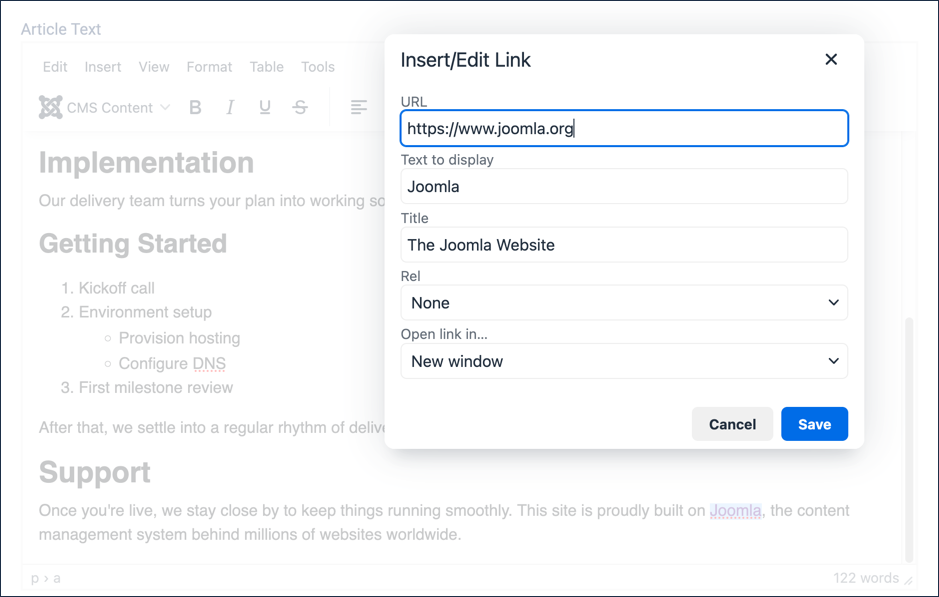
The Insert/Edit Link form, filled in and ready to save - Click to save the form. Result: Joomla now appears as a hyperlink in the text.
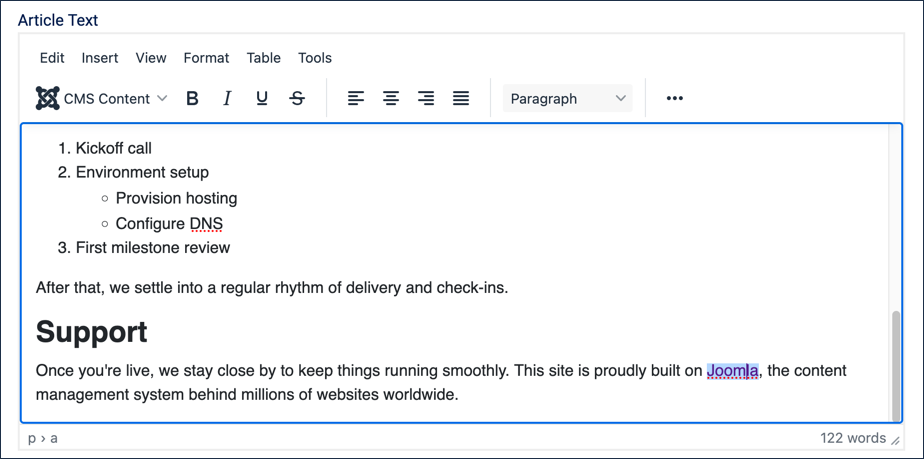
Joomla now appears as a link in the Support paragraph - Click the Save button (do not close the article yet), then click the Preview button after the page refreshes. Result: A frame pops up displaying your article.
- Scroll down to the Support section and try out the link. Result: Joomla's site opens in a new tab, thanks to the Open link in... setting from the previous step.
- Close the frame to return to your article.
Editing, Removing, or Testing a Link
- In the text editor, right-click the Joomla link. Result: The link is highlighted, and a menu with three options appears:
- Link... reopens the Insert/Edit Link form.
- Remove link removes the link but leaves the display text.
- Open link opens the link in a new tab or window. Use this to test a link while editing.
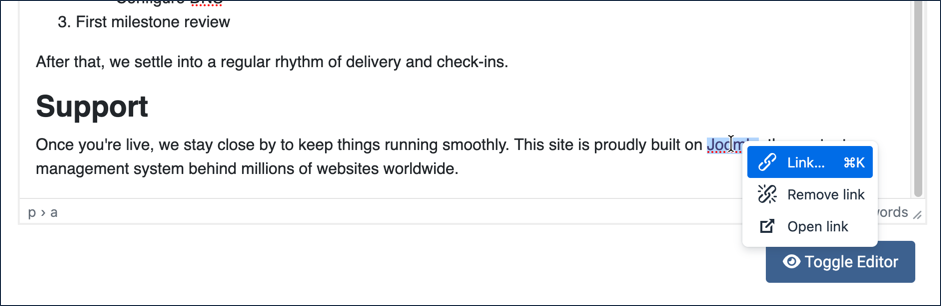
The right-click menu for editing, removing, or opening the link - Press the Escape key to hide the menu.
Click Save & Close. Result: Our Services now links out to the Joomla project from its Support section.
Concepts
Hyperlinks can take the user to a different page, or open the page in a new tab or window. This can be selected in the Insert/Edit Link form. Opening a link in a new tab or window is sometimes used for supplemental content, such as reference information — and it's also the safer choice for links to sites outside your own, since some external sites refuse to display themselves inside a frame, which is how tools like Joomla's Preview work. Opening in a new window sidesteps that entirely.
This reference on hyperlinks and accessibility explains important considerations for those using assistive technology. Linking a meaningful word like Joomla, rather than generic text like "click here," is part of that — it tells the reader what the link leads to, in and out of context.
Adding a Title (available in the Insert/Edit Link form) will display a small popup message when the user hovers over a link.