 User Documentation
 A URL is an address the browser uses to find an article. You might create an article on your website and send the URL to someone in an email. Joomla calculates an article's URL dynamically, and that URL can change. The purpose of this tutorial is to explore a few ways that an article's URL can change, and one way to deal with obsolete URLs.
This tutorial will not examine URLs in detail; it will use a text editor to record and compare changes to an article's URL throughout the tutorial — changes that will be obvious without a detailed understanding of how they work.
Prerequisites
- 1 Tutorial Introduction covers where to run your tutorial and administrative access.
Setup
Create a New Category
- Click Content > Categories.
- Click New. Result: A new-category form appears.
- Title: Sundial Software
- Save & Close
Create an Article
- Click Content > Articles.
- Click New. Result: A new-article form appears.
- Title: Sun Daze Companion. Add some body text.
- Featured: Yes
- Category: Sundial Software
- Save & Close
Recording the URL
Throughout the tutorial you will be asked to record a URL by copying it out of your browser's address field and pasting it into a text editor.
Steps
Record the Original URL
- View the site using the View Site link. Result: The Sun Daze Companion article appears on the homepage as a featured item.
- Click the article, then copy the article URL from the browser's address field and paste it into the text editor. Annotate this as the Original URL.
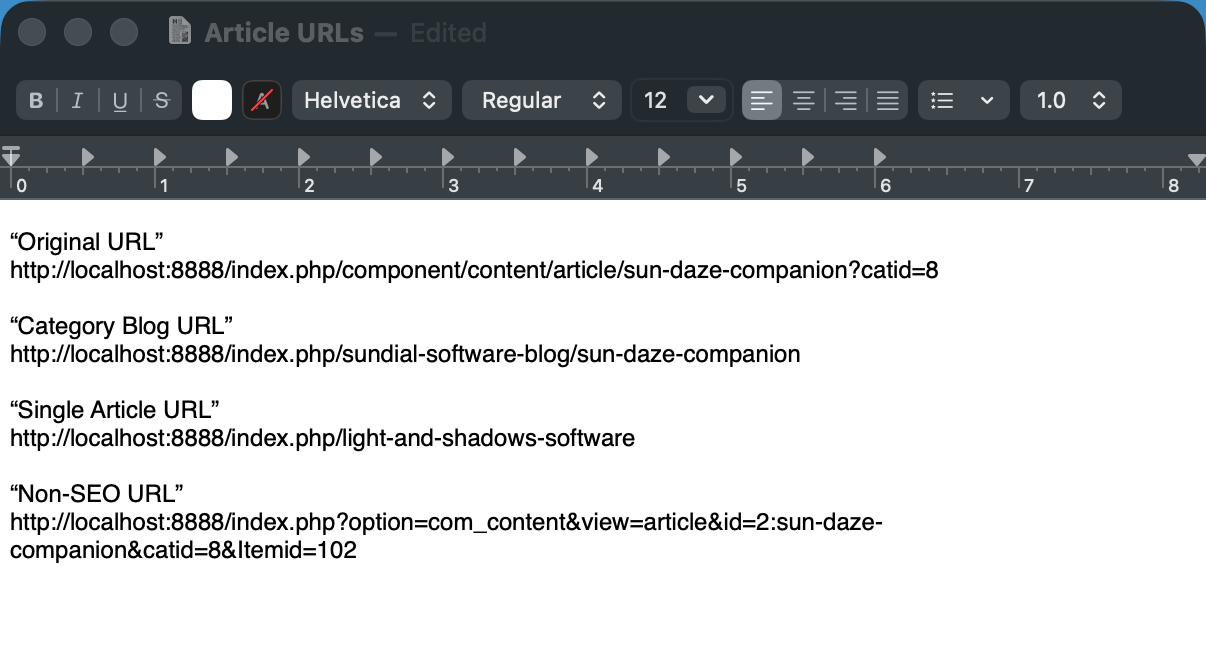
URLs recorded in a text editor for comparison.
Create a Category Blog Menu Item
- Close the tab, returning to the administrator tab.
- Click Menus > Main Menu, then click New. Result: A new-menu-item form appears.
- Title: Sundial Software Blog
- Menu Item Type: Articles > Category Blog
- Category: Sundial Software
- Save & Close
- View the site and click Sundial Software Blog in the main menu. Result: The Sun Daze Companion article is displayed.
- Click through to view the article and record the URL, annotating it Category Blog URL. Note: Joomla updated the URL when the Category Blog menu item was created.
- Close the tab and return to the administrator tab.
Single Article Menu Item
Imagine this article is a new blog entry that you want to promote. You've made it a featured item, but you also want to temporarily add a link from the main menu so that visitors can find it no matter where they go on your site. After some time, you plan to remove this menu item.
- Click Menus > Main Menu, then click New. Result: A new-menu-item form appears.
- Title: Sun Daze Companion App
- Menu Item Type: Articles > Single Article
- Article: Sun Daze Companion
- Save & Close
- View the site and click Sun Daze Companion App in the main menu. Copy the URL and paste it into the text editor, annotating it Single Article URL. Note: Joomla has updated the URL again, now that the Single Article menu item exists.
- Bookmark this article, just as a visitor to your website might.
Imagine that some time has passed, and it's now time to remove the Sun Daze Companion App menu item from the main menu.
- Close the tab, returning to the administrator tab, to unpublish the menu item.
- Click Menus > Main Menu.
- Click the status icon to unpublish the Sun Daze Companion App menu item.
- View the site. Result: The Sun Daze Companion App link is gone from the main menu.
- Click the article. Result: It displays normally.
- Click your bookmark for the article. Result: An error occurs — the article is no longer available at that URL. Note: Joomla has once again updated the URL, now that the Single Article menu item has been unpublished.
Create a Redirect
When the Single Article menu item was unpublished, its URL stopped working. Joomla's Redirect plugin can recognise the old URL and redirect a visitor to the article.
- Click System > Redirects (under the Manage heading). Enable the plugin if necessary.
- Click New. Result: A new-redirect form appears.
- Expired URL: paste the Single Article URL from the text editor.
- New URL: paste the Original URL from the text editor.
- Save & Close
- Click your bookmark for the article. Result: The bookmark is functional again.
- The redirect plugin recognised the old link and forwarded you to the article's original URL.
- Joomla recognised the original URL and forwarded you to the most current URL (the Category Blog URL).
Search Engine Friendly URLs
By default, Joomla uses Search Engine Optimisation (SEO) friendly URLs, which use aliases based on article, menu, and category titles to shorten URLs and make them more readable.
- Warning: Do not attempt this exercise on a live website. Only proceed if you're using a non-production website for this tutorial.
- Click System > Global Configuration.
- Scroll to the SEO section and set Search Engine Friendly URLs to No.
- Click Save at the top of the page.
- View the article on the site and record the URL in the text editor as Non-SEO URL. Compare it to the previously recorded URLs.
- Return Search Engine Friendly URLs to Yes and save.
Concepts
Joomla is a sophisticated, highly configurable content management system that dynamically generates article URLs based on their category, related menu items, and other factors. URLs can change or become inoperable as the configuration changes.
Joomla uses SEO-friendly URLs, which enhance an article's performance in search engines and make the URL more human-recognisable.
Joomla's redirect plugin can be programmed to recognise inoperable URLs and redirect visitors automatically to functional URLs.