 User Documentation
 Joomla provides a simple locking strategy to prevent an article from being edited simultaneously by multiple users, where one user's changes might overwrite those of another. The first person to begin editing the article "checks it out," and the article is "locked," temporarily restricting access by other users. When the article is saved, it is said to be "checked in," the lock is removed, and restrictions are lifted. It's possible for a user to accidentally leave an article locked (checked-out) indefinitely. This tutorial explores how this can happen, and how administrators can check in articles.
Prerequisites
- 1 Tutorial Introduction covers where to run your tutorial and administrative access.
Setup
Create an Article
- Log in to Joomla backend, then click Content > Articles.
- Click New. Result: A new-article form appears.
- Title: City Council Approves New Transit Budget
- Article Text: leave blank or type a few simple words.
- Click Save & Close.
Steps
- Edit the article you just created (Content > Articles, then click the article).
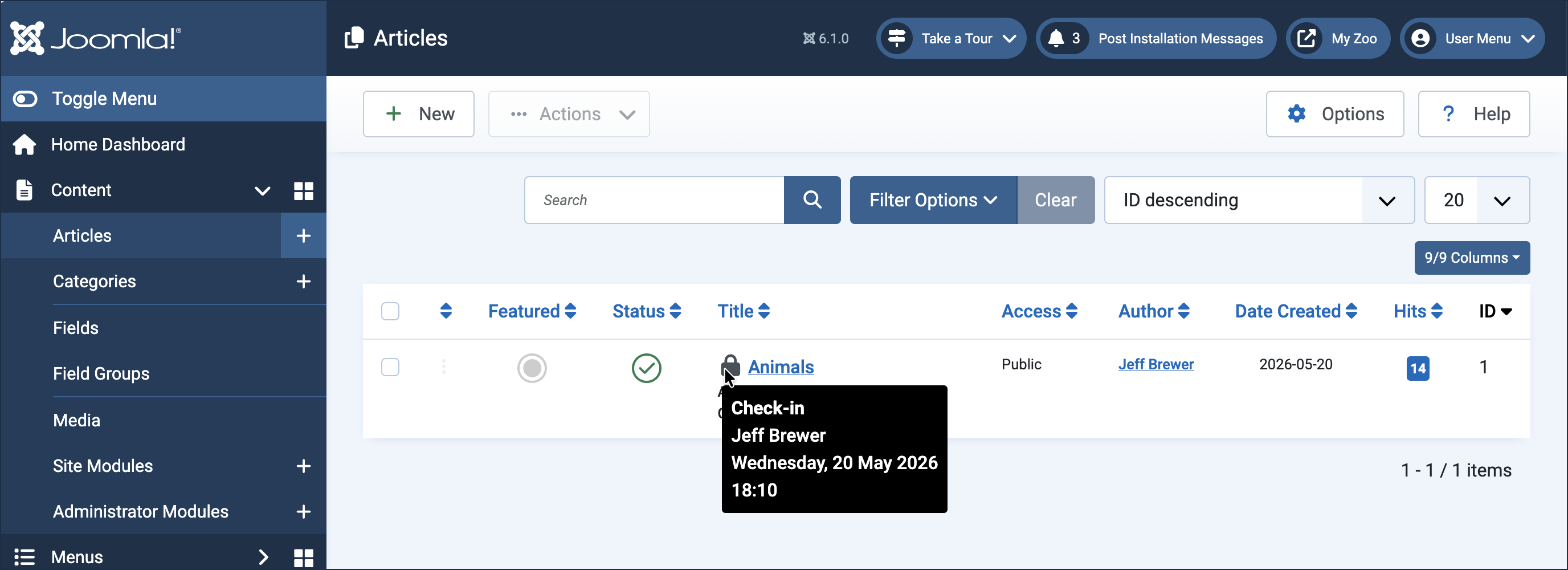
- Without saving or closing, click the browser back button to return to the list. This simulates a user who is still editing the article. Result: The article appears with a lock symbol, indicating that it's checked out and being edited.
- Hover over the lock icon. Result: The message displays the user who checked out the article, and the date and time it was checked out.
- Click the article title to edit. Result: Joomla recognises you as the current editor and opens it for editing. Note: Other users, even other administrators, attempting to edit the article are denied access with an error message.
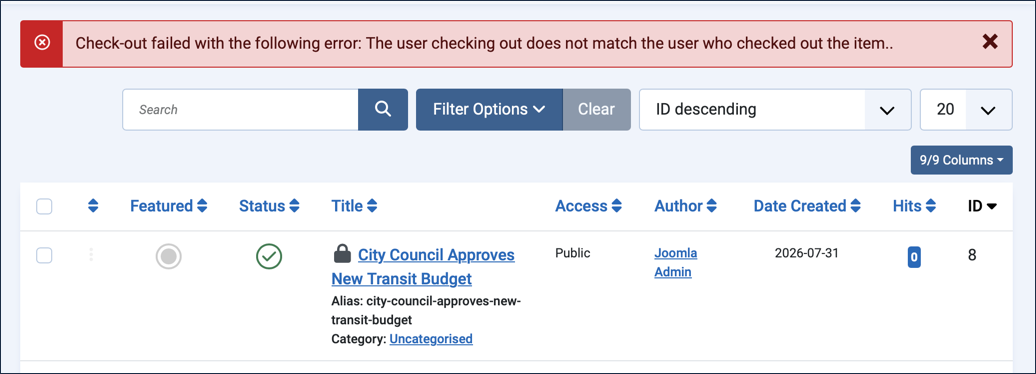
Error message that other users would see when attempting to access an article checked out by someone else. - As the current editor, you're allowed access. Resume editing the article, then click Close to return to the article list. Note: Clicking Close or Save & Close checks the article back in.
- Edit the article again and click the back button, as before, to simulate a user still editing the article.
- Return to the article list and observe the lock symbol.
- As an administrator, you can check in the article by either:
- clicking the lock symbol, or
- checking the article checkbox, then selecting Actions > Check-In (useful when checking in multiple items at once).
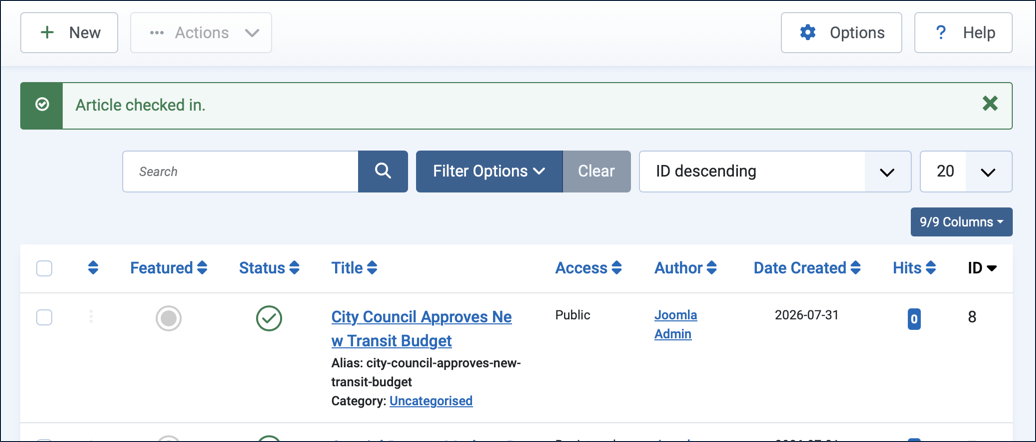
- Choose either method to check the article in. Result: A check-in message appears.
Concepts
Article locking is intended to prevent multiple authors from editing the same article simultaneously, where one person saving the article may overwrite another person's work.
An administrator or Super User can override the check-out lock. This can be useful if an editing session is abandoned (e.g. the person closes the browser without saving, or otherwise navigates away from the edit screen without closing or saving). However, this can be risky if the author is still actively editing the article. Administrators must use discretion when checking in articles.
Article locking is a simple strategy to prevent inadvertent simultaneous editing. Coordination between editors and administrators is advised.
Permissions for articles can be set discretely, and workflows can be employed to achieve more sophisticated editing protection.