 User Documentation
 This tutorial walks through a single realistic scenario from start to finish: you run a site with a Subscriber Exclusives category, and you want logged-in members to see the full articles while everyone else sees only a short teaser with a login prompt.
By the end, every article in the Subscriber Exclusives category will be partially restricted, and you'll know which settings did the work.
The Scenario
- You have a category called Subscriber Exclusives containing several in-depth stories.
- Anonymous visitors should see the article title and a short intro paragraph.
- Logged-in registered users should see the full article.
- Links to subscriber-exclusive articles should still appear in listings (so visitors know there's more to read if they sign up).
Prerequisites
- 1 Tutorial Introduction covers where to run your tutorial and administrative access.
- 2.3 Category Menu Item covers creating a category blog menu item, the mechanic this tutorial's Setup uses.
- 5.1 Filter Articles covers filtering the articles list by category, used here to isolate the Subscriber Exclusives articles.
- 6.2 Read More covers the Read More technique, used throughout this tutorial's articles.
Setup
Create the Subscriber Exclusives Category
- Log in to Joomla backend and navigate to the Home Dashboard.
- In the Administrator Menu, click Content > Categories.
- Click New. Result: A new-category form appears.
- Title: Subscriber Exclusives
- Description: In-depth reporting for our registered readers.
- Access: Public
- Status: Published
- Click Save & Close.
Add Articles
- In the Administrator Menu, click Content > Articles.
- Click New. Result: A new-article form appears.
- Title: Inside the Trade Talks: What Really Happened in Geneva
- Category: Subscriber Exclusives
- Article Text: copy and paste several paragraphs of Lorem Ipsum.
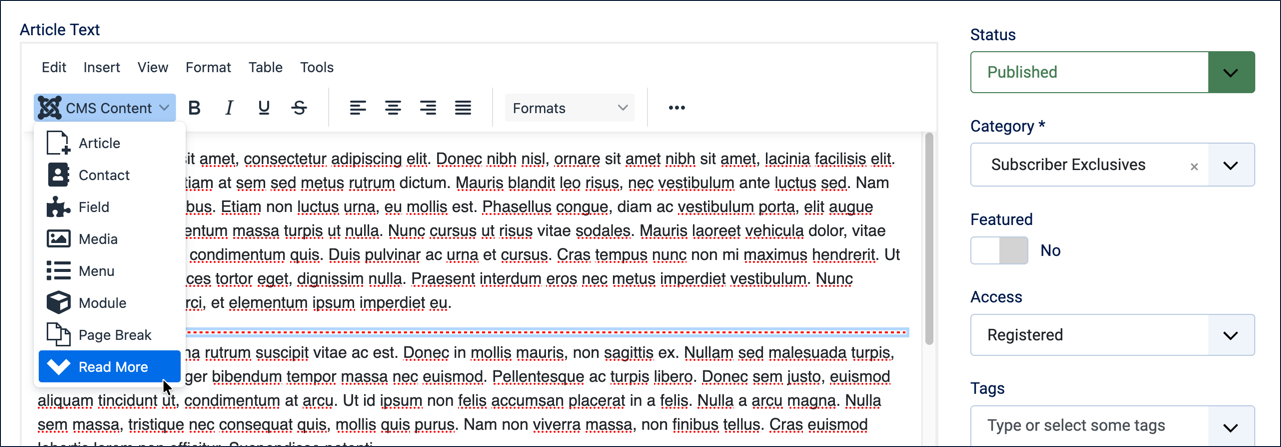
- Position your cursor on a blank line after the first paragraph.
- Select Read More from the CMS Content dropdown in the toolbar.
- Click Save & New.
- Title: The Central Bank's Decision, Explained
- Category: Subscriber Exclusives
- Article Text: copy and paste several paragraphs of Lorem Ipsum.
- Position your cursor on a blank line after the first paragraph.
- Select Read More from the CMS Content dropdown in the toolbar.
- Save & New.
- Title: Special Report: Markets React to the Merger
- Category: Subscriber Exclusives
- Article Text: copy and paste several paragraphs of Lorem Ipsum.
- Position your cursor on a blank line after the first paragraph.
- Select Read More from the CMS Content dropdown in the toolbar.
- Save & Close
Add a Category Blog Menu Item
- In the Administrator Menu, click Menus > Main Menu.
- Click New. Result: A new-menu-item form appears.
- Title: Subscriber Exclusives
- Menu Item Type: Articles > Category Blog
- Category: Subscriber Exclusives
- Save & Close
Steps
Verify the Setup and Default Permissions
- View the site. Result: The Log in form appears, indicating you're not logged in to the frontend.
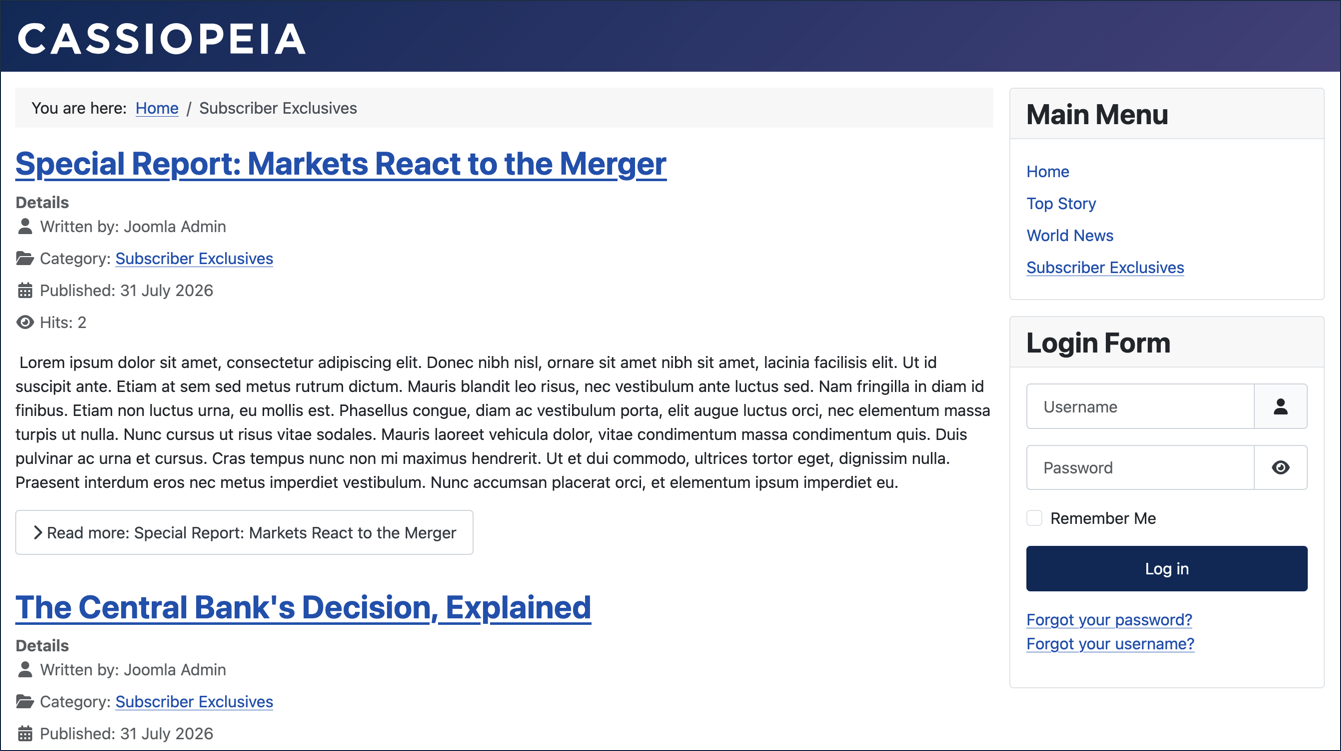
- Click Subscriber Exclusives in the Main Menu. Result: The three articles appear with introductory text and Read More links. Note: Clicking a Read More link displays the full article. The articles are currently available to any visitor on the site.
Restrict the Articles to Registered Users
We want the public to be able to see the article titles and introduction text, but not be able to read them unless they're logged in.
- Go to the articles list (Content > Articles).
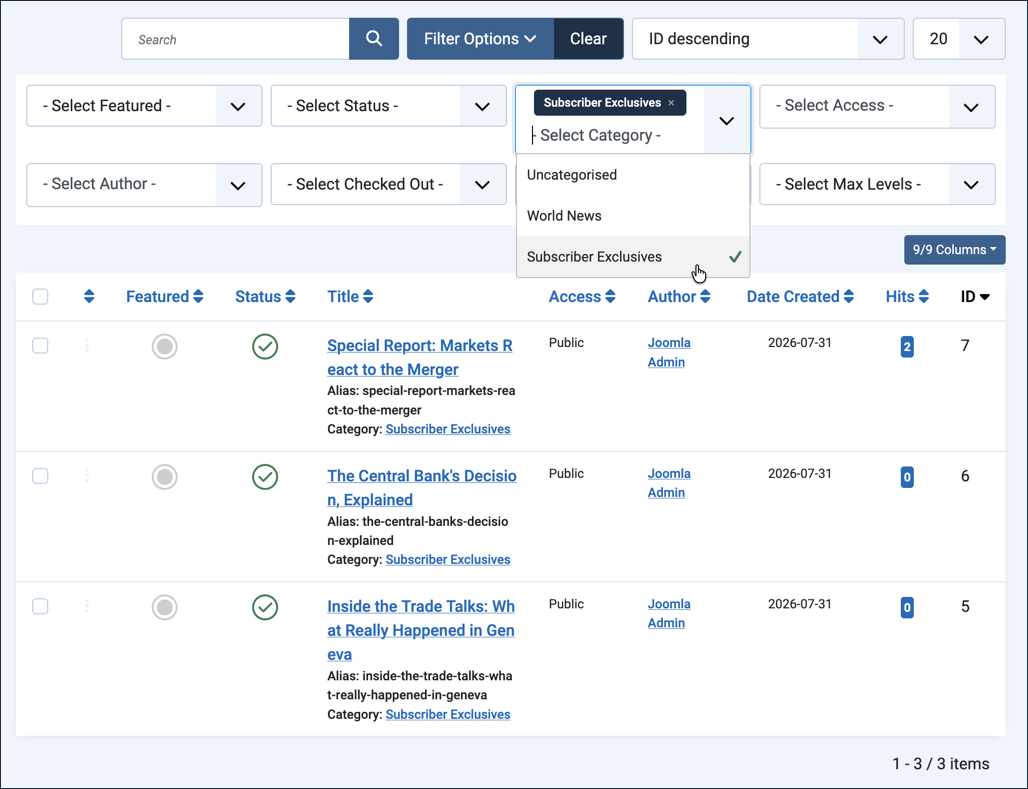
- Filter the list for Subscriber Exclusives.
- Click Filter Options.
- Select Subscriber Exclusives from the - Select Category - dropdown. Result: Only articles in the Subscriber Exclusives category are listed.
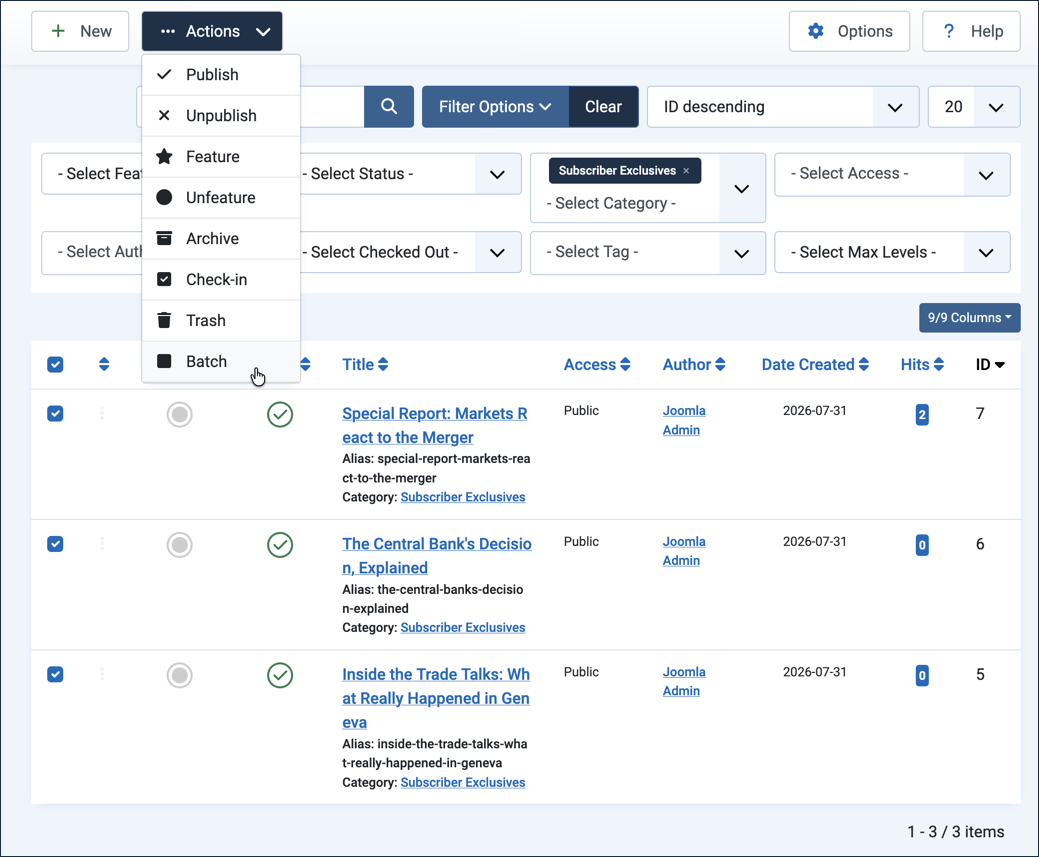
- Tick the checkbox in the column header to select all listed articles.
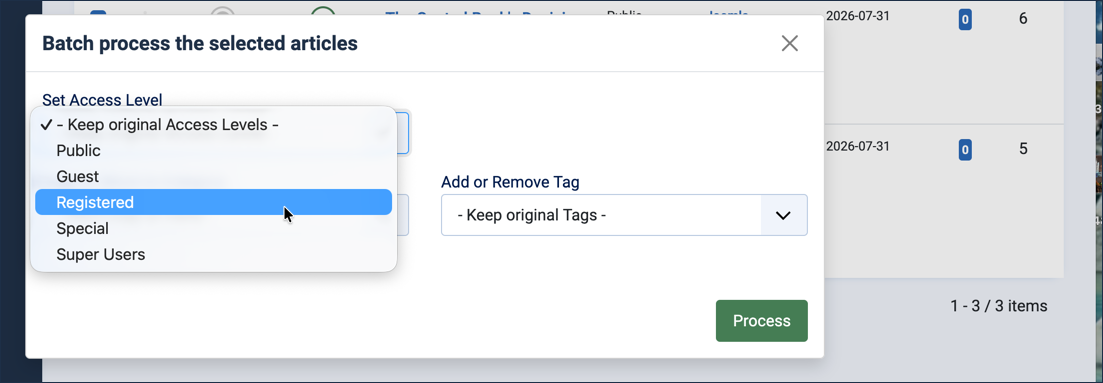
- Pull down the Actions dropdown (near the top of the window) and select Batch. Result: A popup dialog appears.
- Under Set Access Level, choose Registered.
- Click Process.
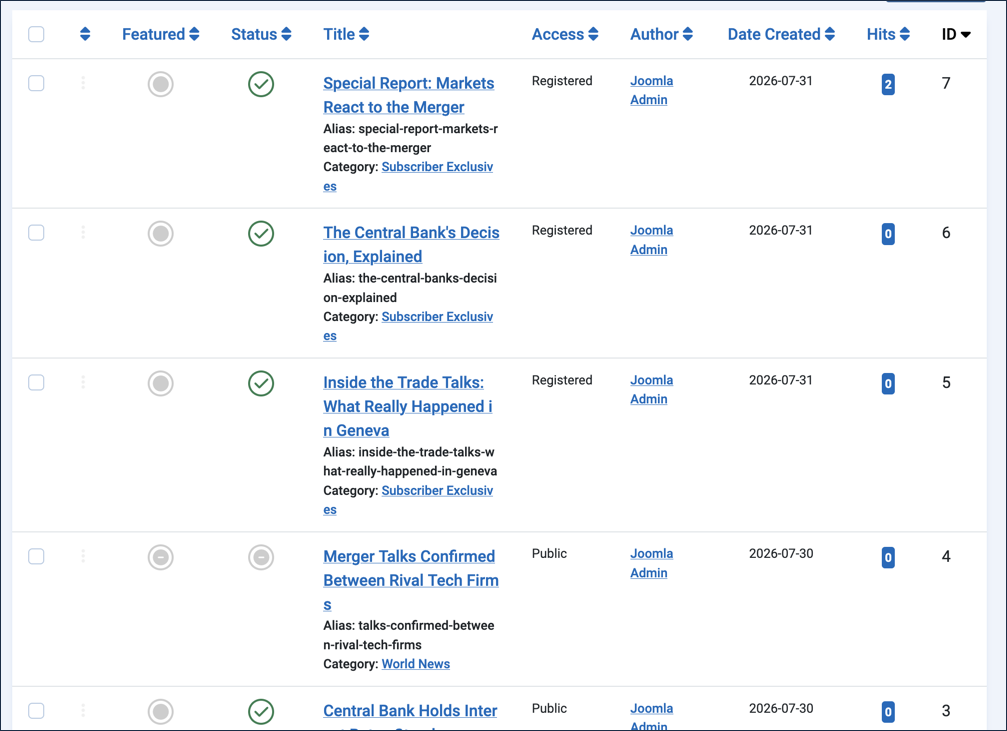
- Click Clear to clear the filter and observe that the access level, Public or Registered, appears in the Access column.
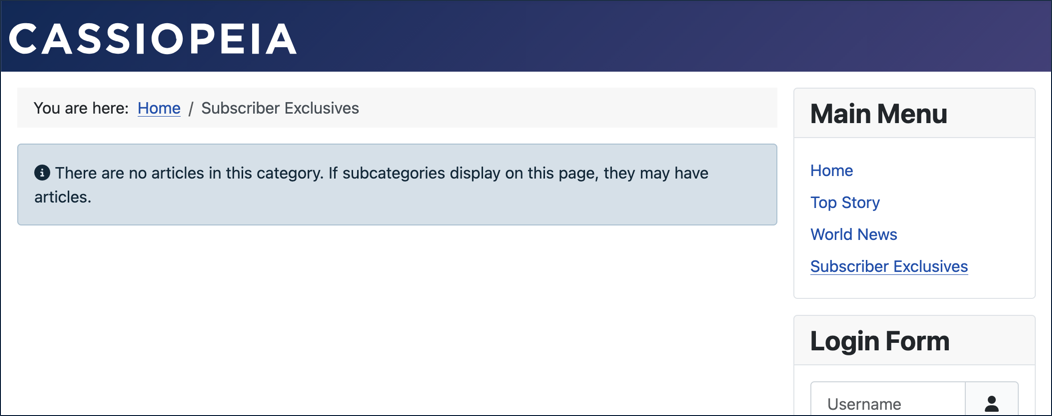
- View the site and refresh the Subscriber Exclusives page. Result: The blog is empty.
- Log in to the frontend and view the blog again. Result: The Subscriber Exclusives articles require a user to log in to view.
Enable Unauthorised Links
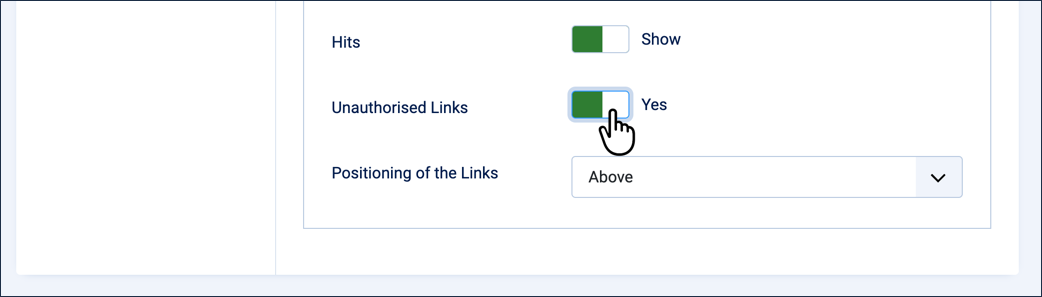
This makes restricted articles still appear in listings for logged-out users, prompting them to log in when they click through.
- Go to Content > Articles.
- Click Options in the top toolbar.
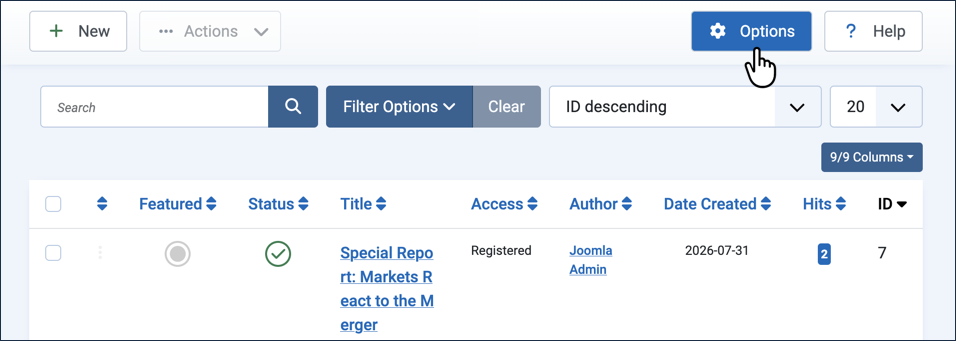
- On the Articles tab, find Unauthorised Links and set it to Yes.
- Save & Close.
Test It
- View the site, and make sure you're logged out of the frontend (the Log in form should be showing a Log in button).
- View Subscriber Exclusives. Result: The articles appear with introductory text, but the Read More links prompt you to register.
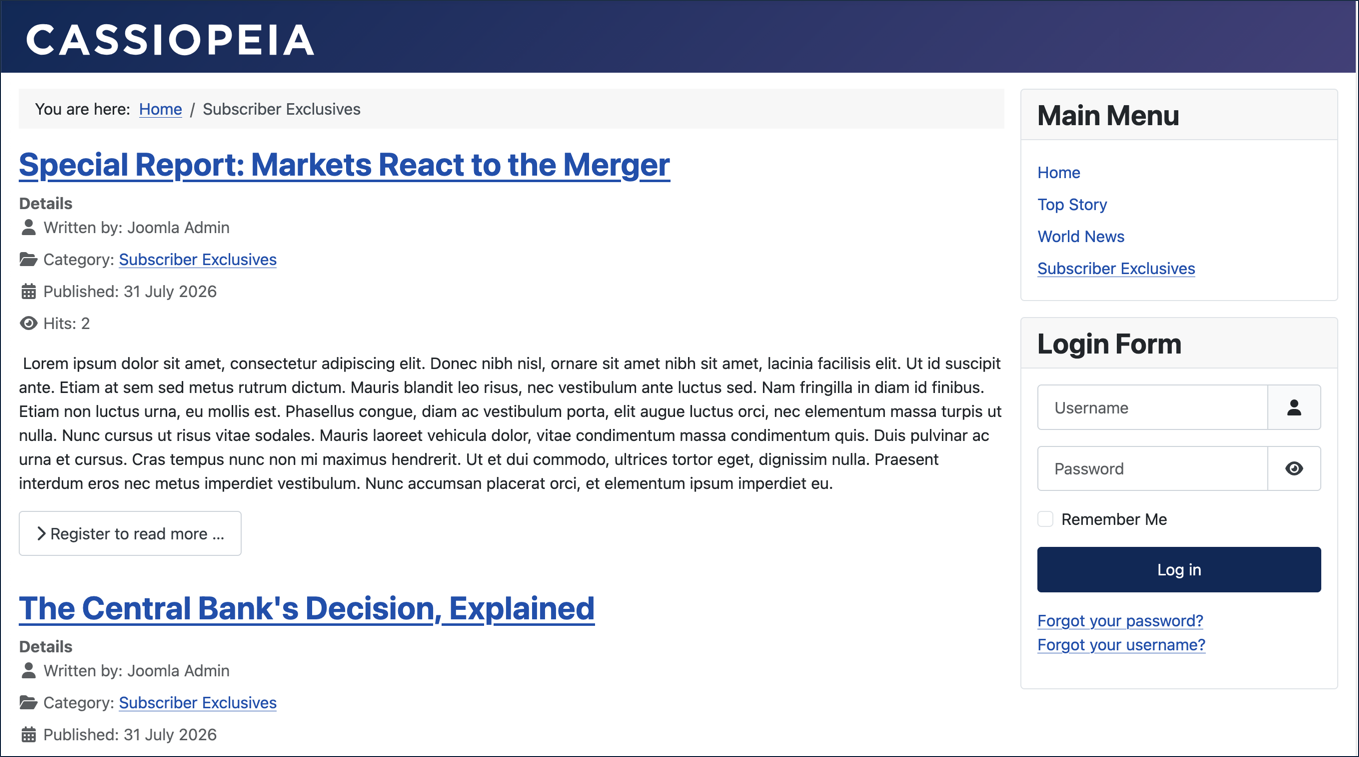
- Click one of the Read More links to observe the behaviour. Result: A login form appears.
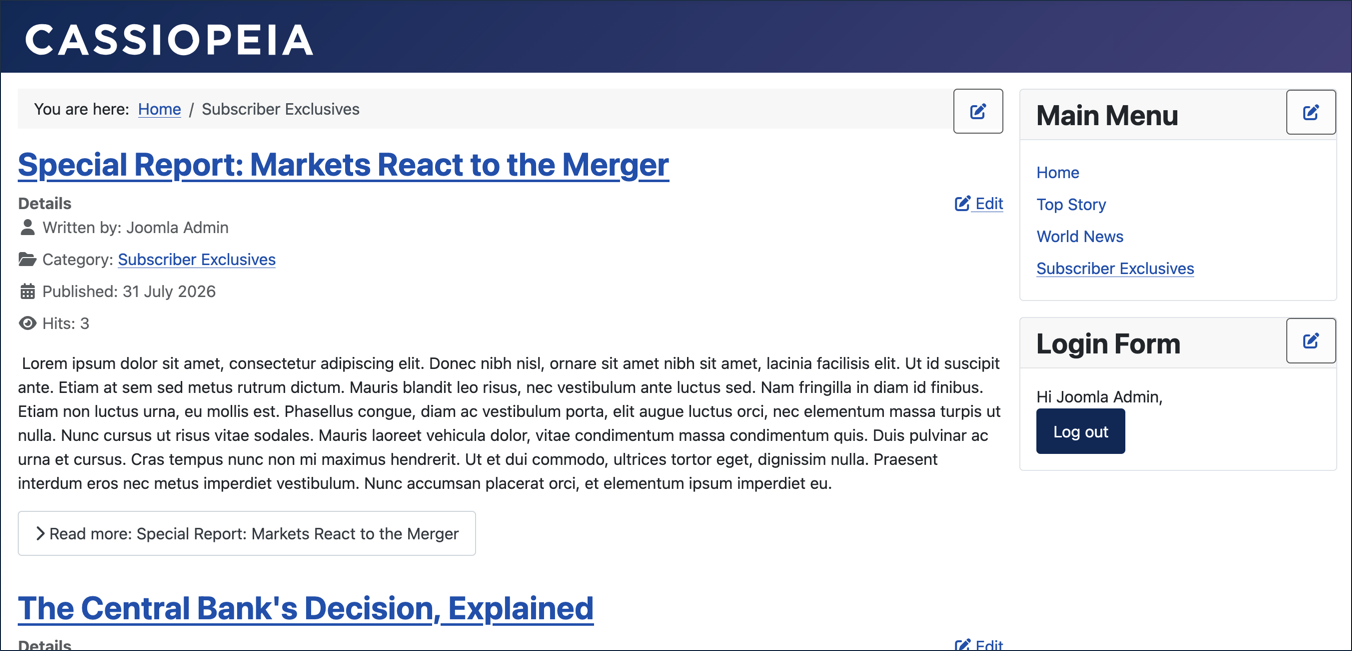
- Log in to the frontend using the same username and password used to log in to the backend. Result: The full article appears.
- Click Subscriber Exclusives in the Main Menu or Breadcrumb Menu. Result: The Login Form shows that you are logged in; the read-more links are normal; an Edit link appears in the article introduction — articles can be edited in the frontend, but that is not covered here.
Concepts
Permissions on menu items and articles give you control over what visitors can access. The Registered permission requires visitors to be logged in.
The Unauthorised Links setting is a special configuration that allows public users to see that premium content exists, but requires them to log in for full access.