User Documentation
 The only limit on the length of an article in Joomla is the size of the database field used to contain the article text. That is very large! Long articles may contain many images and take time to process, which may be inconvenient for both the reader and the website. Pagination is a simple mechanism to break long articles into separate pages.
Prerequisites
- 1 Tutorial Introduction covers where to run your tutorial and administrative access.
Setup
Create an Article
- Log in to Joomla backend and navigate to the Home Dashboard.
- In the Administrator Menu, click Content > Articles.
- Click New. Result: A new-article form appears.
- Title: Animals
- Article Text: a lengthy article — simple "Lorem Ipsum" text works fine. For this tutorial, we asked AI to generate an article on animals with the following prompt: "Write a simple article on the types of animals. There should be two introductory paragraphs and then a heading for each type of animal — mammals, reptiles, birds, fish — with three paragraphs of general information under each heading, and finally a summary heading with a paragraph summarising the article. Don't include any HR tags."
- Save & Close
Create a Link to the Article
Create a link to the article from the Main Menu.
- In the Administrator Menu, click Menus > Main Menu.
- Click New. Result: A new-menu-item form appears.
- Title: Types of Animals
- Menu Item Type: Articles > Single Article
- Select the Animals article.
- Save & Close
Steps
- View the site and click the link to the article in the Main Menu. Result: The article appears normally, with no pagination.
Divide the Article into Pages
Return to the backend and edit the article.
- Position the cursor below the first section and before the next section heading, adding a line break if necessary.
- Extend the CMS Content menu from the editor toolbar and select Page Break. Result: A page-break form appears.
- Page Title: a title that will appear in the page heading, e.g. Warm Blooded Mammals
- Table of Contents Alias: a title that will appear in the pagination table of contents, e.g. Mammals
- Click Insert Page Break.
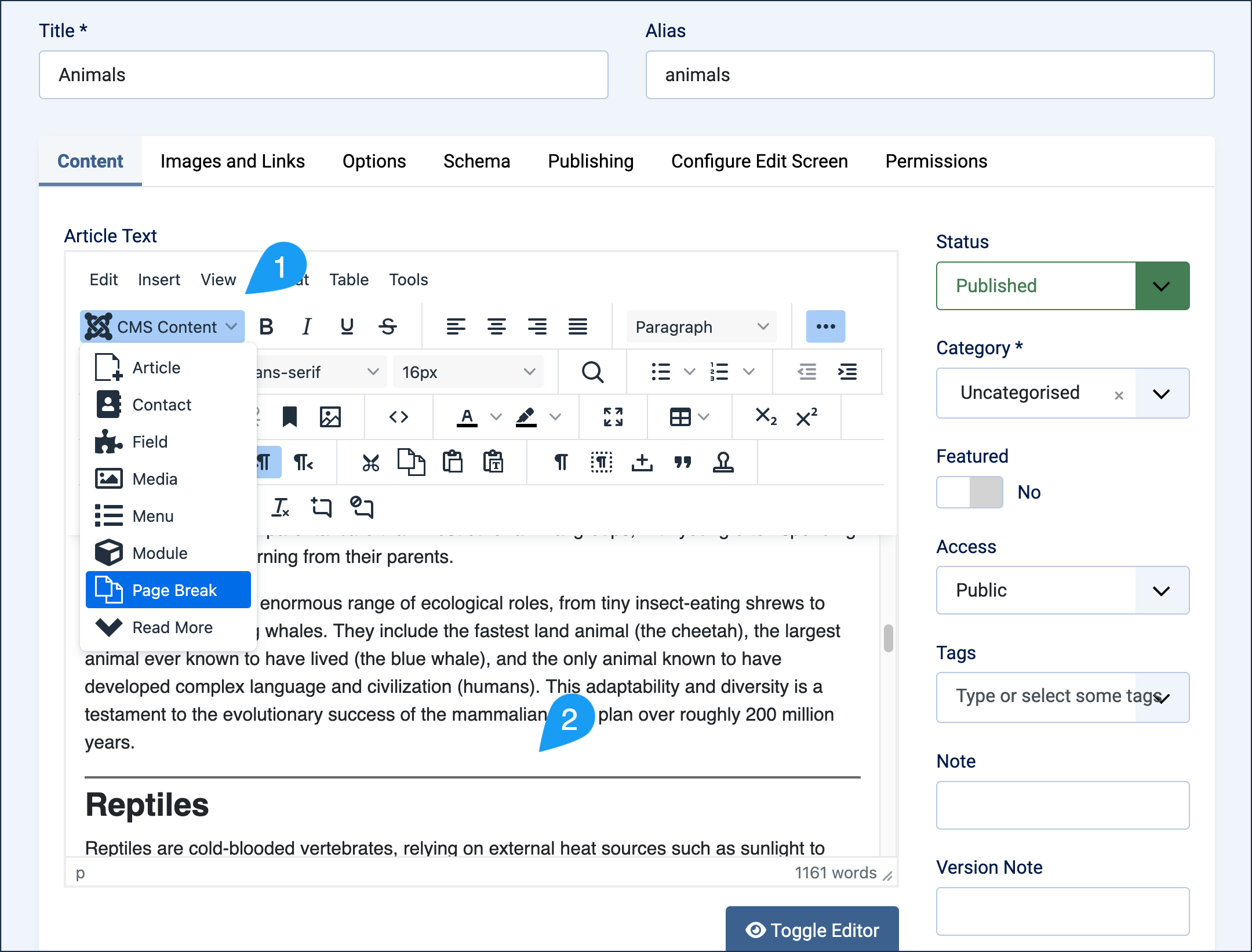
(1) Page Break control under the CMS Content menu. (2) The resulting page break appears as a horizontal line in the editor. 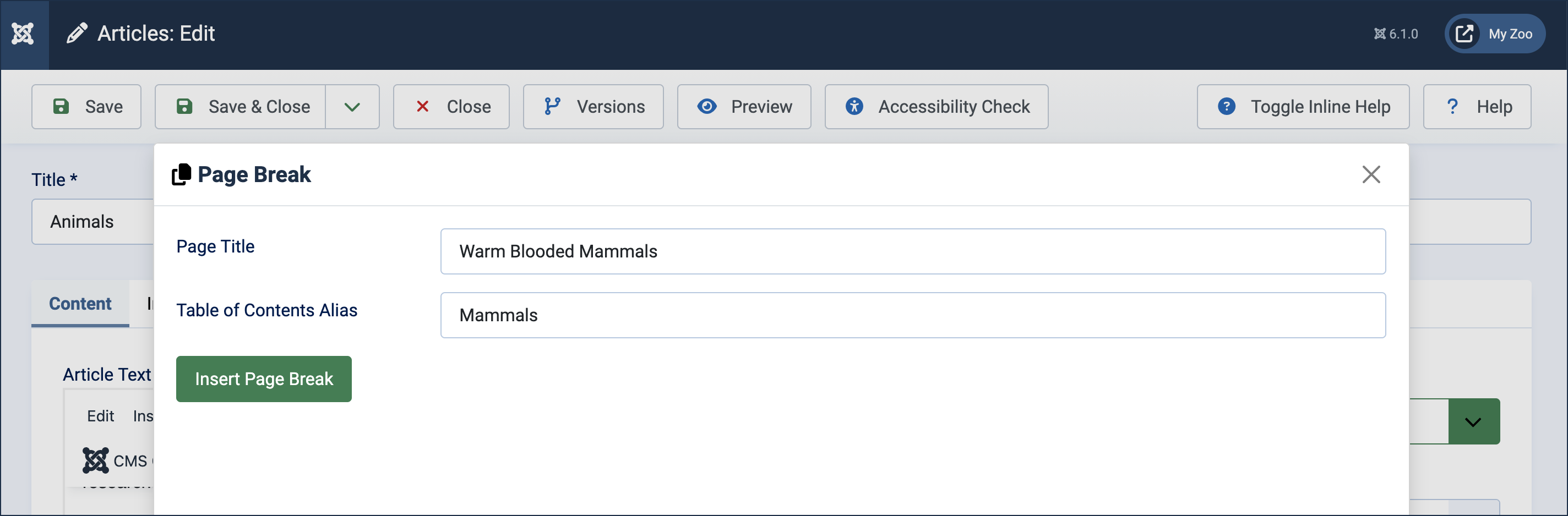
The insert-page-break form with Page Title and Table of Contents Alias. - The form closes and a horizontal line appears, indicating where the page break has been inserted.
- Repeat to enter a page break before every section.
- Save the article.
View the Article
View the article on the website, refreshing the page if necessary. The first page of the article appears with a page heading, a table of contents embedded in the article, and Previous and Next navigation controls below the article.
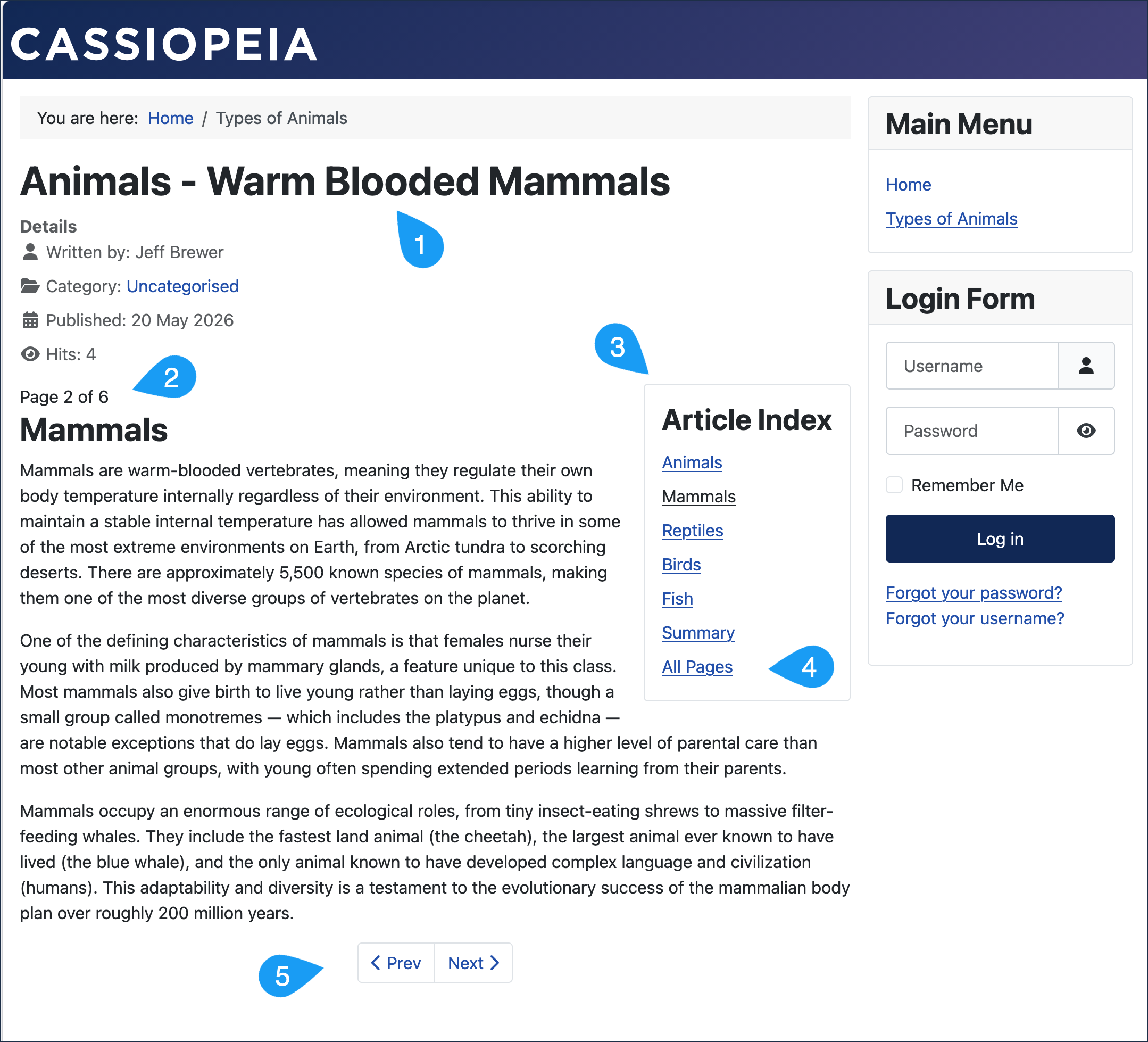
Note the following features:
- A page heading.
- A page indicator.
- A table of contents with links to each page.
- A link to display All Pages.
- Navigation controls.
Modify the Page Breaks
- Edit the article, click the page break to highlight it, then delete it.
- To move or modify a page break, delete it, then add a new one in the desired location.
Concepts
Page breaks provide a way to divide long or complex articles into smaller sections, which can make them easier for some visitors to read.
In the tutorial we established page breaks before headings, but they may be inserted anywhere in the article.
They are easily added in the Joomla article editor and appear as horizontal lines in the editor.
The table of contents includes a link for All Pages so that visitors can view or print an article in its entirety.
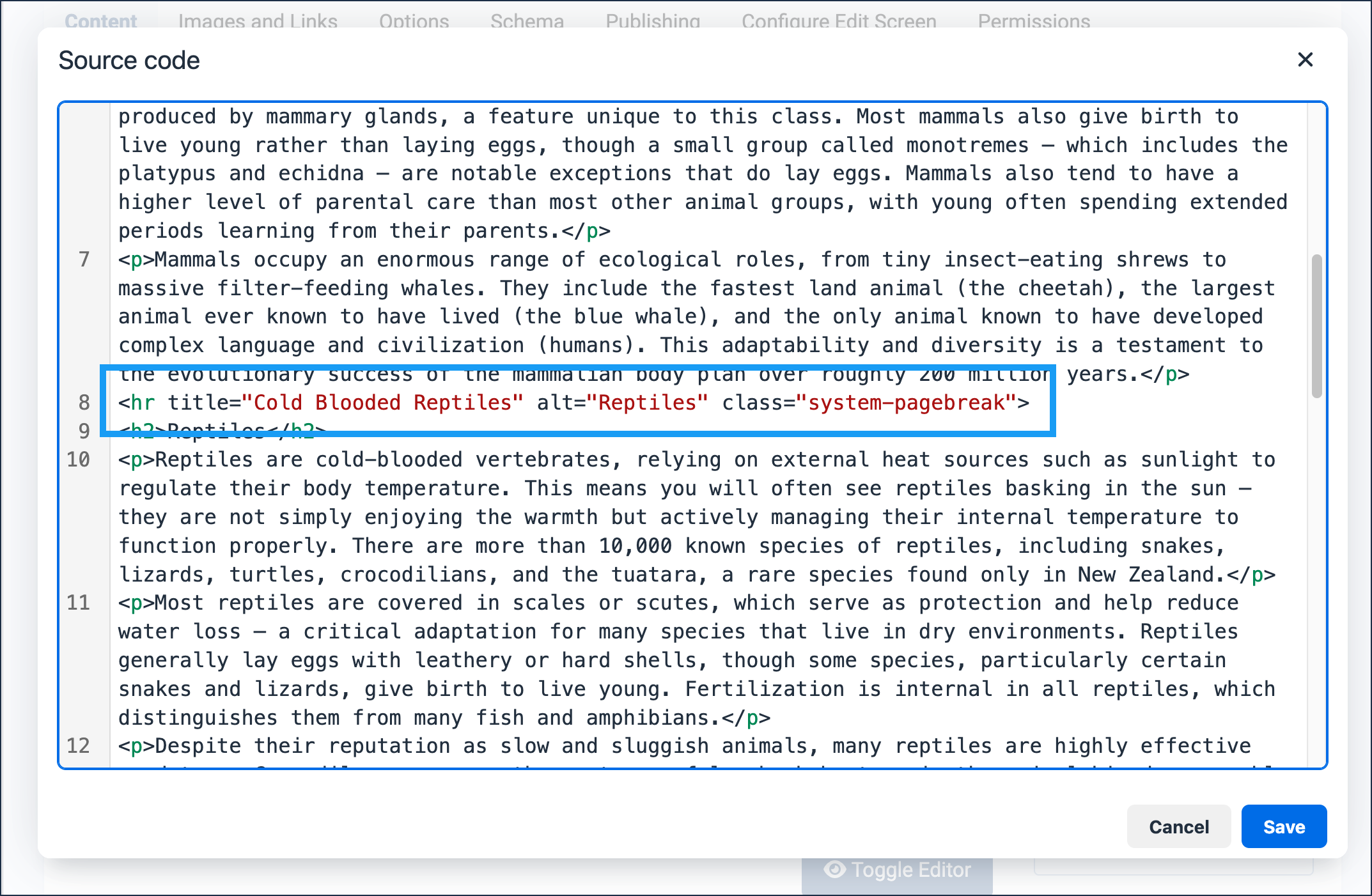
Page breaks are HTML HR tags with special attributes that appear only in the editor and may be viewed and manipulated in source code by advanced users.