 User Documentation
 In this tutorial we will explore the relationship between an article and its category and demonstrate that both must be published for the article to appear on the website.
Prerequisites
- 1 Tutorial Introduction covers where to run your tutorial and administrative access.
- 2 First Steps — covers basics assumed in this tutorial.
Setup
Create a Category
- Log in to Joomla backend and navigate to the Home Dashboard.
- In the Administrator Menu, click Content > Categories.
- Click New. Result: A new-category form appears.
- Title: World News
- Note that the Status field defaults to Published.
- Click Save & Close.
Create Two Articles
- In the Administrator Menu, click Content > Articles.
- Click New. Result: A new-article form appears.
- Title: Weekend Storm Watch: Heavy Rain Expected
- Category: Uncategorised (the default).
- Featured: Yes
- Click Save & New.
- Title: Trade Summit Ends in New Agreement
- Category: World News
- Featured: Yes
- Save & Close
Steps
Unpublishing an Article
- View the site. Result: Both articles appear on the homepage as featured articles. Note: The article details show the category, and the two articles are in different categories.
- Return to the backend and click Content > Articles.
- Click Weekend Storm Watch: Heavy Rain Expected to edit the article.
- Set Status to Unpublished, then click Save & Close.
- View the site and refresh the homepage. Result: Weekend Storm Watch: Heavy Rain Expected no longer appears. Note: Articles must be published to appear on the website.
- Return to the backend and view the article list.
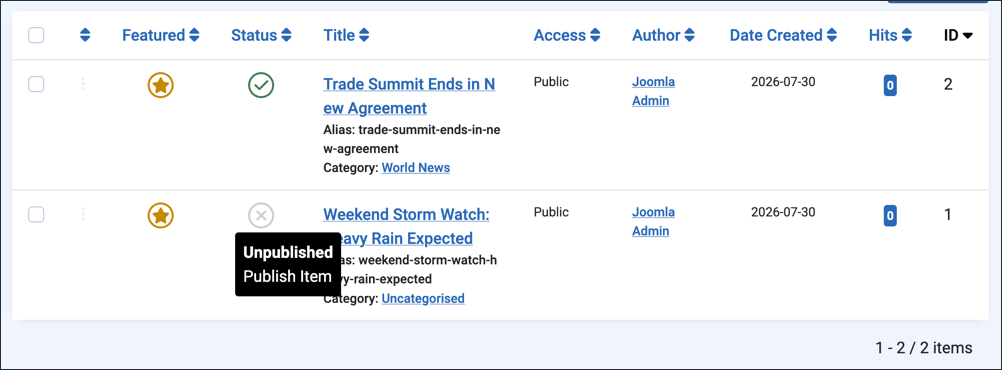
- Observe that the Status icon for Weekend Storm Watch: Heavy Rain Expected is a gray X (unpublished), while the icon for Trade Summit Ends in New Agreement is a green check (published).
- Hover over the icons to read the popup messages.
- Click the gray icon to publish Weekend Storm Watch: Heavy Rain Expected again. Note: Articles can be published or unpublished from the article list or by editing the article.
- Confirm that both articles again appear on the homepage (refresh if necessary).
Unpublishing a Category
- Return to the backend and click Content > Categories.
- Observe that categories have a status icon similar to articles.
- Hover over the icon to read the popup message.
- Unpublish the World News category by clicking its icon.
- View the site and refresh the homepage. Result: The Trade Summit Ends in New Agreement article no longer appears. Note: An article and its category must both be published for the article to appear on the website.
- In the backend, view the article list (Content > Articles).
- Note the status icon for Trade Summit Ends in New Agreement is now a gray dash.
- Hover over the icon to view the popup message.
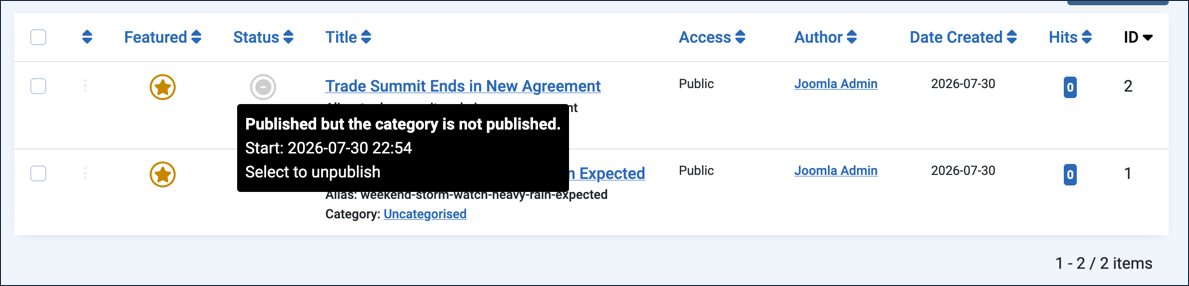
- In the article details below the title, observe that the category World News appears with an (unpublished) indicator.
- Hover over the icon to view the popup message.
- Edit the article and observe that World News is selected in the Category dropdown, but appears in brackets, indicating that the category is unpublished.
- Close the article without saving.
- Return to the category list and click World News to edit it.
- Set Status to Published, then click Save & Close.
- View the site, refresh the homepage, and verify that both articles appear.
Concepts
Articles must have a category. It is a required field, and it is not possible to create an article without one. A fresh Joomla installation includes a default category called Uncategorised.
An article and its category must both be published for the article to appear on the website.
The status icon in the article and category lists indicates the publication status. Clicking the icon toggles the status.
When developing a new article or category, it may be helpful to keep it unpublished to avoid it being displayed on the website until it's ready.
Unpublishing a category prevents all articles in that category from being displayed on the website. Take care when unpublishing active categories.
The article list shows the category for each article, and unpublished categories are noted there — this is how articles with unpublished categories can be identified.
When editing an article, an unpublished category appears in brackets in the Category dropdown.