 User Documentation
 A module is a small, self-contained block of reusable content or functionality (such as a menu, login form, or custom bit of text). Joomla is structured by menu items, which are synonymous with pages. Modules are configured to appear on all menu items (pages) by default, but can be set to appear (or not appear) on discrete menu items. This tutorial demonstrates how to do that.
Prerequisites
- 1 Tutorial Introduction covers where to run your tutorial and administrative access.
Setup
Create an Article
- Log in to the backend.
- Navigate to Content > Articles and click New.
- Title: Snails
- Article Text: leave blank, enter random text, or ask AI for a paragraph on snails and paste in the results.
- Save & Close
Create a Menu Item for the Article
- Navigate to Menus > Main Menu and click New.
- Title: Snails
- Menu Item Type: Articles > Single Article
- Article: Snails
- Save & Close
Create Two Custom Modules
One will have a fun fact about snails and appear only on the Snails menu item (the Snails article); the other will be a notice of site maintenance and appear on every menu item (every page on the site).
- Navigate to Content > Site Modules, click New, then select Custom.
- Title: Fun Fact
- Enter a fun snail fact into the text editor, e.g. "The average garden snail moves at a pace of roughly 3.6 to 47 meters per hour, depending on the species and conditions."
- Position: Sidebar Left [sidebar-left]
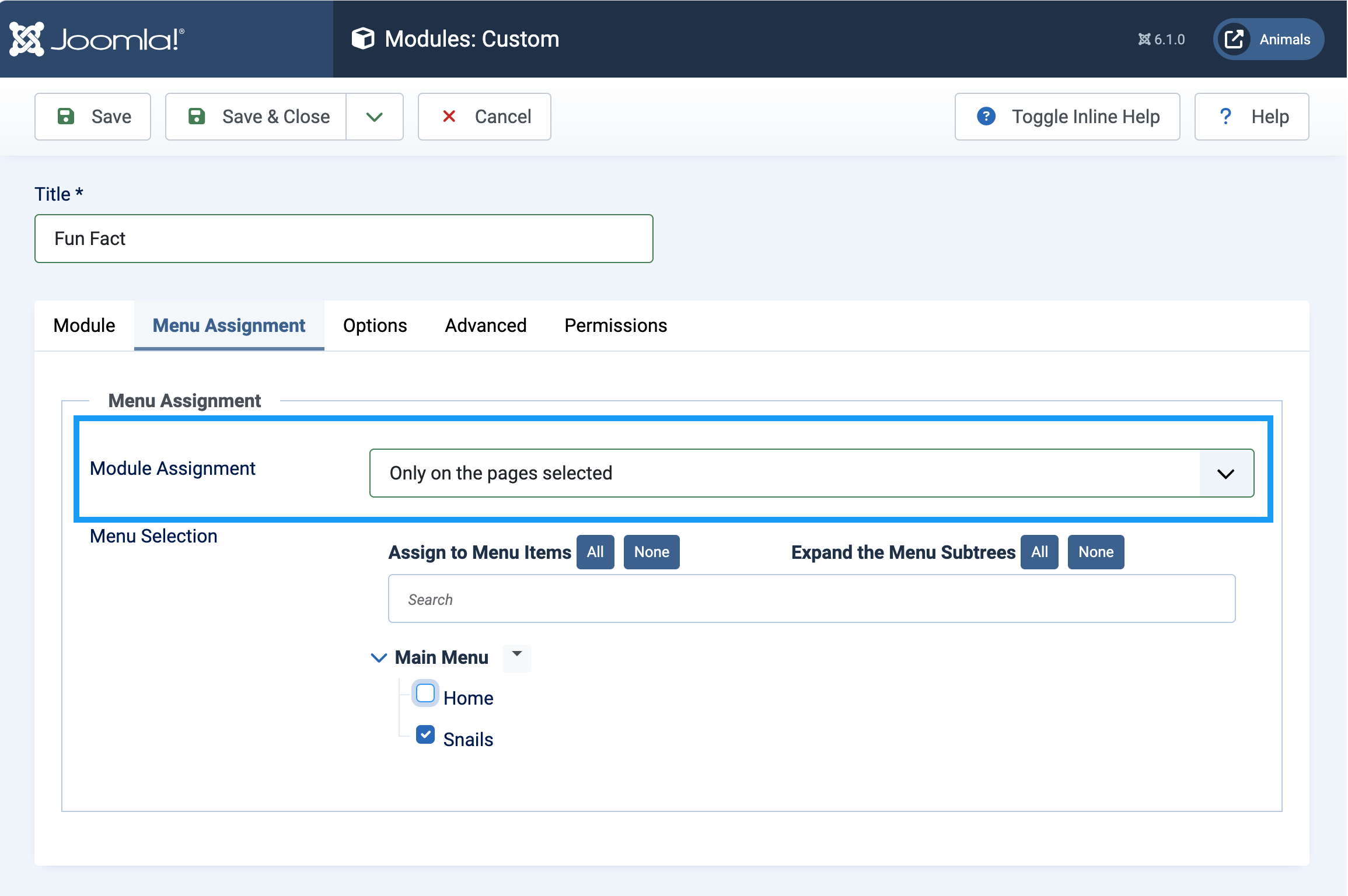
- Click the Menu Assignment tab.
- Module Assignment: Only on pages selected
- Tick Snails.
- Save & New. Result: The form saves and a new, blank module form appears with the Menu Assignment tab selected. Note: The module assignment defaults to On all pages.
- Click the Module tab.
- Title: Site Maintenance
- Enter a message into the text editor, e.g. "Our site will be offline for maintenance this evening."
- Position: Sidebar Left [sidebar-left]
- Save & Close
Steps
View the Site
- View the site. Result: The homepage displays the Site Maintenance module, a Login Form module, and a breadcrumb module (You are here: Home); the main menu includes a link to Snails.
- Click Snails in the main menu. Result: Both the Fun Fact and Site Maintenance modules appear, along with the Login Form and breadcrumb modules.
Remove the Login Module
For this site, the login module should appear everywhere except the Snails article.
- Return to the backend.
- Navigate to Content > Site Modules and click the Login Form module.
- Click the Menu Assignment tab.
- Module Assignment: On all pages except those selected
- Uncheck Home (leave Snails checked).
- Save & Close
- View the Snails article. Result: The login form appears everywhere except on the Snails article.
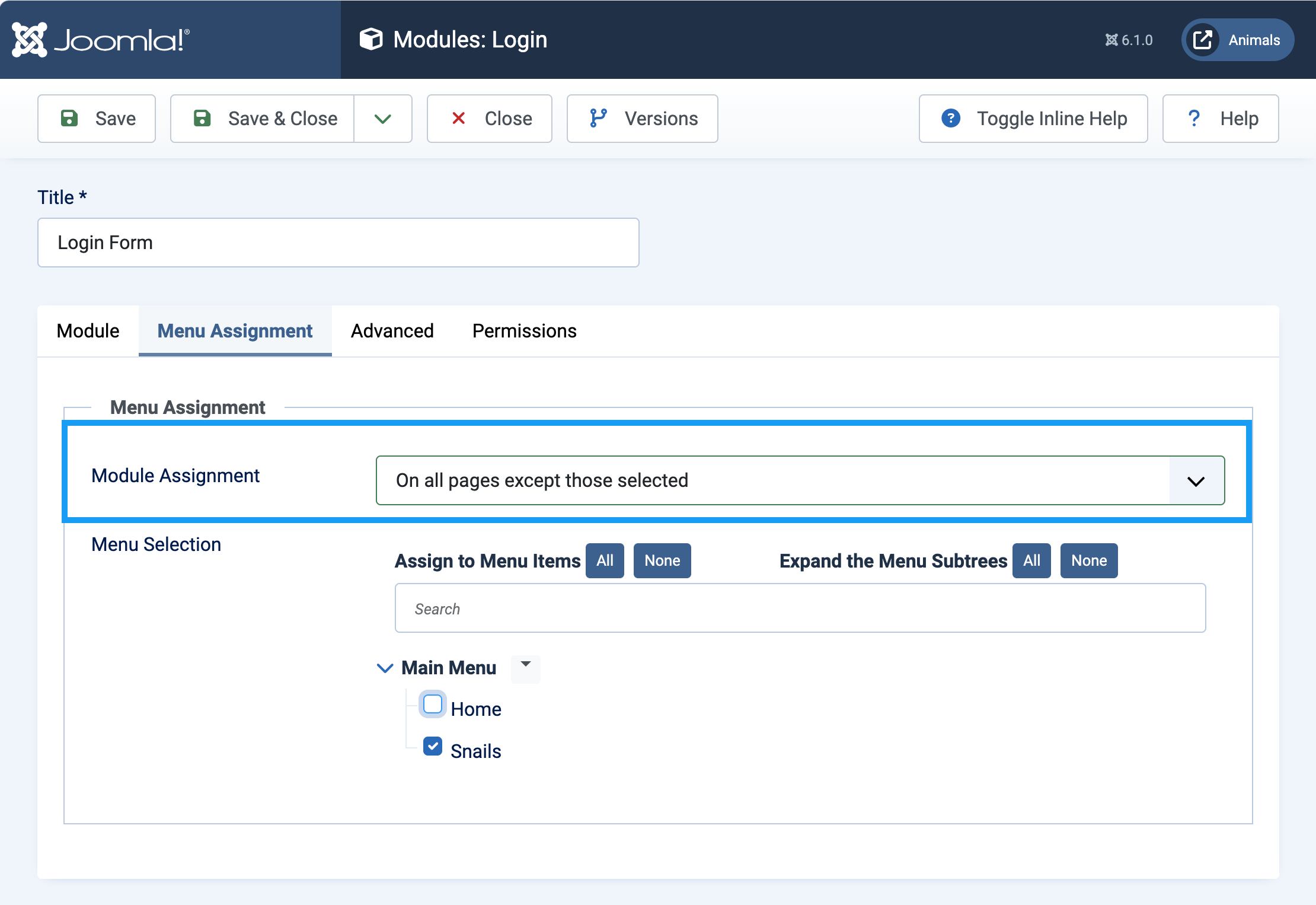
Login module configured to be excluded from the Snails menu item.
Using the module assignment feature, we created a Fun Fact module to appear only on the Snails page, created a Site Maintenance module to appear on all pages, and reconfigured the Login Form module to appear everywhere except the Snails menu item.
Concepts
Modules are assigned to all menu items by default, but can be configured to appear only on selected pages, or to be excluded from selected pages.
In Joomla, menu items are synonymous with pages. Assigning a module to a menu item is effectively assigning it to a page.