 User Documentation
 Article information such as author, hits, article date, article category, and more is displayed when viewing an article and when viewing a list of articles. These details may be turned on or off; most are turned on by default. The control originates in the system configuration (also known as the global setting), which applies to all menu items and articles, which can either adopt (inherit) or override the global setting. This tutorial demonstrates how this inheritance works by focusing on how the Author setting is controlled.
Prerequisites
- 1 Tutorial Introduction covers where to run your tutorial, and includes the required frontend/backend login and site-viewing tutorials (1.1, 1.2, 1.3).
Setup
Create a New Category
- Navigate to Content > Categories and click New. Result: A new category form opens.
- Title: Sundial Software
- Save & Close
Create Two Articles
- Navigate to Content > Articles and click New. Result: A new article form opens.
- Title: Sun Daze Companion
- Category: Sundial Software
- Click the Options tab. Observe that Author is set to Use Global (Show), indicating that the author will appear when viewing articles.
- Click Save & New.
- Title: Olympus Solar Calculator
- Category: Sundial Software
- Save & Close
Create a Category Blog Menu Item
The menu item will display our articles in a list. Visitors will then click on one to view an individual article.
- Click Menus > Main Menu.
- Click New and configure:
- Title: Sundial Software Blog
- Menu Item Type: Category Blog
- Choose a Category: Sundial Software
- Save & Close
Steps
Demonstrate Global Inheritance
The articles and menu items normally inherit from the global setting.
- Navigate to System > Global Configuration.
- Click Articles under Component. Result: The article options appear, including the Author field, set to Show. Note: If it isn't, set it to Show now and save.
- View the site and click Sundial Software Blog in the main menu. Result: The author appears in the list of articles, under the heading Written by.
- View one of the articles. Result: The author appears here as well.
- Switch to the backend and navigate to System > Global Configuration.
- Click Articles under Component.
- Change the Author setting to Hide and save.
- Switch to the frontend and click Sundial Software Blog again. Result: The author no longer appears in the list of articles.
- View one of the articles. Result: The author is hidden here as well.
Both the menu item and the articles are using the global setting to show or hide the author.
Override the Global Setting
Switch to the backend and edit the category blog menu item:
- Click Menus > Main Menu.
- Click Sundial Software Blog.
- Under the Options tab, change the Author setting to Show and save.
- Switch to the frontend and click Sundial Software Blog again. Result: The author is displayed. Note: The menu item is no longer inheriting from the global configuration.
- View one of the articles. Result: The author is shown as well. Note: The article is inheriting its setting from the menu item.
Override the Menu Setting
Switch to the backend and edit one of the articles:
- Navigate to Content > Articles.
- Click one of the articles to edit it.
- Under the Options tab, change the Author setting to Hide and save.
- Switch to the frontend and click Sundial Software Blog. Result: The author is shown for both articles in the list — this is the menu setting.
- View the articles. Result: One article displays the author while the one just edited does not. Note: The article has overridden the menu setting.
Inherit from the Article
There is one more setting to look at, where the menu item inherits its setting from the article.
- Navigate to Content > Articles.
- Under the Options tab, set the Author setting to Show in one article and Hide in the other, and save both.
- Navigate to Menus > Main Menu.
- Click Sundial Software Blog to edit it.
- Under the Options tab, change the Author setting to Use Article Settings and save.
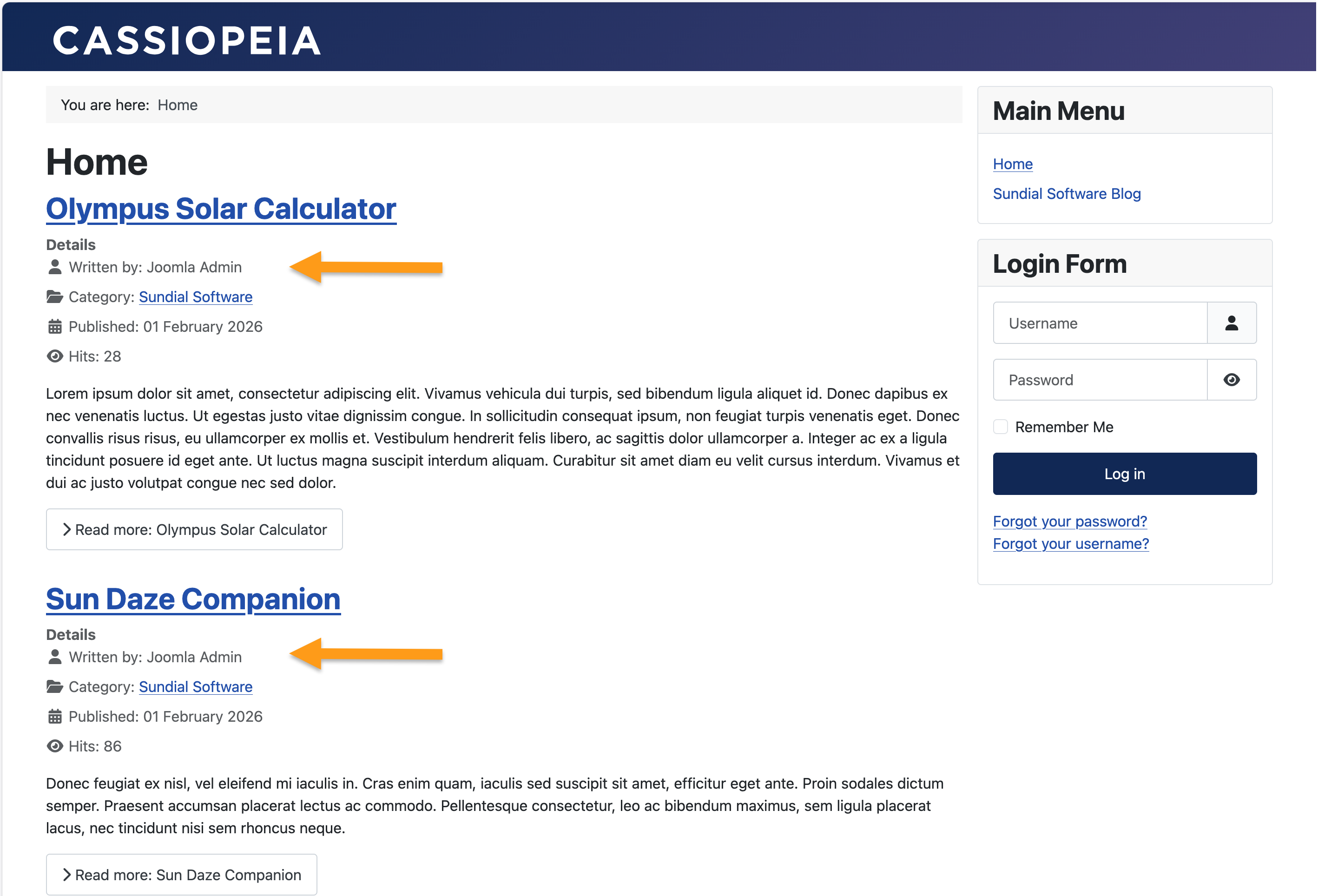
- Switch to the frontend and click Sundial Software Blog. Result: One article in the list displays the author, while it remains hidden in the other. Note: The menu item is inheriting from the article setting.
Concepts
Inheriting settings from a single point in the system configuration establishes a consistent look across the entire website, and a single point to update.
Overrides provide the means to individualise menus and articles when needed.