 User Documentation
 A menu is a container that holds a list of menu items, such as links to articles. A menu module is used to display menus on a website. Submenus are menus in which the menu items are organised in a hierarchy. In this tutorial we will create articles for different dogs and cats and link to them using a menu containing a hierarchy of menu items.
Prerequisites
- 1 Tutorial Introduction covers where to run your tutorial, and includes the required frontend/backend login and site-viewing tutorials (1.1, 1.2, 1.3).
Setup
Create the Articles
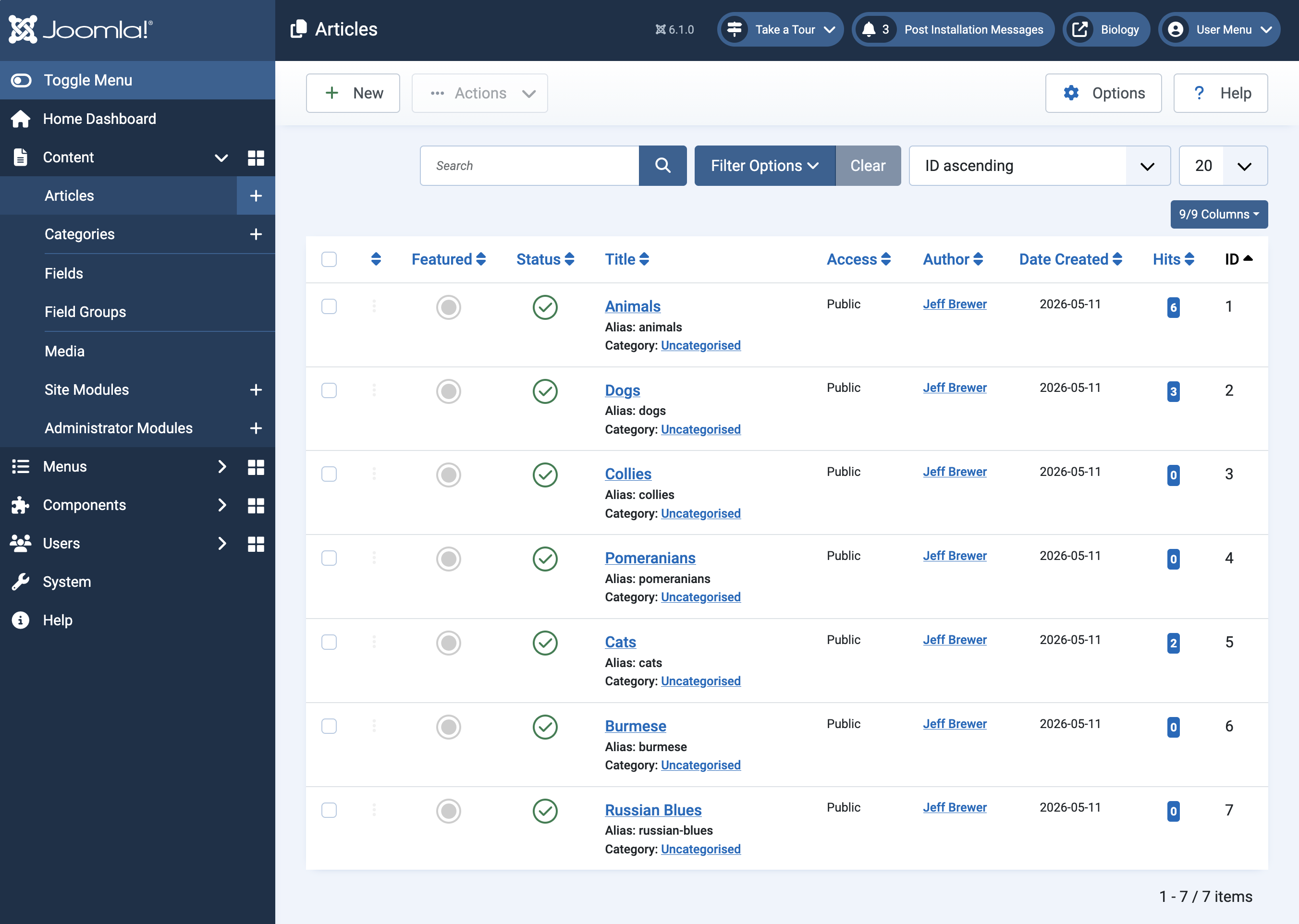
Create seven simple articles, each with a title only.
- Click Content > Articles, then click New. Result: A new-article form appears.
- Enter the article's Title, then click Save & New (an option under the Save & Close button) to save it and open a new blank form. Repeat for all seven titles:
- Animals
- Dogs
- Collies
- Pomeranians
- Cats
- Burmese
- Russian Blues
- After entering the last article, click Save & Close to return to the article list. Result: The seven articles appear in the list.
Create a Menu
- Navigate to Menus > Manage and click New. Result: The New Menu form appears.
- Title: Animals
- Unique Name: animal-menu
- Save & Close
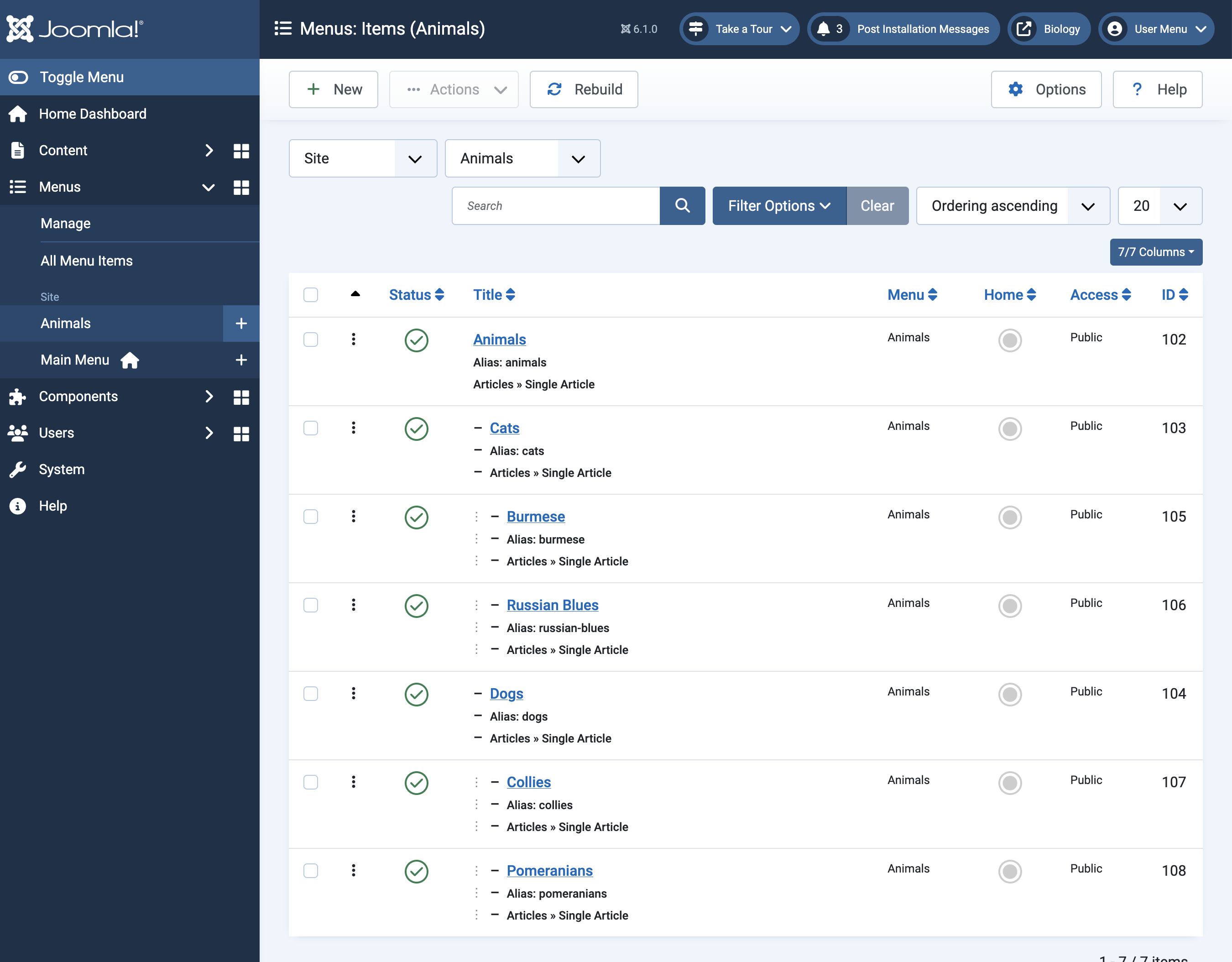
The Animals menu now appears under Menus > Site on the left. Click Animals. Result: An empty list of menu items is displayed.
Add Menu Items
- Click New. Result: A new-menu-item form appears.
- Title: Animals
- Menu Item Type: Articles > Single Article
- Select Article: Animals
- Click Save & New
- Title: Cats
- Menu Item Type: Articles > Single Article
- Select Article: Cats
- Parent Item: Animals
- Click Save & New
- Title: Dogs
- Menu Item Type: Articles > Single Article
- Select Article: Dogs
- Parent Item: Animals
- Click Save & New
- Title: Burmese
- Menu Item Type: Articles > Single Article
- Select Article: Burmese
- Parent Item: Cats
- Click Save & New
- Title: Russian Blues
- Menu Item Type: Articles > Single Article
- Select Article: Russian Blues
- Parent Item: Cats
- Click Save & New
- Title: Collies
- Menu Item Type: Articles > Single Article
- Select Article: Collies
- Parent Item: Dogs
- Click Save & New
- Title: Pomeranians
- Menu Item Type: Articles > Single Article
- Select Article: Pomeranians
- Parent Item: Dogs
- Click Save & Close.
We now have a menu with menu items linked to our articles, arranged in a hierarchical order — Dogs and Cats under Animals, and each breed under its respective heading. Next we'll create menu modules so the menu appears on the frontend.
Steps
Create Menu Modules
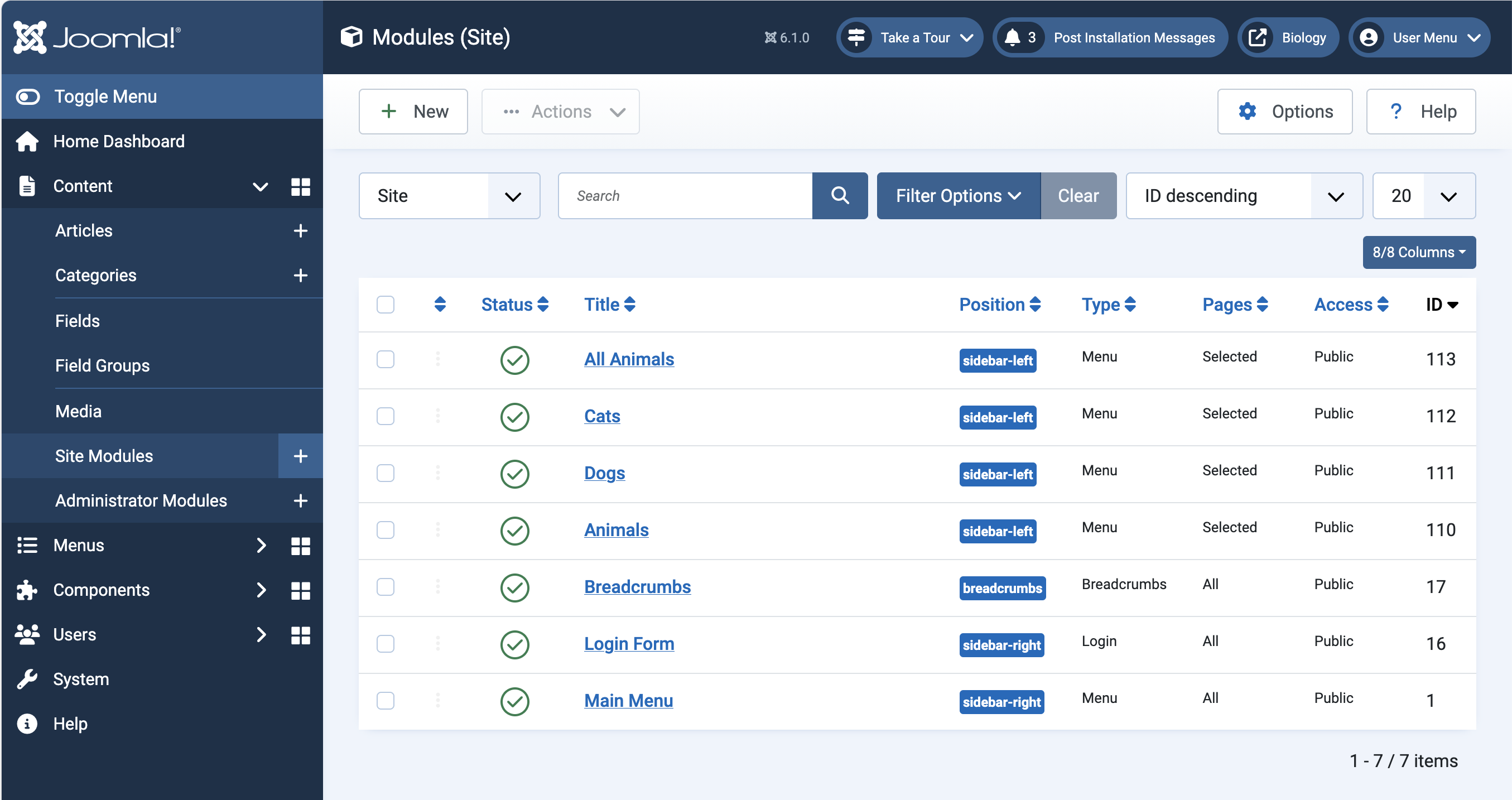
We'll create four site modules to display four different views of the menu:
- All Animals: appears on the homepage with a complete list of links to the entire Animals menu.
- Animals: appears with the Animals article, showing links only to Cats and Dogs.
- Dogs: contains only dog breeds and appears only in articles about dogs.
- Cats: contains only cat breeds and appears only in articles about cats.
- Navigate to Content > Site Modules. You may see site modules for Breadcrumbs, Main Menu, and Login Form. These are standard with a new Joomla installation and appear on the homepage.
- Click New.
- Select Module Type: Menu
- Title: All Animals
- Select Menu: Animals
- Base Item: Animals
- Start Level: 1
- End Level: All
- Position: Sidebar Left
- Click Menu Assignment:
- Module Assignment: Only on the Pages Selected
- Click None to clear checkboxes, then check: Home
- Click Save & New.
- Select Module Type: Menu
- Title: Animals
- Select Menu: Animals
- Base Item: Animals
- Start Level: 2
- End Level: 2 (Cats and Dogs will be the only items displayed)
- Position: Sidebar Left
- Click Menu Assignment:
- Module Assignment: Only on the Pages Selected
- Click None to clear checkboxes, then check: Animals > Animals, Main Menu > Animals
- Click Save & New.
- Select Module Type: Menu
- Title: Dogs
- Select Menu: Animals
- Base Item: Dogs
- Start Level: 3
- End Level: All
- Position: Sidebar Left
- Click Menu Assignment:
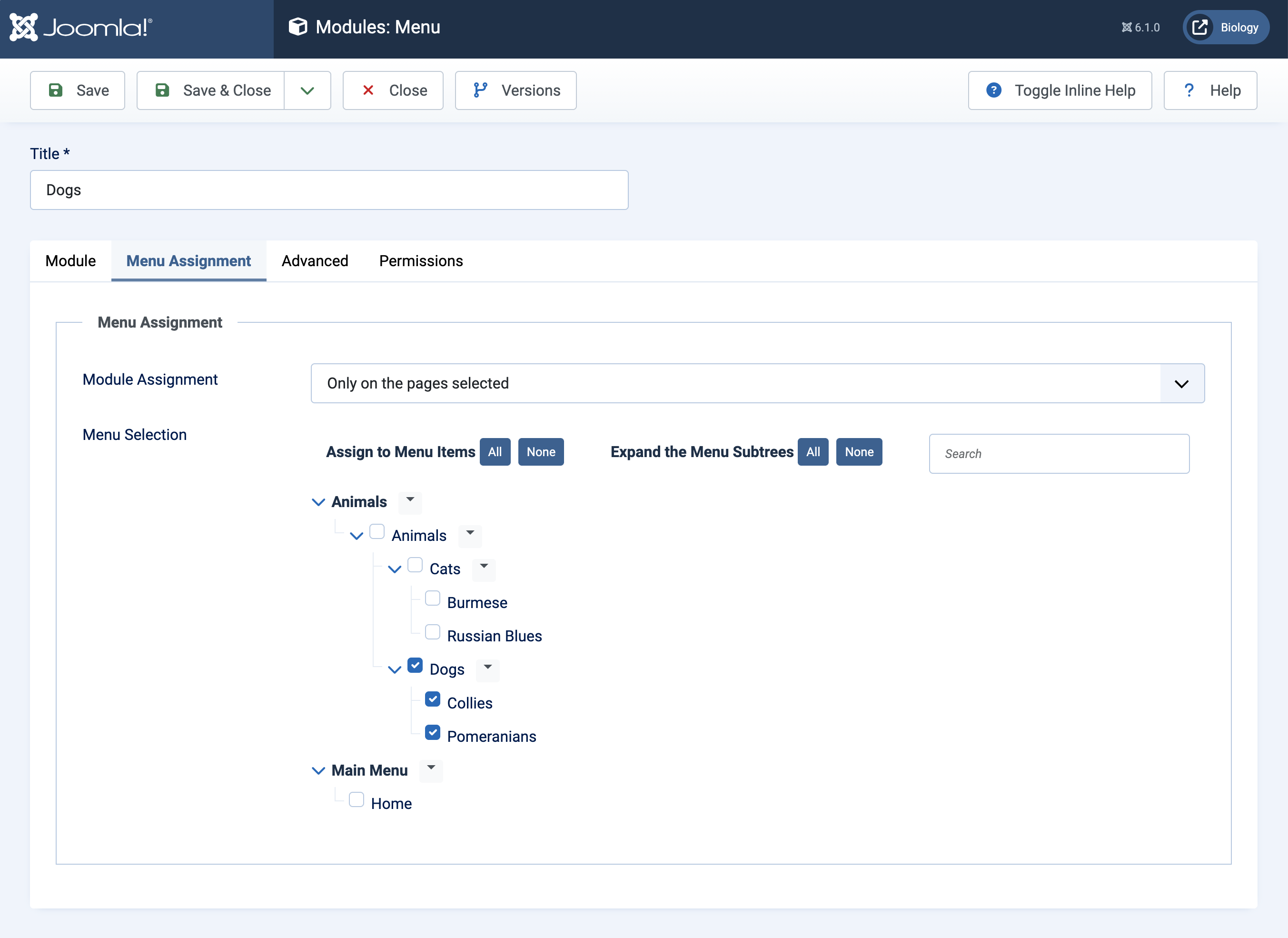
- Module Assignment: Only on the Pages Selected
- Click None to clear checkboxes, then click the dropdown arrow to the right of Dogs and choose Select. This selects Dogs, Collies, and Pomeranians.
Menu assignment for Dogs - Click Save & New.
- Select Module Type: Menu
- Title: Cats
- Select Menu: Animals
- Base Item: Cats
- Start Level: 3
- End Level: All
- Position: Sidebar Left
- Click Menu Assignment:
- Module Assignment: Only on the Pages Selected
- Click None to clear checkboxes, then click the dropdown arrow to the right of Cats and choose Select. Cats, Burmese, and Russian Blues should all be checked.
- Click Save & Close.
View the Results
- View the site. Result: The All Animals module appears in the left sidebar of the homepage, displaying the entire Animals menu.
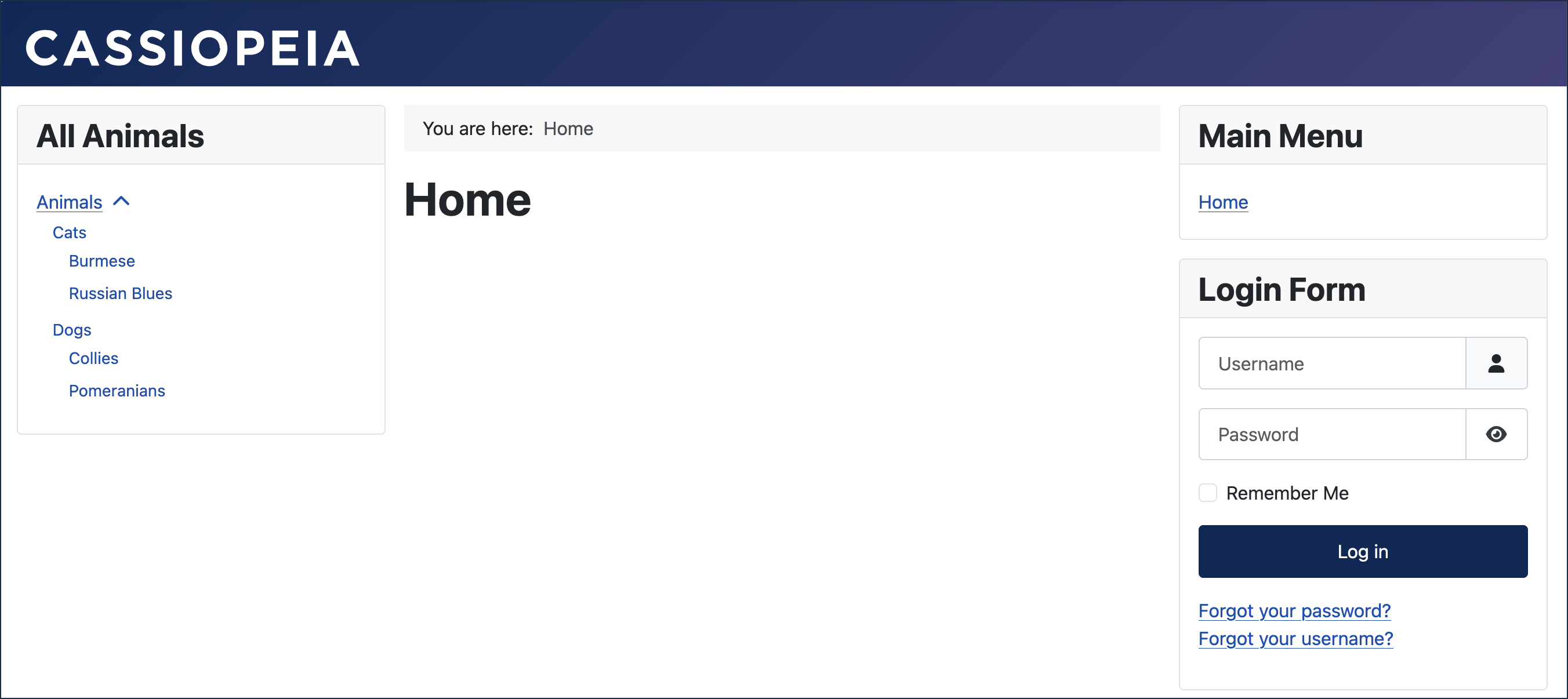
The All Animals menu on the homepage along with the other menu site modules (Main, Login, and Breadcrumbs under the banner). - Click Animals. Result: The Animals article appears on the right, with the Animals module in the left sidebar showing links to Dogs and Cats.
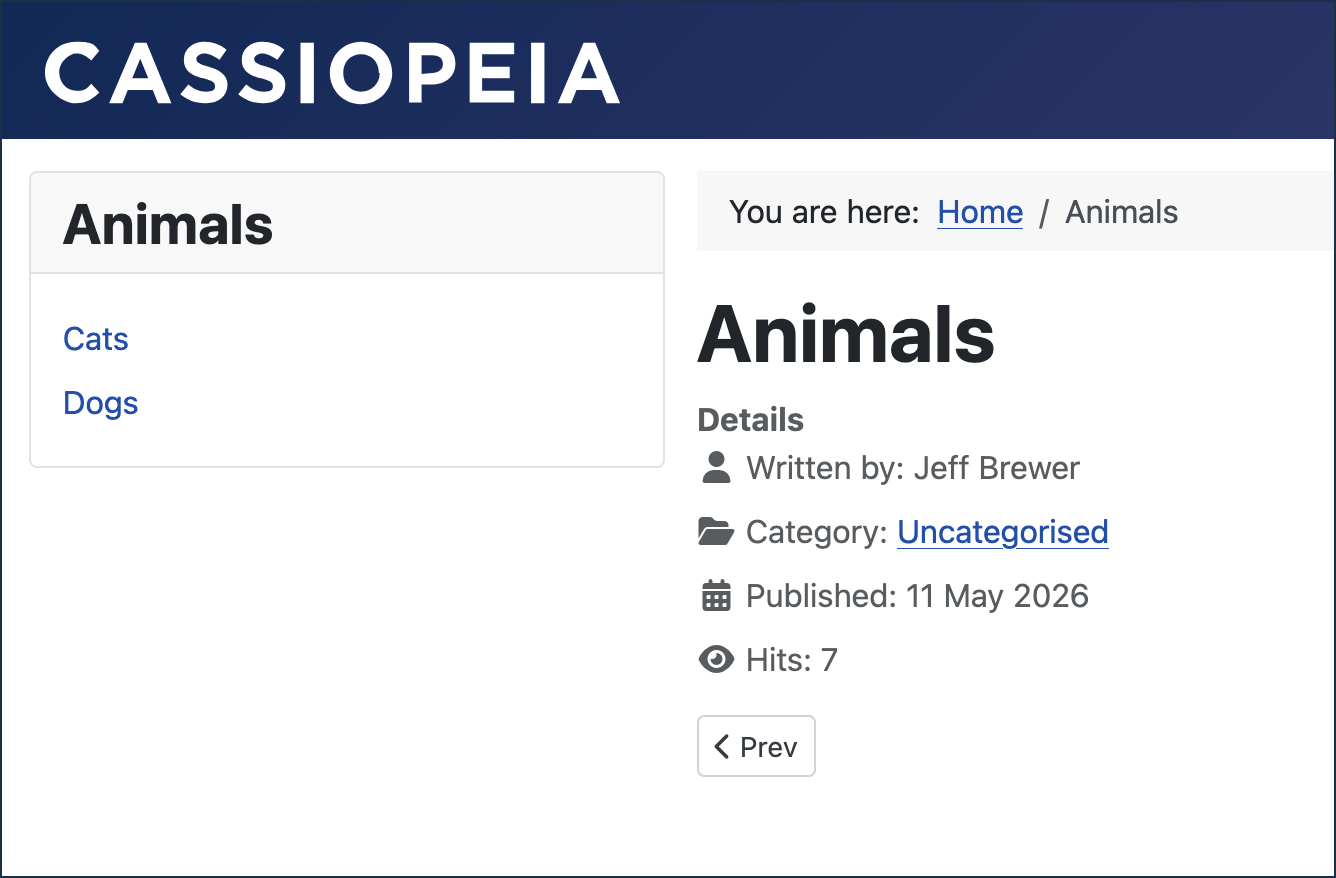
The Animals menu site module with the Animals article is configured to simplify the menu choices. - Click Dogs. Result: The Dogs article appears on the right, with the Dogs module in the left sidebar showing links to Collies and Pomeranians.
- Click Cats. Result: The Cats article appears on the right, with the Cats module in the left sidebar showing links to Burmese and Russian Blues.
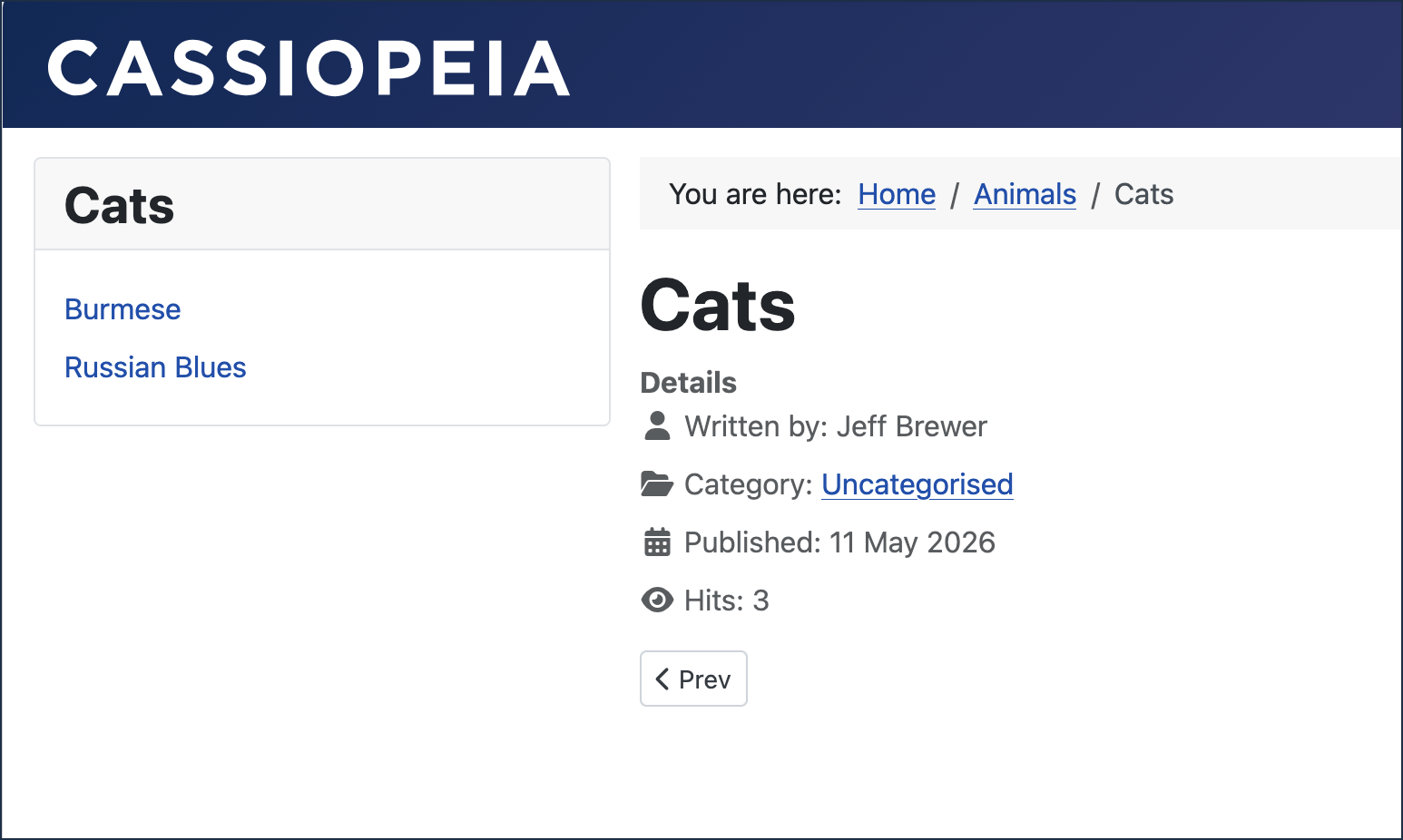
All cat-related articles display the Cats menu. The breadcrumb menu provides navigation back up the hierarchy. - Click Pomeranians. Result: The Pomeranians article appears on the right with the Dogs module on the left. Note: The breadcrumbs menu above the article links back to Dogs, Animals, and Home.
We created seven articles for our menu to link to, then created the menu as an empty container. We added menu items to the menu in a hierarchy by setting each item's parent. Finally, we created four menu site modules to display the menu on the website in different ways: an all-inclusive menu on the homepage, and context-sensitive menus showing relevant links for the Animals, Dogs, and Cats sections.
Concepts
A single menu contains submenu items arranged in a hierarchy, and is used to display multiple context-appropriate submenus on the website. This can be especially helpful with large hierarchies containing many menu items.
Large dropdown menus can be confusing and difficult to navigate. Using submenus can simplify navigation while using a single large and complex menu.