 User Documentation
 The first two tutorials explain that Joomla has two login areas, a frontend and a backend, and that these are independent of each other. Future tutorials will direct you to make changes in the backend then view the results in the frontend. This tutorial will demonstrate that the frontend and backend logins are separate, and describe how to switch back and forth between the frontend and backend.
Prerequisites
Steps
View the Frontend
- Open a browser and log in to the backend of the site.
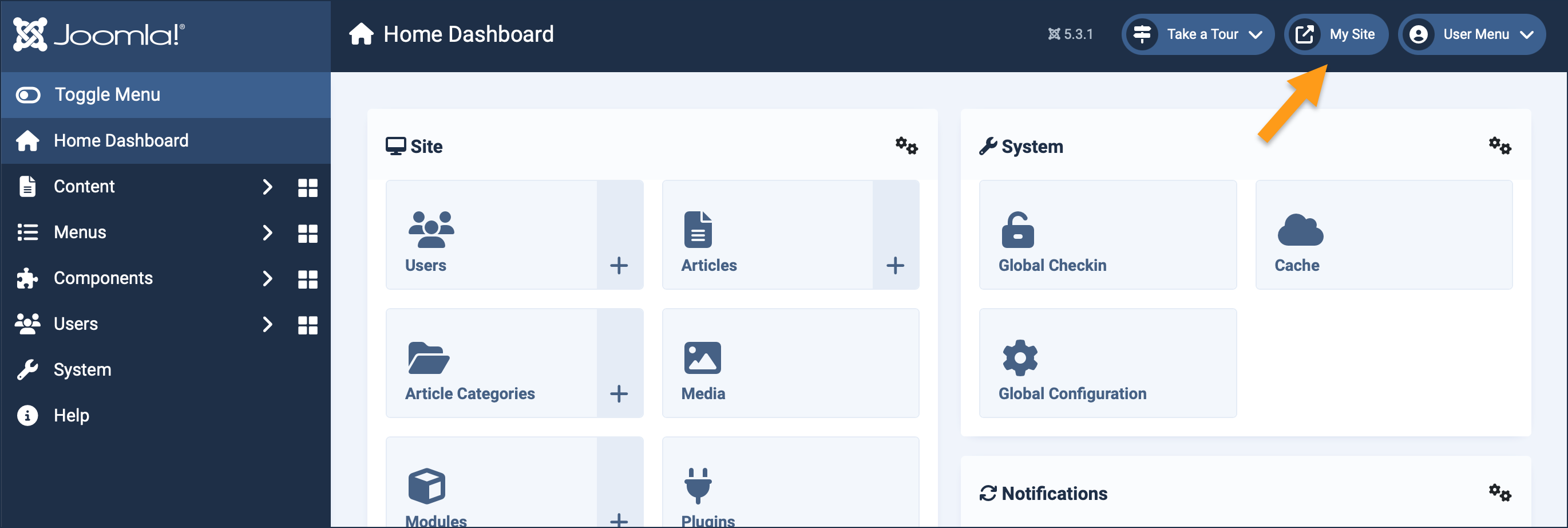
- Locate the View Site button in the header. Hover over the button and read the tool tip that pops up.
- Click the button. Result: The frontend opens in a new tab.
- Switch between the two tabs to verify the backend is open in one, and the frontend is open in the other.
Updates and Refreshing
Many tutorials will direct you to login to the backend, view the frontend, make changes in the backend, then refresh the frontend. We will practice this now.
- In the frontend and observe the title Home on the homepage.
- In the backend, click on Menus > Main Menu then the Home menu item. Result: The menu item edit form appears.
- Change the Title to Site Home Page then click the Save (not Save & Close) button.
- View the frontend and refresh the page. Result: The title on the homepage has changed to Site Home Page.

Work in the backend to make changes, switch to the frontend to view the results. - Return to the backend. Change the Title back to Home then click the Save & Close button.
Concepts
Switching between the backend in one tab and the frontend in another is a very convenient way of making changes and observing the result.
You will be logged into the backend in one tab, but typically not logged into the frontend in the other. This has the advantage of seeing the frontend as the public would.