 User Documentation
 Content tags can be assigned to articles to group a set of articles that share the same criteria. For example, if you're writing a series of articles describing courses offered on a website, you can assign the same tag to several articles that each cover a different aspect of a similar topic. A single article can also carry multiple tags, identifying several aspects of a topic area. For example, the tag Cargo could be used for articles covering cargo insurance, cargo transportation, and cargo theft. Unlike a category, which an article can only belong to one of, an article can have as many tags as apply to it.
Prerequisites
- 1 Tutorial Introduction covers where to run your tutorial, and includes the required frontend/backend login and site-viewing tutorials (1.1, 1.2, 1.3).
Setup
Create Tags
- Navigate to Components > Tags and click New. Result: A new tag form opens.
- Title: Cargo
- Click Save & New.
- Title: Insurance
- Save & Close.
Create Three Articles
- Navigate to Content > Articles and click New. Result: A new article form opens.
- Title: Cargo Transportation
- Tags: Cargo. Note: Select from the dropdown, or type a new tag name into the Tags field and press Enter to add it.

Adding a tag to an article - Click Save & New.
- Title: General Liability Insurance
- Tags: Insurance
- Click Save & New.
- Title: Cargo Insurance
- Tags: Cargo, Insurance
- Save & Close.
Steps
Create a Tag Menu Item
- Navigate to Menus > Main Menu and click New. Result: A new menu item form opens.
- Title: Cargo
- Menu Item Type: Tags > Tagged Items
- Tag: Cargo
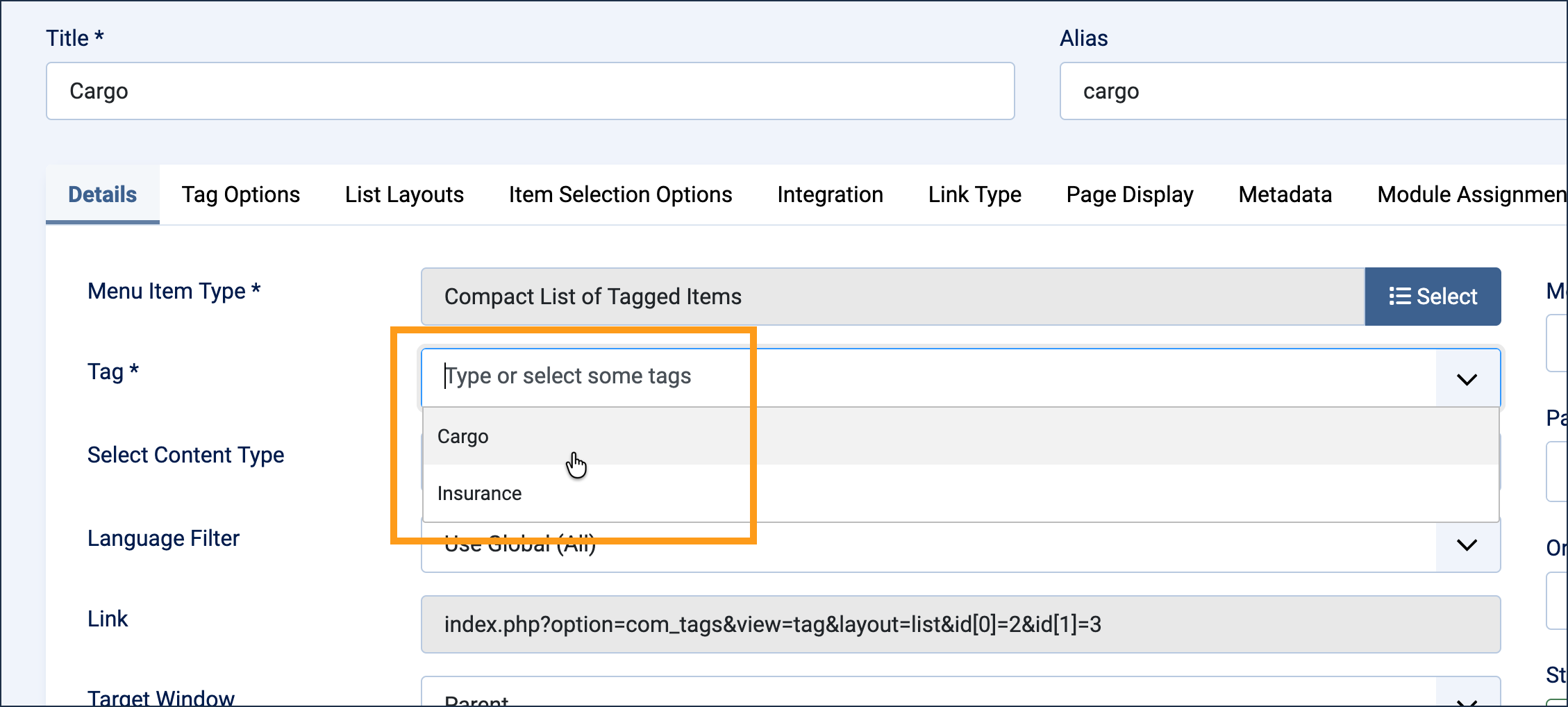
Choosing the Tagged Items menu item type - Save & Close.
- View the site and click Cargo in the main menu. Result: A list appears showing the two articles tagged Cargo: Cargo Transportation and Cargo Insurance.
Modify the Tag Menu Item
- Switch to the backend and navigate to Menus > Main Menu.
- Click Cargo to edit it.
- Tags: Cargo, Insurance
- Save & Close.
- Switch to the frontend and click Cargo in the main menu again. Result: All three articles now appear in the list, including General Liability Insurance, since the menu item now matches either tag.
Filter Articles by Tag in the Backend
- Switch to the backend and navigate to Content > Articles.
- Click Filter Options. Result: A set of filter category dropdowns appears.
- Set - Select Tag - to Insurance. Result: The list narrows to the two articles tagged Insurance: General Liability Insurance and Cargo Insurance.
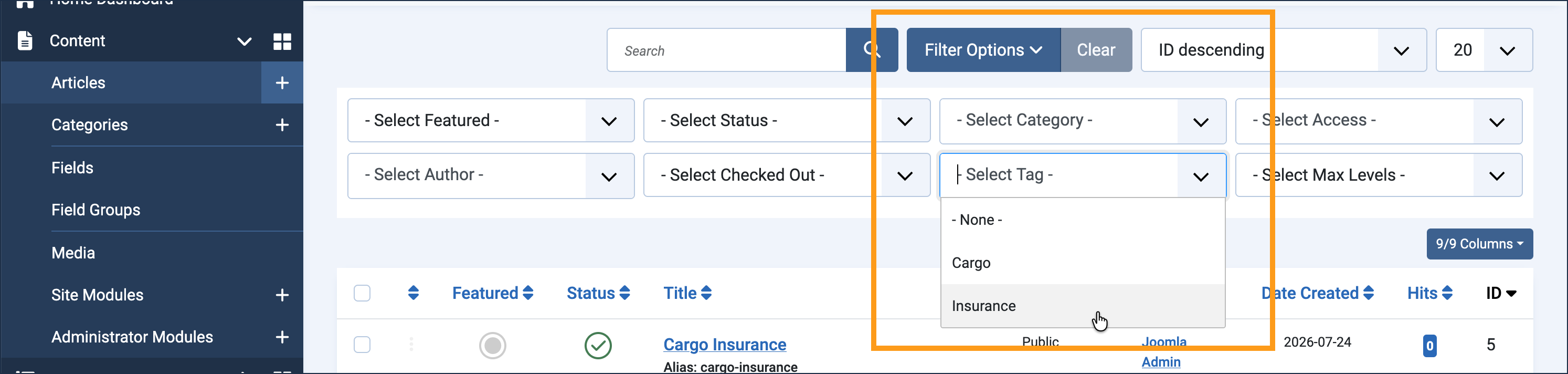
Filtering the article list by tag
Concepts
Tags created anywhere in Joomla—whether typed directly into an article's Tags field or created ahead of time under Components > Tags—all appear together in the same tags list, and can be used to filter articles from the backend article list.
Unlike categories, which an article can only belong to one of, an article can carry as many tags as apply to it. A Tagged Items menu item can also be configured to match more than one tag, as this tutorial demonstrated by adding Insurance to the Cargo menu item.