 User Documentation
 This article explains how to delete articles from the list. In Joomla, deletion of an article is a two-stage process. The first stage sends it to the Trash. You can then remove it permanently from the Trash.
Prerequisites
- 1 Tutorial Introduction covers where to run your tutorial and administrative access.
- 5.1 Filter Articles creates the categories and articles used in this tutorial's Setup.
Setup
Create an Article to Delete
- Log in to Joomla backend and navigate to the Home Dashboard.
- In the Administrator Menu, click Content > Articles.
- Click New. Result: A new-article form appears.
- Title: Retired Announcement
- Status: Published
- Category: News
- Article Text: This announcement is no longer relevant and can be safely removed.
- Save & Close
Steps
Moving the Article to Trash
- Select the checkbox to select the Retired Announcement article. Result: This enables the Actions button in the toolbar.
- Select Trash from the Actions options. Result: A confirmation message appears.
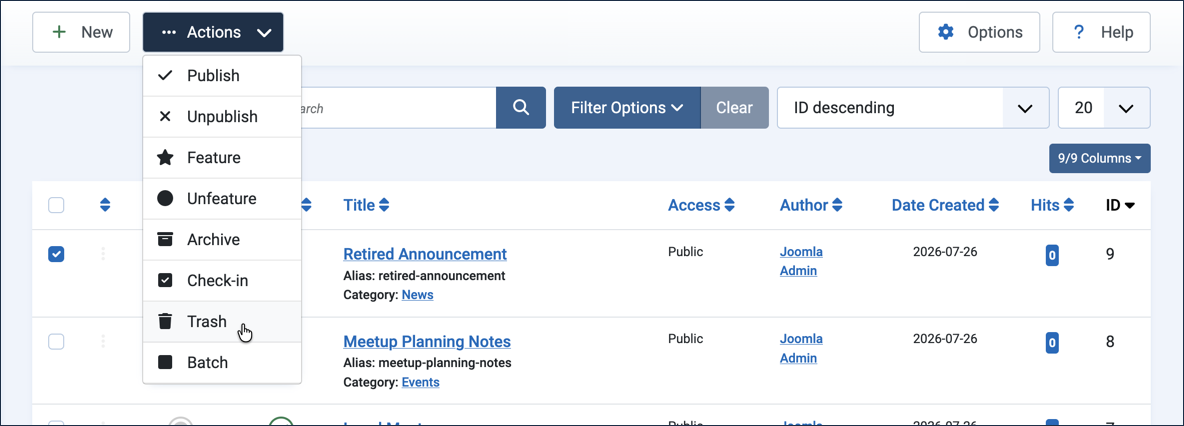
Selecting Trash from the Actions dropdown - The article has disappeared from the current list of articles. Note: This list does not normally include trashed items.
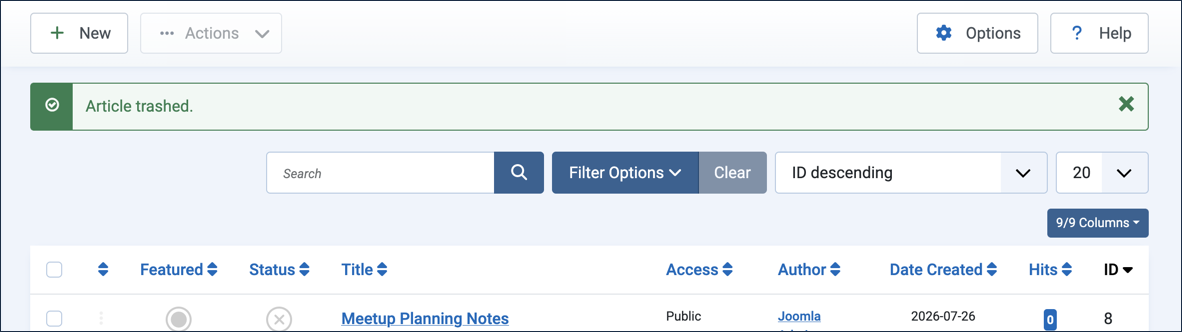
The confirmation message, and Retired Announcement gone from the list
Find Trashed Articles
- Click Filter Options to open the list of filters.
- Select Trashed from the - Select Status - list. Result: The trashed articles appear, including Retired Announcement.
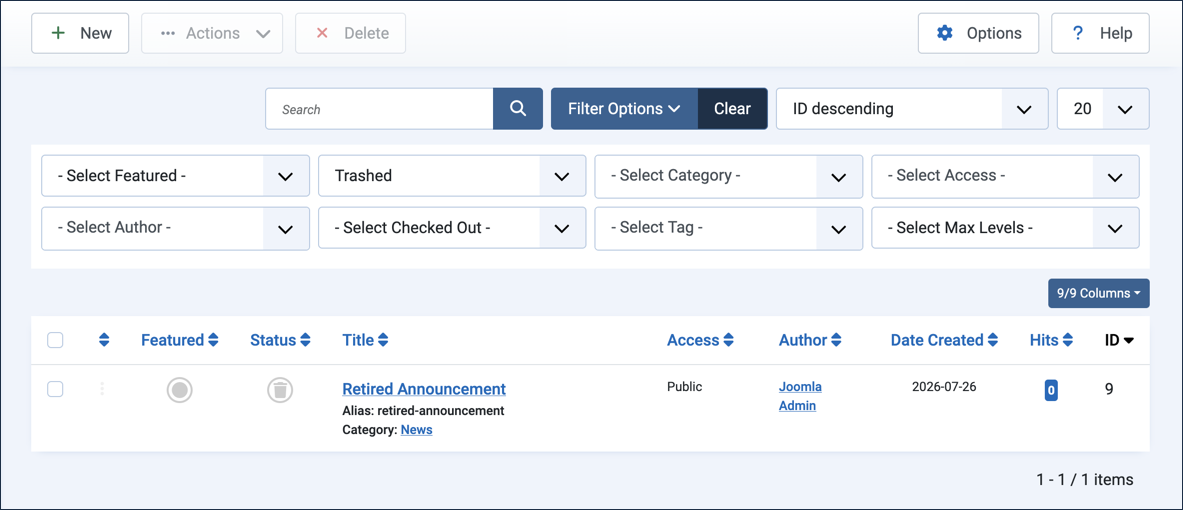
Filtering the list on the Trashed status
Trashed articles can be restored or permanently deleted. We'll restore the article first, then later permanently delete it.
Restoring a Trashed Article
- Click the Trashed symbol in the Status column next to the Retired Announcement article. Result: The article returns to the Published state and disappears from the list of trashed articles.
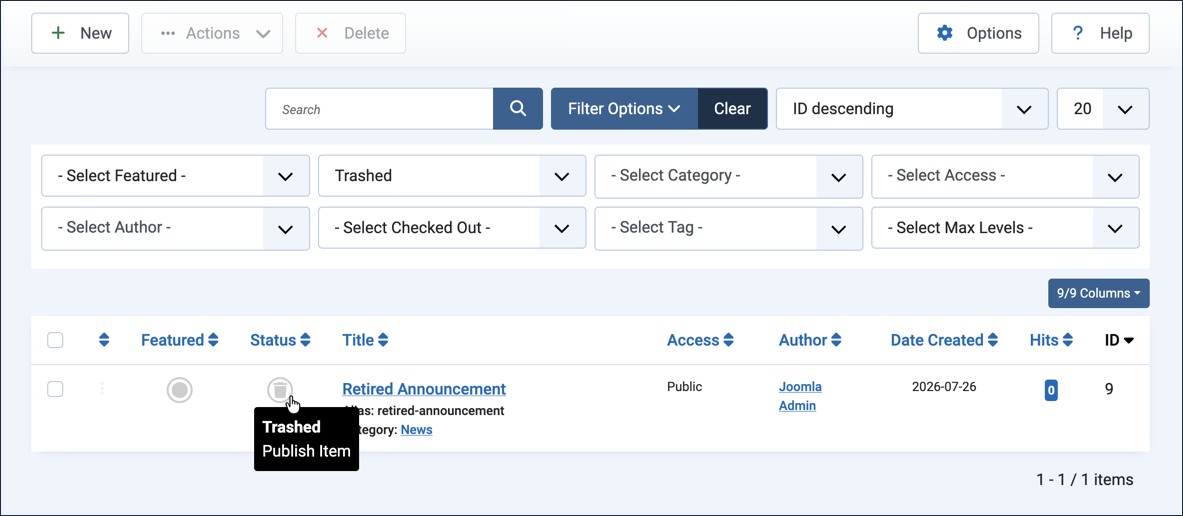
The Trashed icon, which restores the article to Published when clicked
Permanently Delete an Article
- Clear the filter (Clear button next to Filter Options).
- Trash the Retired Announcement article again.
- Set the filter to display trashed articles (as above).
- Select the Retired Announcement article. Result: The Delete button appears in the toolbar.
- Click the Delete button. Result: A warning appears.
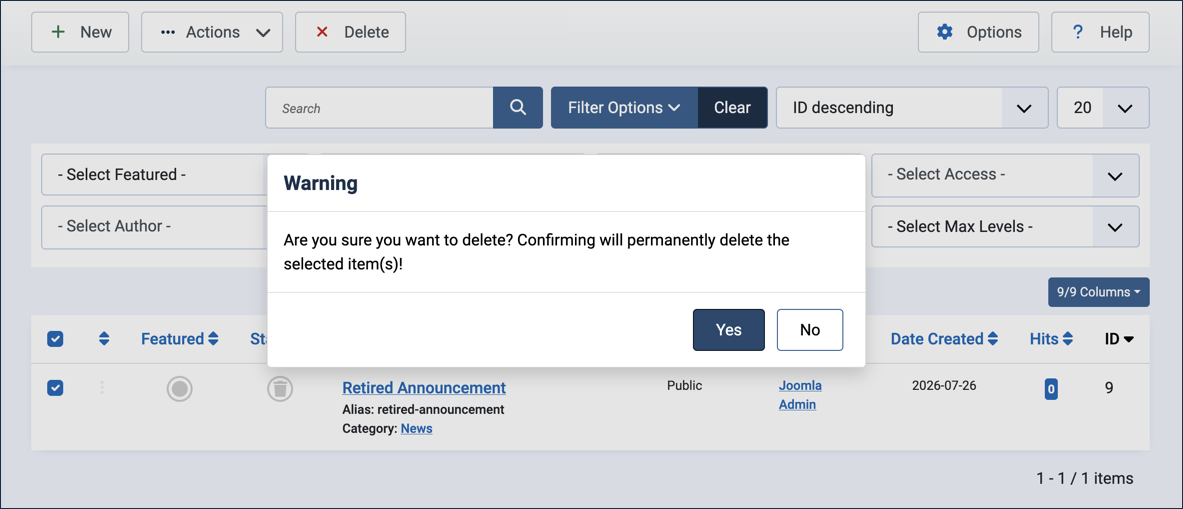
The permanent-deletion warning - Select Yes to confirm. Result: The article has been deleted permanently.
- Click the Clear button next to Filter Options to return to the Articles list.
Concepts
Similar to a recycling bin on a computer, Trashed is a status for Joomla articles.
A filter is a way to show articles matching your filter criteria, in this case Trashed.
Consider why you want to delete the article. If it's no longer needed, deletion is most likely the right course of action. If it's an article that could be reused in the future, archive it instead — it can be very frustrating to know you had an article that would have been a good starting point for another, but you deleted it.
Deleting an article is not the same as archiving an article. Once it has been deleted from Trash, it's gone for good.
Joomla will not let you save more than one article with the same alias. If an article is deleted but left in the Trash, it still exists. So when you try to save a new article and get an error stating the alias already exists, and can't find it, it may very well be in the Trash. In that case you could remove it from Trash or use a different alias for your new article.
Joomla keeps previous versions of an article (if Versioning is enabled, which is the default setting on most Joomla websites). If you want to delete an article because it somehow "broke," try reverting it to a previous version instead.