 User Documentation
 In this tutorial, you’ll learn how to create an additional menu separate from the default one in Joomla. You’ll also see how to display that new menu using a Menu Module. Once you have the new Menu, you can then add menu items to it.
Prerequisites
- 2.0 First steps with articles, menu-items and categories
- 9.2 Menu Modules
Steps for creating a menu
- Login to Joomla as an administrator and navigate to the Home Dashboard.
- In the left-side menu, expand Menus and click on Manage.
- Click on the New button. A New Menu form appears.
- Enter a title (required): Pets.
- Enter a unique name (required): pets.
- Save and close
Steps for displaying the menu using a menu module
A site module is needed to display the menu on the website.
- In the left-side menu, expand Content and click on Site Modules.
- Click on the New button. A Select a Module Type window appears.
- Click on the block titled: Menu( This module displays a menu in the Frontend).
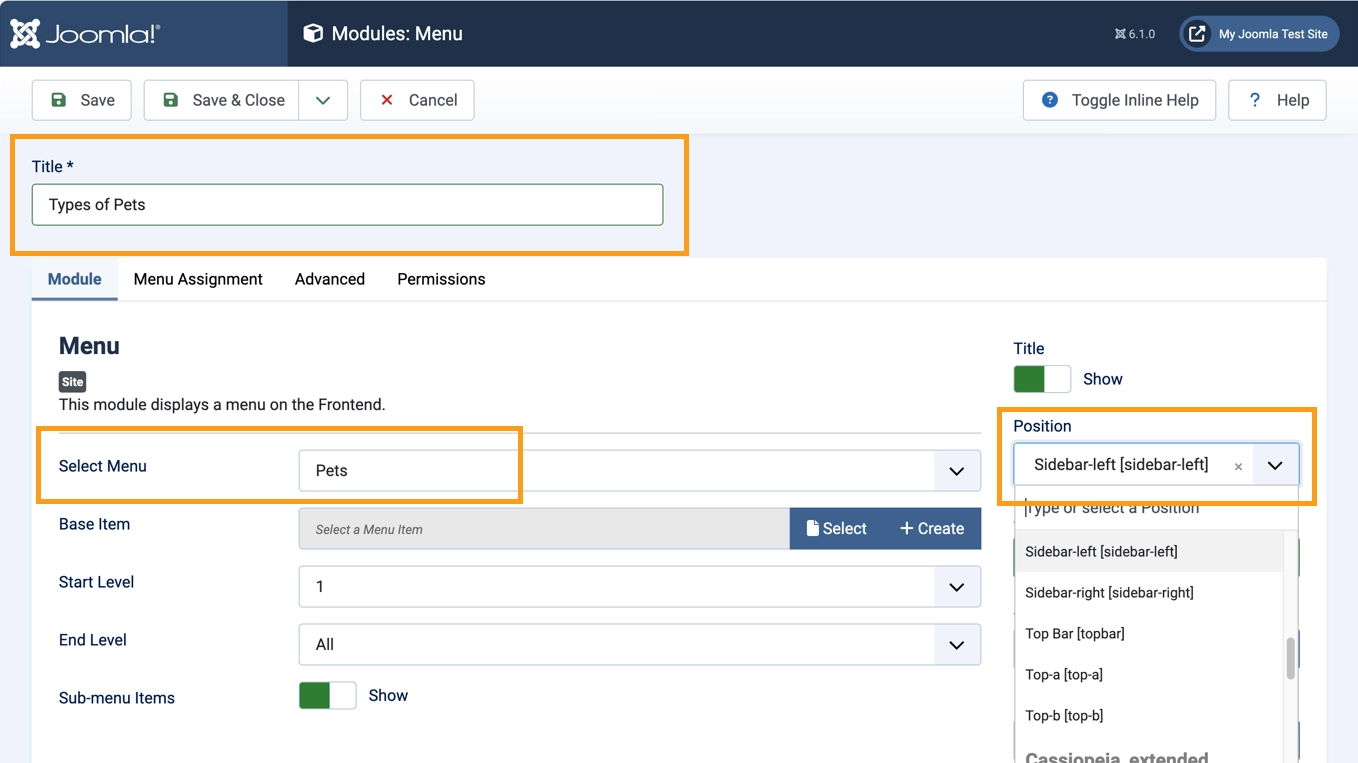
- Enter a title (required): Types of Pets.
- In the Module Tab, In Select Menu click the down arrow to select the new menu you just created.
- In the Module Tab, In Position click the down arrow to select a template position: Sidebar-left.
- In the Module Tab, In Status click the down arrow to select Published.
- Save and close
Steps for adding menu items
A menu is a container for menu items, and when empty won't appear on the site, so we'll add a simple article and menu item
- Create an article
- Navigate to Content > Articles
- Click on New
- Enter a title: Cats
- Status: Published
- Save and close
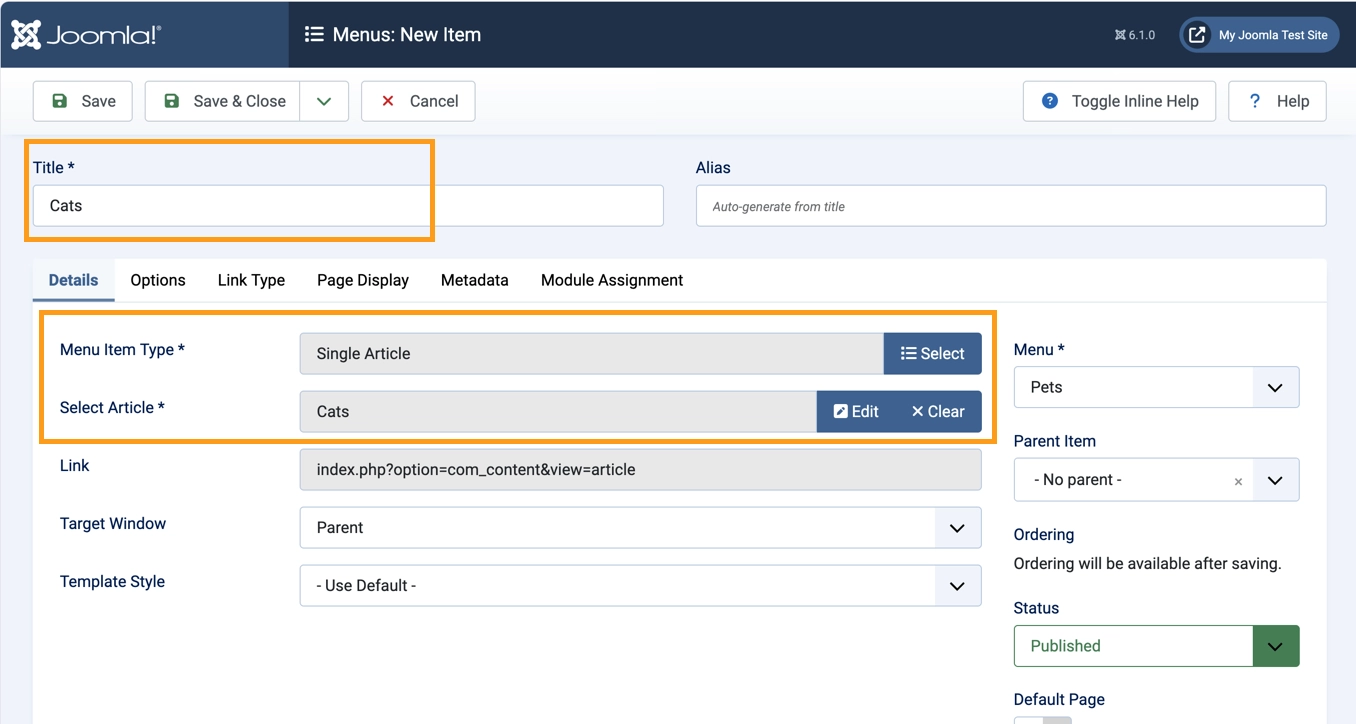
- Create a menu item
- Navigate to Menus > Pets
- Click New
- Enter a title: Cats
- Enter a menu type: Articles > Single Article
- Select article: Cats
- Menu: Pets
- Status: Published
- Save and close
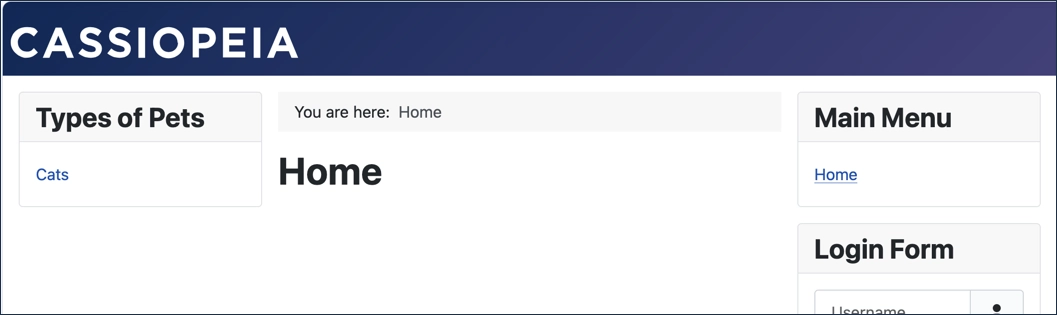
View the site and verify that the Types of Pets module appears in the left sidebar, and that the Cats menu item appears in the module.
Concepts
Tutorial 1.2 Creating an Article and Menu Item goes into greater detail than what was covered in this tutorial.
Menus are logical structures for grouping menu items. They must be added to a site module to be displayed on the website.