 User Documentation
 Menu Items provide access to articles, not unlike picture frames display artworks that are otherwise stored in the backroom of a museum. This tutorial demonstrates the use of menus and explores the relationship between menus, articles and categories.
Prerequisites
Administrator access to a Joomla site (version 5 or above). See 1.0 Admin Login.
Your website has a main menu with a home menu item that is a featured item menu type. This is standard with a new Joomla installation.
Publishing Menu Items
Setup
Create a New Category
- Navigate to Content > Categories and click on the New button.
- Enter a title.
- Note that Published is the default status.
- Save and Close
Create Two Articles
- Navigate to Content > Articles and click on the New button.
- Enter a title and some body text.
- Featured is set to No.
- Note that Uncategorised is the default category.
- Create one Uncategorized article and one article in the new category.
- Save and close.
There are now two articles; one in the new category, and one in the Uncategorised category.
Viewing the Site
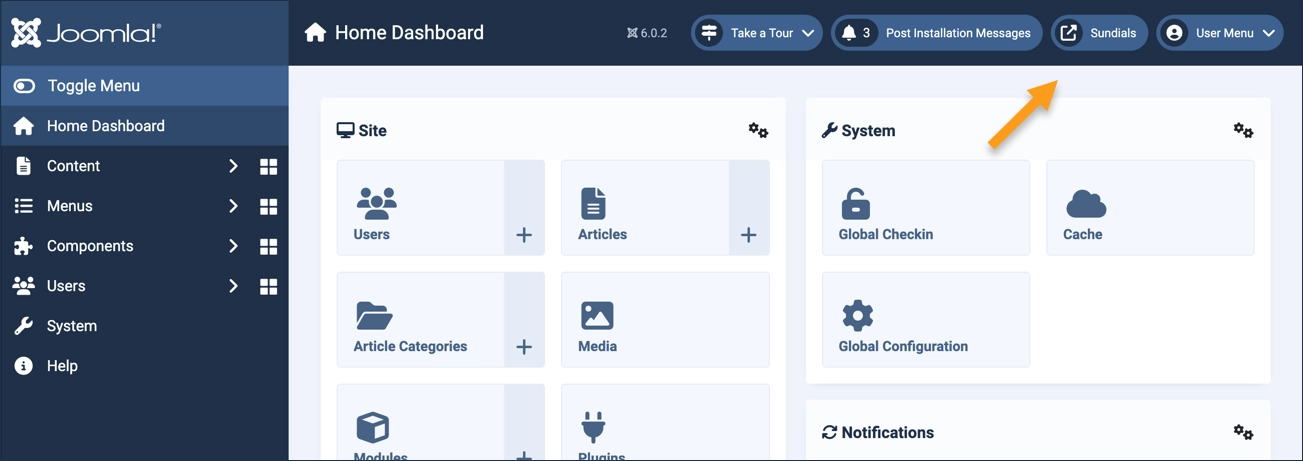
The exercise frequently directs you to "view the site" and later to "close the tab," make updates in the administrative area, then once again "view the site." This method ensures the site is refreshed after every change. To view the site, click on the icon (with the site name) in the header.
Steps
View the homepage by clicking on the icon in the header. The homepage appears but neither of the articles appear on the homepage or anywhere else in the site.
Close the tab and navigate to Content > Articles. Edit one of the articles by clicking on the title. Click the Preview button. The article pops up and appears to function properly. Close the preview frame, then close the article without saving.
Menu items are needed to provide links to articles.
Navigate to Menus > Main Menu. Edit the Home menu item by clicking on the title. Note that the menu item type is Featured Articles. Main Menu is a menu item that displays featured articles. Close without saving.
Navigate to Content > Articles and make our two articles featured articles by clicking on the Featured icon. The icon changes from a gray circle to a gold star.
View the site and observe the articles are now listed on the homepage.
Menu items are needed to view articles on the website. The Home menu item is a Featured Article type, displaying featured articles.
Close the tab and remove the Featured status of both articles by clicking on the gold star next to each. The articles will no longer appear on the homepage. We will now create a new menu item to view the articles.
Create a Category Blog Menu Item
Navigate to Menus > Main Menu then click on the New button to create a new menu item:
- Title: Enter an appropriate title
- Menu Item Type: Category Blog
- Choose a Category: The new category
- Save and Close
View the website and observe the new Category Blog menu item in the Main Menu. Click on the link and observe that one of the articles is listed (the one in our new category—the other article is in the Uncategorised category).
Close the tab and navigate to Content > Articles. Edit the other article and change the category to the new category. Save and close.
View the website, then click on the new Category Blog menu item. Both articles appear.
A Category Blog menu item a list of articles in a category.
Close the tab and navigate to Menus > Menu Items. Click on the status icon for the new menu item, changing its status to Unpublished.
View the website and observe that the new menu item no longer appears, and our articles are again inaccessible.
Menu items must be published to appear in the website.
Close the tab and restore the new menu item by clicking on the Status icon to publish it.
Create a Single Article Menu Item
Click on the New button to create a new menu item:
- Title: Enter an appropriate title for one of the articles
- Menu Item Type: Single Article
- Choose an Article: One of the new articles
- Save and Close
View the website and explore both menu items to view the articles.
The Category Blog menu item displays a list of all articles in its category; clicking on the article link they renders the full article. A Single Article menu item displays a single article directly.
Effect of Unpublishing Articles
Close the tab and navigate to Content > Articles then unpublish both articles by clicking on the Status icon.
View the website and observe that both menu items still appear in the main menu. Click on the menu items.
- The Category Blog menu item displays a message that no articles for the category exist.
- The Single Article menu displays an error message—article is unavailable because it is unpublished.
Effect of Unpublishing a Category
Close the tab and republish both articles by clicking on the status icon.
Navigate to Content > Categories then unpublish the new category by clicking on the Status icon.
View the website then click on the menu items.
- The Category Blog menu item displays an error—it requires a published category to function.
- The Single Article menu displays an error as well—its article requires a published category.
Note that the menu items still appear even though they display error messages when clicked.
Close the tab and republish the category by clicking on the status icon.
Effect of Unpublishing Menu Items
Navigate to Menus > Main Menu then unpublish the new menu items by clicking on the Status icon.
View the website and observe that the new menu items no longer appear. The articles are still published and available, but unreachable.
Recall that the Home menu item is a Featured Articles menu type.
Restore the Featured Articles
Close the tab and navigate to Content > Articles. Click on the Featured icon to make both new articles featured items.
View the website. The articles are once again reachablere on the homepage.
Concepts
Menu Items, Articles, and Categories are interdependent. Menu Items provide access to Articles; Articles and some Menu Items require Categories.
Menu Items can be thought of as the picture frames in which Articles, and lists of Articles (Featured Items, Blogs, etc.) appear.
Menu Item can appear even when the lists or articles they link to have issues.