 User Documentation
 This article explains how to archive articles on your website, for example if the content is not very current or relevant, but you want to keep it available. In Joomla, you can simply change the status of your article to Archived.
Prerequisites
- A Joomla website with articles that need to be archived
Concepts
- Articles in Joomla are the main content types on a web page and can display text and images.
- A menu item is a link to an article, grouped with other links in a menu.
- A module is a block on your website that you can use to display content
- Archived is a status for content
- When you open an article for editing (or create a new article), you're in Edit mode.
Steps
Everything we describe here takes place in Joomla's Administrator.
- Login to Joomla as an administrator and navigate to the Home Dashboard.
- In the left side menu, expand Content and click on Articles.
Archiving an article in edit mode
- Open the article for editing by clicking on its link in the list.
- Set the status to Archived.
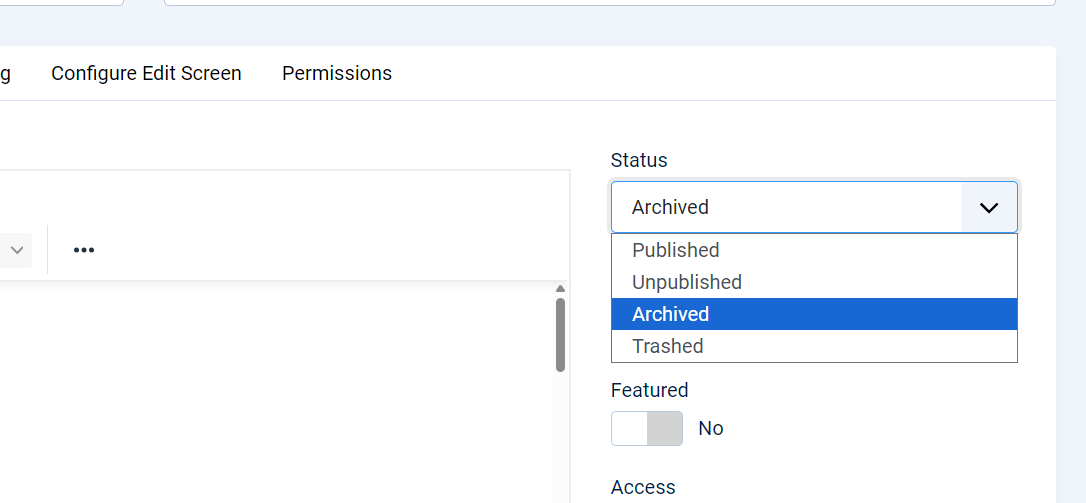
- Save and close your article.
- Your article will no longer be visible in the Articles list.

Archiving an article from the list
- Head over to the list of articles (Content -> Articles in your administrator menu).
- Check the box next to the title of the article you want to archive.
- The Actions button in the Toolbar on top of the page gets enabled. Select it to activate the dropdown list.
- Now select Archive from the dropdown list.
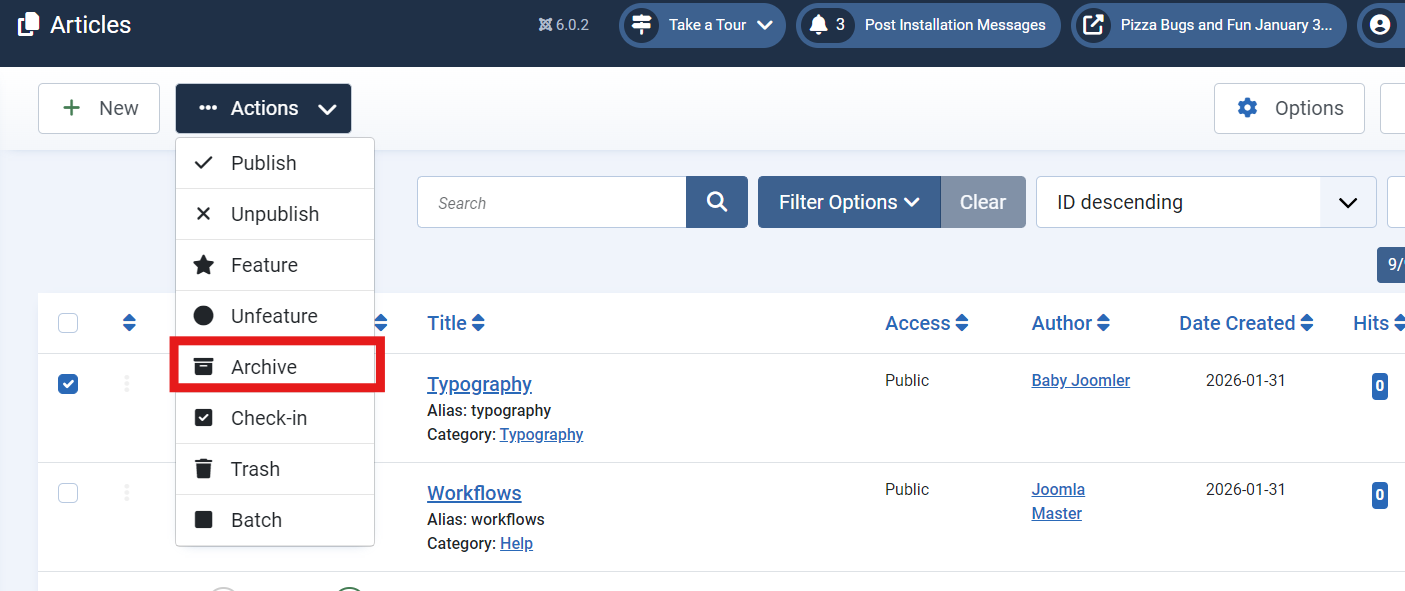
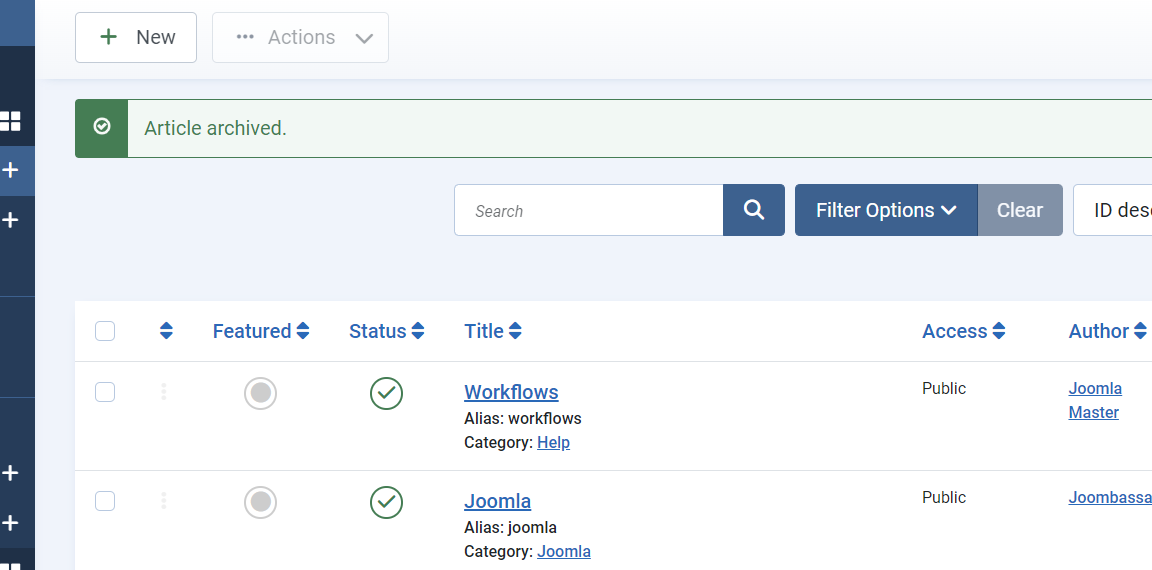
- You'll see a confirmation message and the article is no longer in this list.


Archiving an article through its menu item
Is your article linked in a Single Article menu item type (if you don't know what this means, it probably isn't. If you want to know, see 2.1 Creating an Article and Menu Item)? You can archive it here as well.
- Find the menu item first: in your adminstrator menu, expand Menus and click your menu to see its items
- Select the right menu item in the list to edit it
- The Select Article field has an Edit option that opens a popup Edit Article form
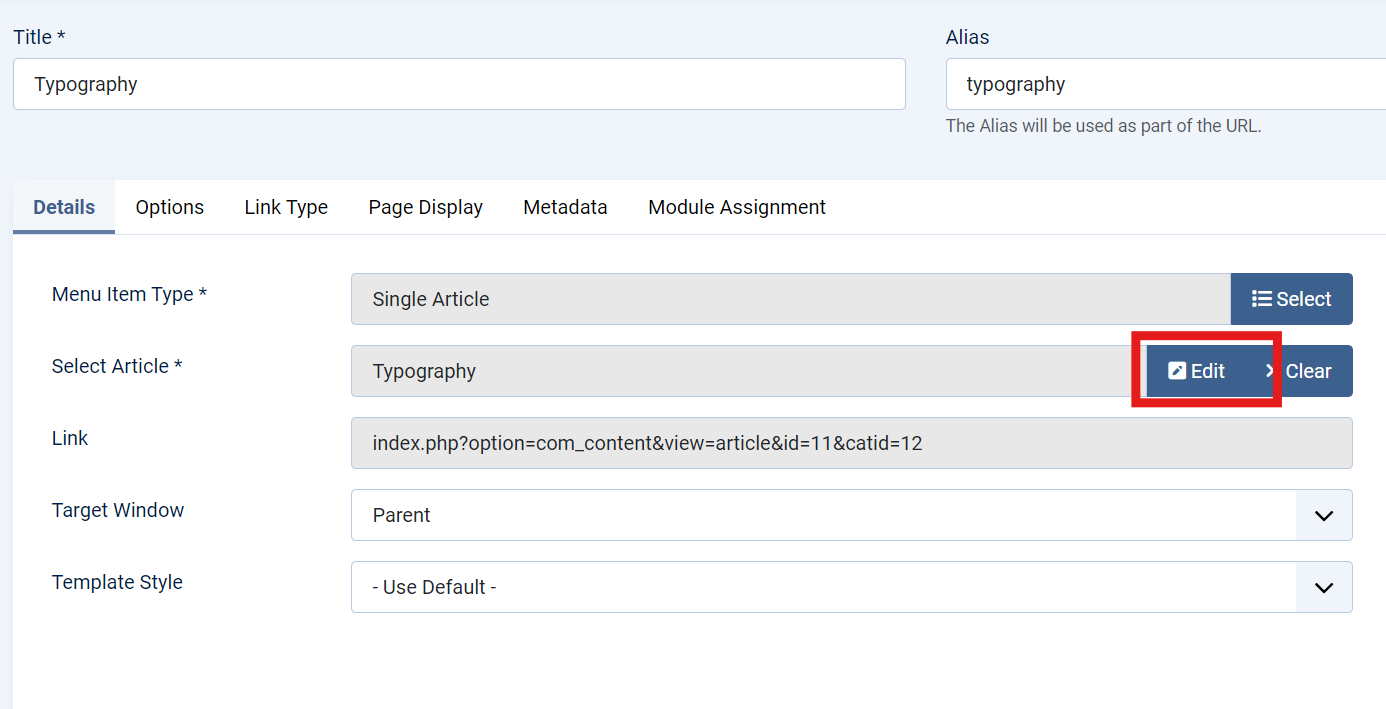
- Set the Status field to Archived (as shown in the screenshot under Archiving an article in edit mode above).
- The menu item will still link to the archived article.

Finding your archived articles
Archived articles no longer appear in the default Articles list.
- Select the Filter Options button and then Archived from the - Select Status - filter to see the list of archived articles.
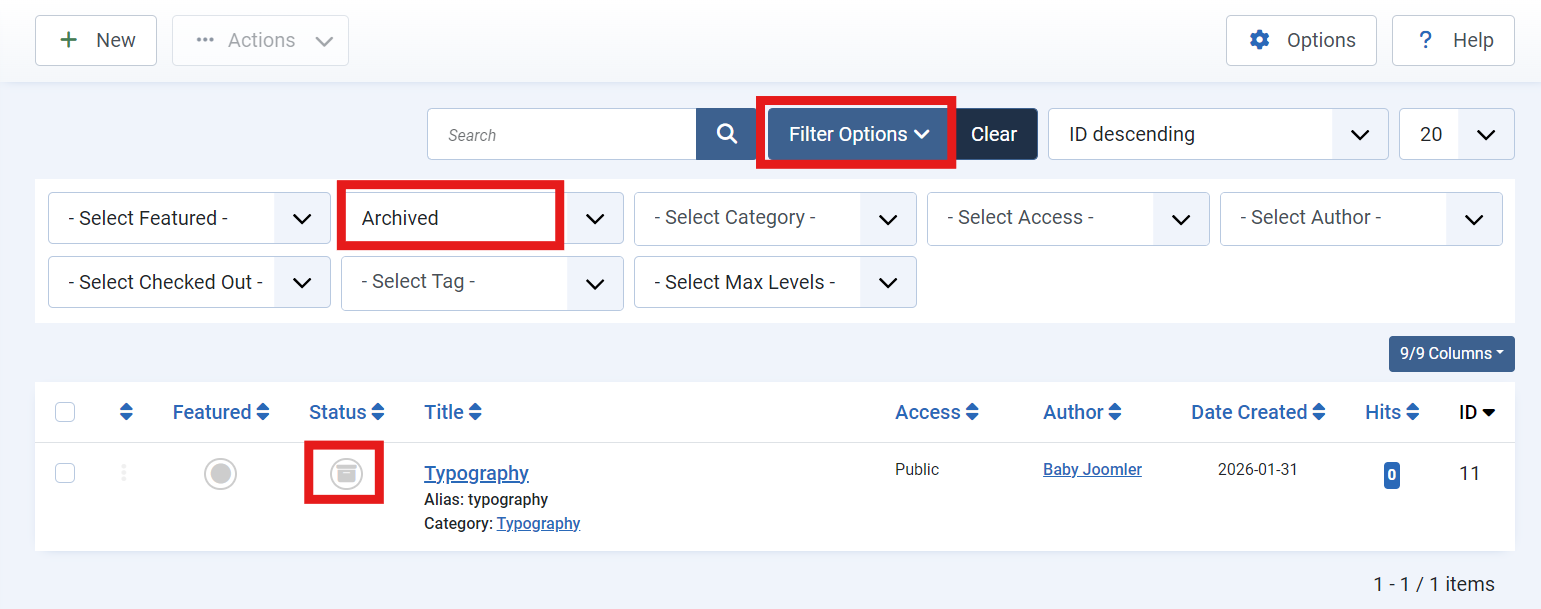
- You'll see all the articles that are archive
- Each title has an archive icon right in front of it

Displaying Archived Articles on your website
Once articles have been archived, there are several ways to view them from the Site frontend.
Via a menu

Use the Archived Articles menu item type to link to archived articles. You can choose one or more cateogries to display articles from.
Via the Articles module

Use the Articles module and set it to Archived articles only.
Un-archive Articles
To un-archive an article the same process applies - just change the status of your article from Archived to Published.
Bonus tips
- Archived articles are filtered from view in the Articles list. You must change the Status filter to Archived to view them.
- Archiving does not unpublish an article.
- Archives are structured by year.