 User Documentation
 Metadata is information about a web page contained in the HTML, the code behind an article. Most of this information is not seen by site visitors but it is used by search engines to provide appropriate results for search requests. Important metadata elements are Title (the title of your article) and, Description, a brief description of your article content.
Prerequisites
Administrator access to a Joomla site (version 5 or above). See 1.0 Admin Login.
Some familiarity with HTML is helpful.
Ability to view the page source (the HTML of a web page) in your browser. How to view the page source depends on your particular browser.
Setup
Create an Article
- Navigate to Content > Articles and click on the New button.
- Enter a title and some body text.
- Status: Published
- Category: Uncategorised
- Set Featured to Yes.
- Save and close.
Viewing the Site
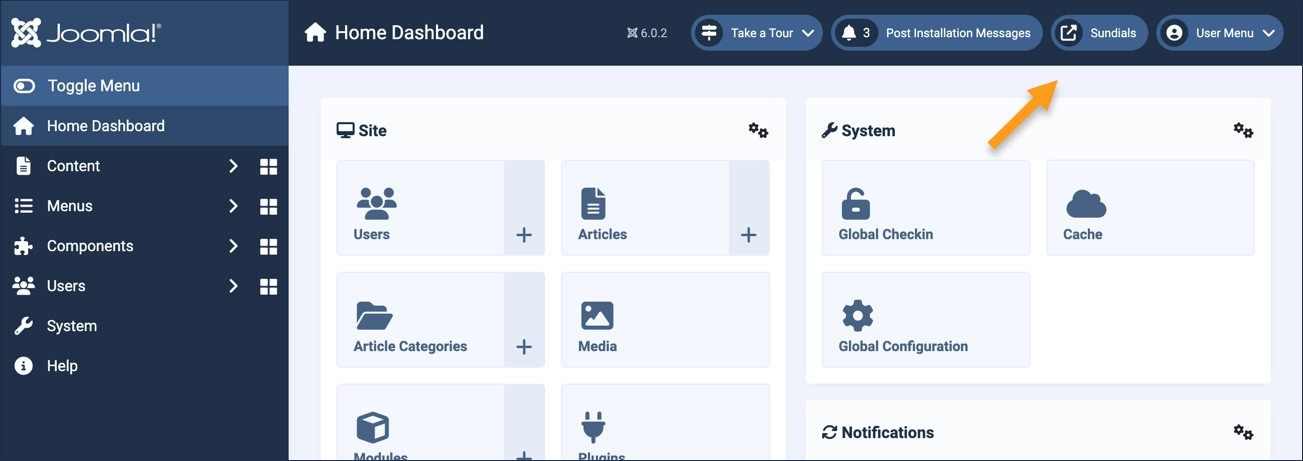
The exercise frequently directs you to "view the site" and later to "close the tab," make updates in the administrative area, then once again "view the site." This method ensures the site is refreshed after every change. To view the site, click on the icon (with the site name) in the header.
Steps
Verify the Setup
View the homepage by clicking on the icon in the header. The homepage appears with your article listed as a featured article.
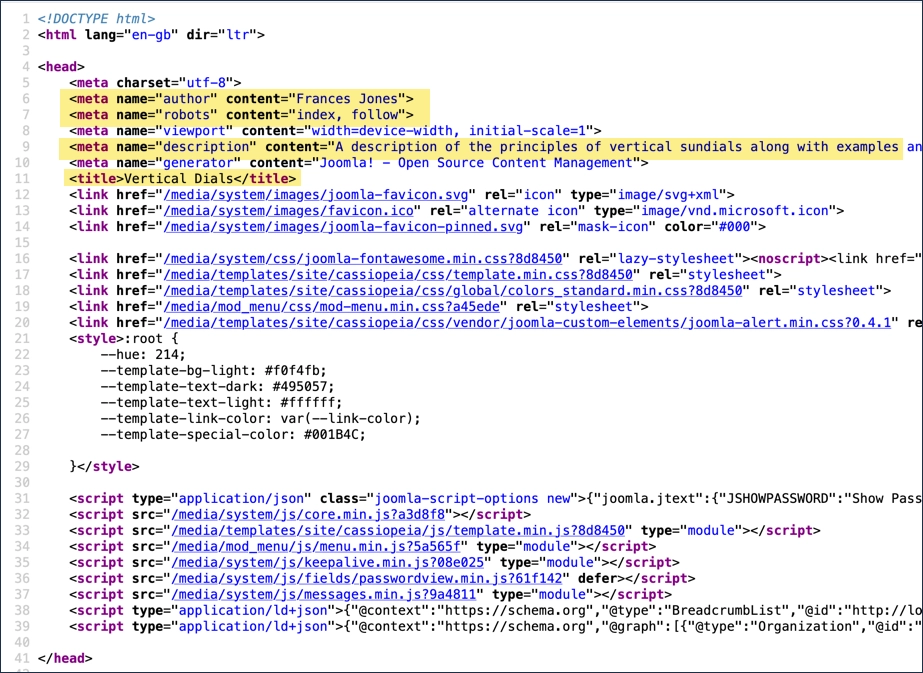
The Title metadata element is identical to the article title, and is set automatically by Joomla.
View the page source and find the head tag at the top of the file. Look for the title tag as indicated in the screenshot (this screenshot displays several metadata elements that may not appear for you yet):
Keep this tab open and return to the admin tab.
Change the Title
- Edit the article and change the title (maybe add a word or type a few random characters).
- Save the article.
Switch to the page source tab and refresh. Verify that the <title> tag is updated with the new title.
Set a Description
Edit the article:
- Select the Publishing tab.
- Enter a brief description of your article in the metadata > description area.
Refresh the page source and find the description.
Return to the article and add other metadata elements:
- Under Robots select index, follow (instructing search engines to read your page)
- Enter an Author name.
Save, refresh the page source. Verify that the new metadata has been added.
Concepts
There are other forms of metadata such as Open Graph Data used by Facebook and schemas used to describe specific types of page such as Person, Place or Product.