 User Documentation
 A URL is an address the browser uses to find an article. You might create an article on your website and send the URL to someone in an email. Joomla calculates an article's URL dynamically, and that URL can change. The purpose of this section is to explore a few ways that an article's URL can change and one way to deal with obsolete URLs.
We will not be examining URLs in detail. We will use a text editor to record and compare changes to an article’s URL throughout the tutorial—changes that will be obvious without a detailed understanding of how they work.
Prerequisites
Administrator access to a non-production Joomla site (version 5 or above). See 1.0 Admin Login.
Your website has a main menu with a home menu item that is a featured item menu type. This is standard with a new Joomla installation.
Setup
Create a New Category
- Navigate to Content > Categories and click on the New button.
- Enter a title.
- Save and Close
Create An Article
- Navigate to Content > Articles and click on the New button.
- Enter a title and some body text.
- Featured is set to Yes.
- Set Category to the new category.
- Save and close.
Viewing the Site
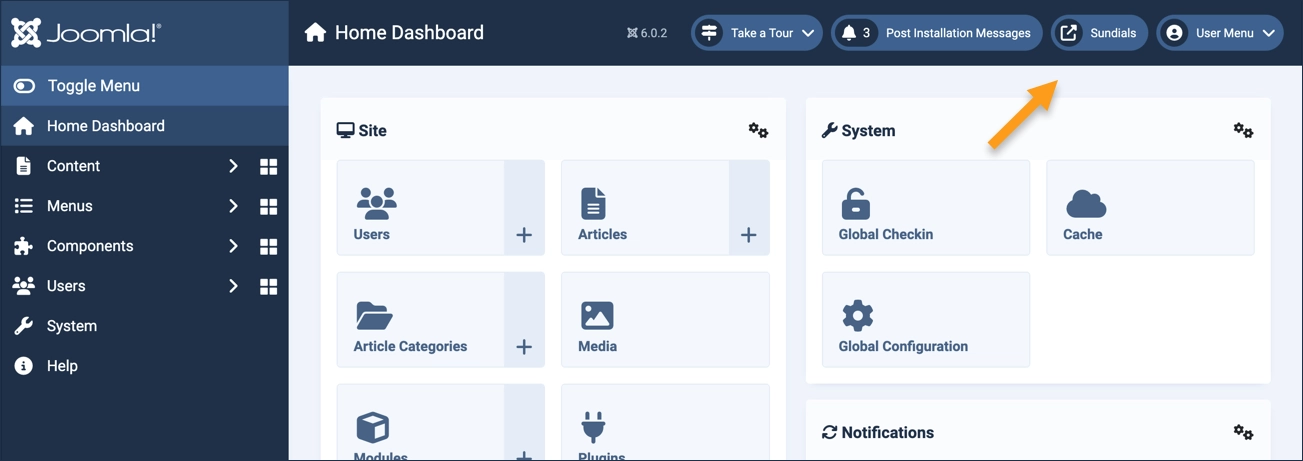
The exercise frequently directs you to "view the site" and later to "close the tab," make updates in the administrative area, then once again "view the site." This method ensures the site is refreshed after every change. To view the site, click on the icon (with the site name) in the header.
Recording the URL
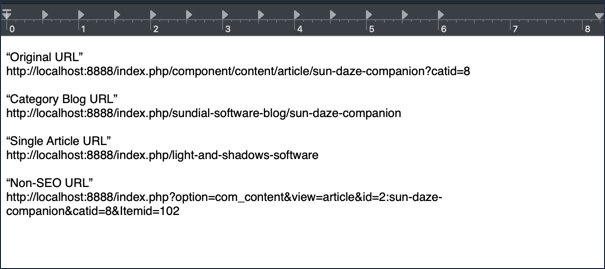
Throughout the URL you will be asked to record a URL by copying it out of your browser's address field and pasting it into a text editor.
Steps
View the site and observe the new article appears on the homepage as a featured item.
Click on the articles, then copy the article URL from the browser’s address field and paste it into the text editor. Annotate this as the “Original URL”.
Create a Category Blog Menu Item
Close the tab and create a Category Blog menu item:
- Click into menus then main menu and create a new menu item
- Type: Articles > Category Blog
- In Category, select the category we’ve been working with
- Save and close
View the website and click on the newly-created category blog menu item in the main menu.
The new articles are displayed. Click to view the article and record the URL, annotating it "Category Blog URL".
Joomla updated the URL when the Category Blog menu item was created.
Close the tab and return to the administrator tab.
Single Article Menu Item
Imagine this article is a new blog entry that you want to promote. You’ve made it a featured item, but you also want to temporarily add a link from the main menu so that visitors can find it no matter where they go in your site. After some time you plan to remove this new menu item.
Create a Single Article menu item:
- Menus > Main Menu, then and click the New button.
- Type: Articles > Single Article
- Select the article.
- Save and close.
View the site and click on the new menu item in the main menu. Again copy the URL and paste it into the text editor, annotating it "Single Article URL".
Joomla has updated the URL again when the Single Article menu item URL was created. Make a bookmark to this article, just as a visitor to your website might.
Imagine that some time has passed and it’s now time to remove that Single Article menu item from the main menu.
Close the tab, returning to the administrator page to unpublish the menu item.
- Menus > Main Menu
- Click the status icon to unpublish the Single Article menu item.
View the site and observe the Single Article link is gone from the main menu.
Click on the article and observe that it displays normally.
Click on your bookmark for the article. An error occurs—the article is no longer available at that URL. Joomla has once again updated the URL when the Single Article link was unpublished.
Create a Redirect
When we unpublished the Single Article menu item its URL stopped working. Joomla's System Redirect plugin can be used to recognize that the old URL and redirect a visitor to the article.
Navigate to System and then Redirects (under the Manage heading). Enable the plugin if necessary. Create a new redirect by clicking the New button:
- Expired URL: Copy and paste the Single Article URL from the text editor.
- New URL: Copy and paste the Original URL from the text editor.
- Save and Close
Observe that your bookmark is functional again:
- The redirect plugin recognized the old link and forwarded you to the article's original URL
- Joomla recognized the original URL and forwarded you to the most current URL (the Category Blog URL).
Search Engine Friendly URLs
By default Joomla uses Search Engine Optimization (SEO) friendly URLs which use aliases based on article, menu, and category titles to shorten URLs and make them more readable.
DO NOT attempt this exercise on a live website! If you are using a non-production website for this tutorial, proceed to turn off the the SEO friendly setting and observe the difference in our article URL.
Navigate to System and then Global Configuration near the top of the page. Scroll down to the SEO section and set Search Engine Friendly URLs to No then save the settings by clicking the button at the top of the page.
View the article in the site, record the URL in the text editor as "Non-SEO URL, and compare the URLs.
Return the Search Engine Friendly URLs setting to Yes and save.
Concepts
Joomla is a sophisticated, highly-configurable content management system that dynamically generates article URLs based on their category, related menu items, and other factors. URLs can change and/or become inoperable as the configuration changes.
Joomla uses SEO-friendly URLs which enhance an article's performance in search engines and make the URL more human-recognizable.
Joomla's redirect plugin can be programmed to recognize inoperable URLs and redirect visitors automatically to functional URLs.