 User Documentation
 Intro text ... t.b.d.
Prerequisites
- Administrator access to a Joomla site (version 5 or above). See 1.0 Admin Login.
- You must understand the contnet management tutorials under chapter 2: First steps with articles, menu-items and categories.
- Your website has a main menu with a home menu item that is a featured item menu type. This is standard with a new Joomla installation.
Setup
Create a New Category
- Navigate to Content > Categories and click on the New button.
- Enter a title.
- Note that Published is the default status.
- Save and Close
Create Two Articles
Navigate to Content > Articles and click on the New button.
- Enter a title and some body text.
- Note that Uncategorised is the default category.
- Create one Uncategorised article and one article in the new category.
- Note that Published is the default status.
- Set Featured to Yes.
- Save and close.
There are now two articles, one in the new category and one in the Uncategorised category.
Viewing the Site
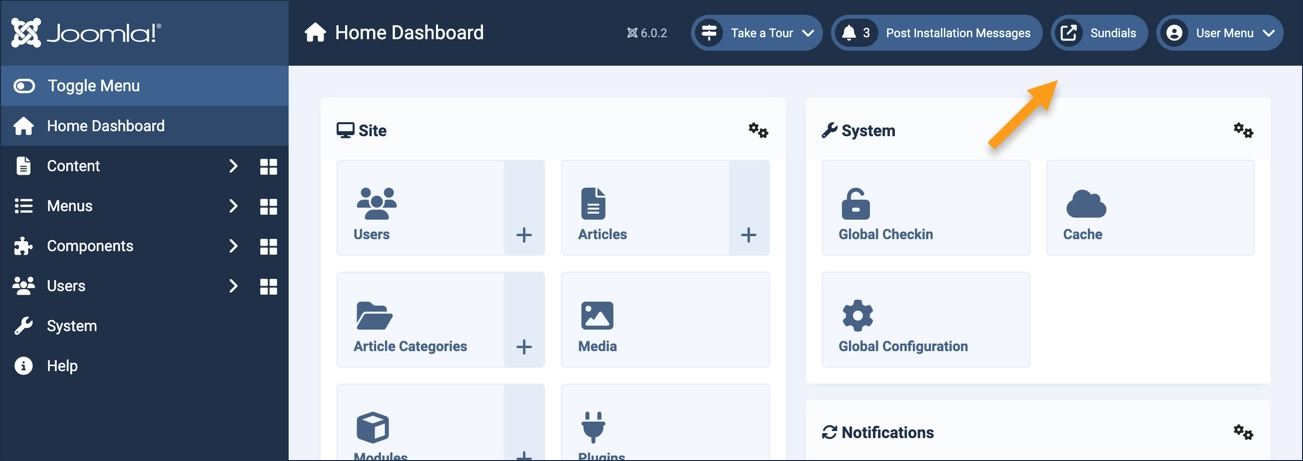
The exercise frequently directs you to "view the site" and later to "close the tab," make updates in the administrative area, then once again "view the site." This method ensures the site is refreshed after every change. To view the site, click on the icon (with the site name) in the header.
Exercise
View the site by clicking the icon in the header and observe that both articles appear. The article details show the category—the articles are in different categories.
Close the tab, and unpublish one of the articles by editing the article, changing the status to unpublished, then save and close.
View the site and observe that the unpublished article no longer appears.
Articles must be published to appear on the website.
Close the tab and observe the Status icon in the articles list. One has a green check, and the other a gray X. hover over the icons and observe a popup message appears. Click on the the gray icon to publish the article—both articles are again published.
Navigate to the category list (Content > Categories) and observe that the categories have a status icon similar to the articles. Hover and observe the popup message, then unpublish our new category by clicking on the icon.
View the site and observe that the article for the unpublished category is no longer listed.
An article and its category must both be published for an article to appear in the website.
Close the tab and navigate to the article list (Content > Articles). Note the status icon for the article is now a gray dash. Hover over the icon and view the popup message. In the article details observe that the new category appears with (unpublished).
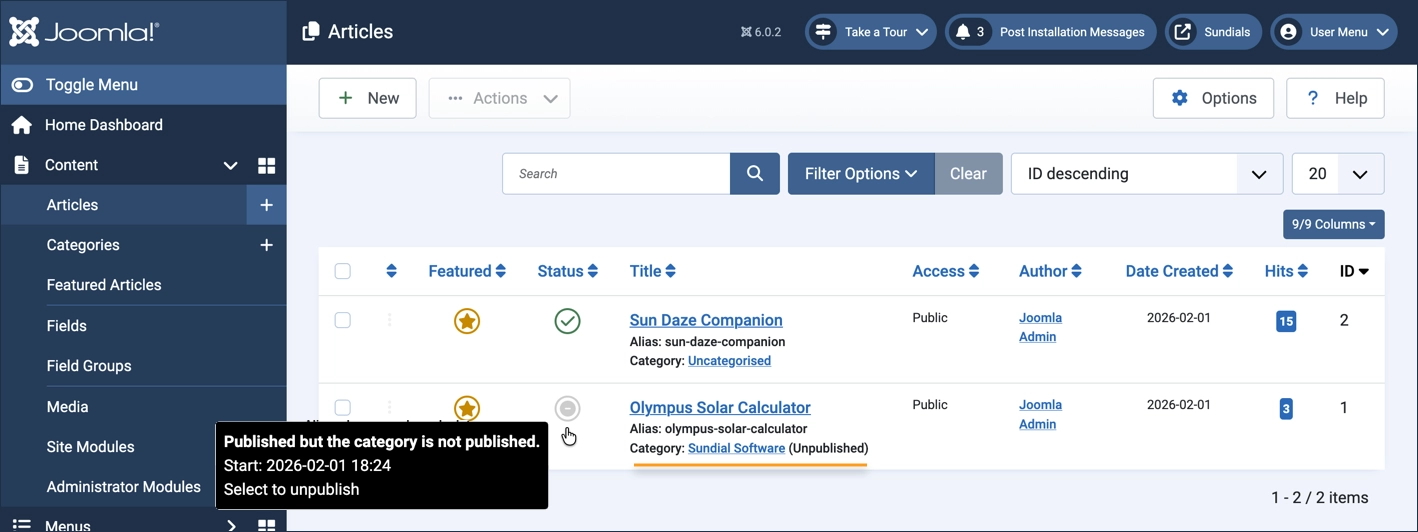
Edit the article and observe the new category is selected in the Category dropdown, but that it appears in brackets indicating that the category is unpublished. Close the article without saving.
Navigate back to the category list and edit the new category by clicking on the title. Change the status to published then save and close.
View the site by clicking on the icon in the header and verify that both articles appear.
Concepts
Articles must have a category. It is a required field and it is not possible to create an article without a category. There is a default category in a fresh Joomla installation called Uncategoriesed.
Articles and their category must both be published for the article to appear on the website.
The status icon in the article and category lists indicates the publication status. Clicking the icon toggles the status.
When developing a new article or category it may be helpful to keep it unpublished to avoid it being displayed on the website until it is ready.
Unpublishing a category will prevent all articles in that category from being displayed on the website. Care must be taken when unpublishing active categories.
The article list shows the category for each article, and unpublished categories are noted in this list. Articles with unpublished categories can be identified in this way.
When editing an article, unpublished articles appear in brackets in the category list.