 User Documentation
 A key part of a Content Management System (CMS) is its ability to deliver content to selected users for selected periods. Joomla! does that with Access levels and publishing start and finish dates.
Start and finish dates can be set for Featured articles and Unfeatured articles alike. For example, a new article could be featured for a set period, say 30 days, after which it would become an ordinary unfeatured article. It would disappear from Featured article layouts but still appear in other Blog or Single article layouts.
Mostly, articles are published on the day they are created and remain so until unpublished, archived or deleted.
Menu Items provide access to articles, not unlike picture frames display artworks that are otherwise stored in the backroom of a museum. This tutorial demonstrates the use of menus and explores the relationship between menus, articles and categories.
Prerequisites
Administrator access to a non-production Joomla site (version 5 or above). See 1.0 Admin Login.
The tutorial temporarily sets the website time zone, which may be detrimental to production websites.
Your website has a main menu with a home menu item that is a featured item menu type. This is standard with a new Joomla installation.
Setup
Set the Server Time Zone
- Navigate to System > Global Configuration.
- In the tabs above the content area click on the Server tab.
- Under Location note the Website Time Zone.
- Adjust the Website Time Zone to your local time zone.
- Save and Close.
Create a Category Blog Menu Item
- Navigate to Menus > Main Menu then click on the New button to create a new menu item
- Title: Enter an appropriate title
- Menu Item Type: Category Blog
- Choose Uncategorised.
- Save and Close
Create an Article
- Navigate to Content > Articles and click on the New button.
- Enter a title and some body text.
- Status: Published
- Category: Uncategorised
- Set Featured to Yes.
- Save and close.
Viewing the Site
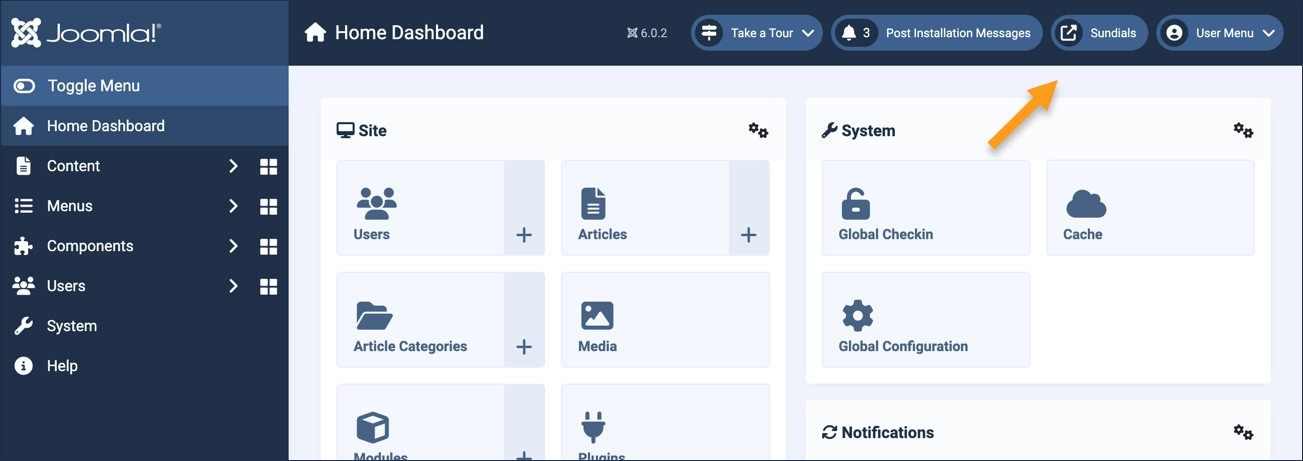
The exercise frequently directs you to "view the site" and later to "close the tab," make updates in the administrative area, then once again "view the site." This method ensures the site is refreshed after every change. To view the site, click on the icon (with the site name) in the header.
Exercise
Verify the Setup
View the homepage by clicking on the icon in the header. The homepage appears with your article listed as a featured article.
Click on the category blog menu item you created.
Your article appears as a published article in the blog.
Close the tab.
Navigate to Contents > Articles. Observe that your article has a gold star icon indicating it is a featured item, and a green check icon indicating it is published.
Set the Publication Time
- Edit the article and select the Publishing tab.
- Enter a Start Publishing time for a few minutes in the future.
- Note that the time and date are in ISO 8601 format, YYYY-MM-DD HH:MM:SS, e.g. 2026-04-16 14:13:27 representing 2:13 p.m. and 27 seconds on April 16, 2026.
- Save and close.
Observe in the article list that the status icon has changed. Hover over the status icon and observe the popup message.
View the site before the start publishing time you entered. Check the homepage and the category blog page to verify that your article does not yet appear.
Wait until the start-publishing time you entered has elapsed then recheck the homepage and category blog page, refreshing the pages if necessary. Verify that your article appears in both places.
Close the tab.
Navigate to Contents > Articles. Observe that your (now published) article appears with a green check status icon.
Set the Featured Item Time
Edit the article:
- Select the Publishing tab.
- Enter a Start Featured time for a few minutes in the future.
- Enter a Finish Featured time for a minute or two beyond the Start Featured time.
- Save and close the article.
Observe in the article list that the featured icon has changed. Hover over the status icon and observe the popup message.
Visit the site and very that the article does not appear on the homepage (as a featured item) but still appears on the category-blog page.
Wait until the start-featured time you entered has elapsed then recheck the homepage, refreshing the page if necessary. Verify that your article appears as a featured item.
Close the tab.
Navigate to Contents > Articles. Observe that your (now now featured) article appears with a gold star featured icon.
Hover over the icon to read the popup message.
View the site. When the end-featured time you entered has elapsed, refreshing the page and verify that your article no longer appears as a featured item.
Check the category-blog page and verify the article still appears.
Close the tab and return to the list of articles in the admin area (Content > Articles).
Note the Featured icon is now gray. Hover over the icon and observe that its status is featured but expired.
Edit the article:
- Select the Publishing tab.
- Enter a Finish Publishing time for a few minutes in the future.
- Save and close.
Visit the site and verify that the article remains active on the category-blog page.
Wait until the finish-publishing time has elapsed and refresh the page. Verify that the article is no longer available.
Close the tab and return to the list of articles in the admin area (Content > Articles).
Hover over the status icon and observe the popup message.
Reset the Server Time Zone
- Navigate to System > Global Configuration.
- In the tabs above the content area click on the Server tab.
- Adjust the Website Time Zone to its original time zone (default is UTC).
- Save and Close.
Concepts
These settings make it convenient to: set the precise time that an article is published; set the time and duration the article appears as a featured item; and automatically remove content at a specific date and time in the future. All helpful tools for controlling website content.
The timed publication controls allow you to control when articles are available on your website.
The Start Publishing and End Publishing settings control when an article appears on the website. If blank, an article appears as soon as it is created.
If the article is featured (n Featured is set to Yes in the article settings) the Start Featured and End Featured settings control when an article appears as a featured item.
Start and end times are relative to the website time zone settings, which may be different than your local time zone and may not adjust for daylight savings time.