 User Documentation
 Mail Templates
Mail Templates Editing
As an example, let's look at the first template listed above, "User Actions Log: Notification Mail". For this example site, the editor format has been set to HTML in the Mail Templates Options. As you can see, the template title, ID, and description cannot be modified. Placeholder Tags recognized in the selected template are listed to the right of the editor window. These are the only Tags that can be used within this particular template; these will vary from template to template. Clicking on one of the Tag links on the right will insert that tag into the editor at the current cursor location. In this example, all of the available tags already appear in the template.
There is no documentation for how to use these Tags other than the examples provided by the respective default template code, and even there its usage is only implied. As you can see in this case, most of the Tags are single-instance. Only the {MESSAGES} Tag is an iterative tag, meaning that it causes single-instance Tags used between the {MESSAGES} and {/MESSAGES} tags to be iterated over the range provided by the Extension that uses this template.
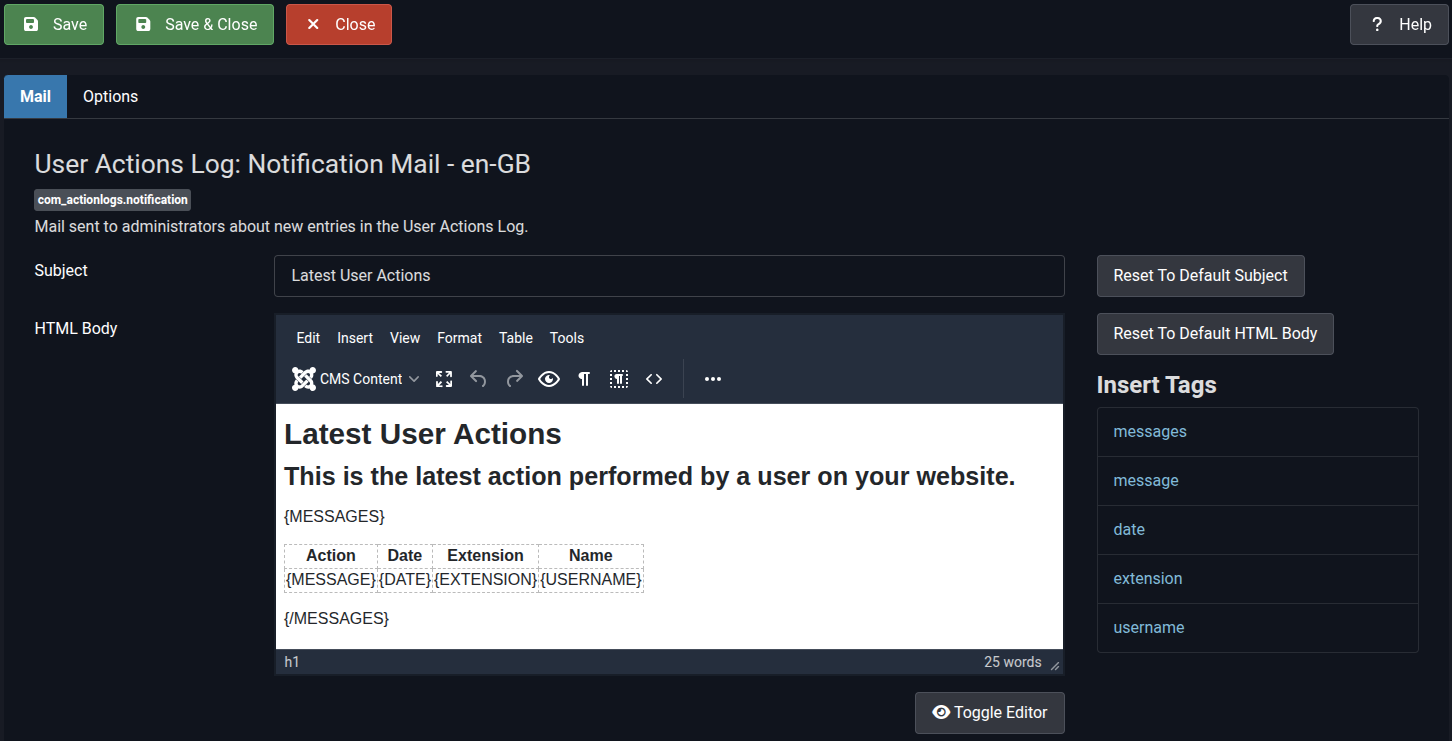

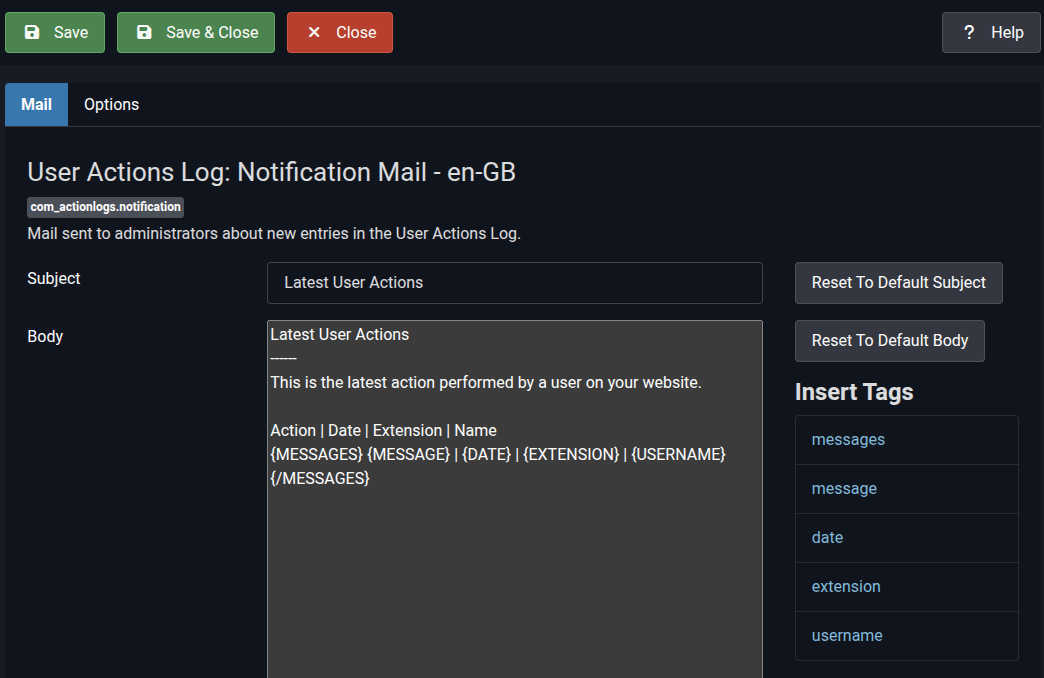
This default template has been designed to use an HTML table to format the output in a tabular layout, which makes a lot of sense. The iterative aspect of the {MESSAGES} tag will cause a row to be created on-the-fly for every {MESSAGE} included in the scope of user actions to which the generated Mail Message applies. When Plaintext format is selected in Mail Templates Global Options, the same template looks a bit like markup.
The Options tab for the Mail Template Editor provides template-specific options that override the Global Mail Template Options. In most cases, you should not need to modify these settings.
- Mail Settings: If set to Yes, allows you to override the site default Mail server account configuration. In most cases, you will probably not need to change this.
- Mail Template Layout: Enables or disables the use of the layout selected below.
- Layout: Select the Global layout or another layout, if available.
- Logo File: Enables or disables the use of the Logo File set in Global Mail Template Options.
Mail Templates Managing Layouts
Creating a Layout Override
This feature also allows you to create mail template layout overrides for your active site template. By creating layout overrides, you can customize the general or specific layout of emails sent using the Mail Templates function without the risk of losing changes during future Joomla updates. You can create as many Mail Template layout overrides as you need, and you can also use a different layout for each Mail Template if necessary.
To create a mail template override, first do the following once:
- Go to System -> Site Templates -> Open your template (e.g., Cassiopeia) Details and Files.
- Click the Create Overrides tab and then select joomla -> mail.
- This will make Joomla! copy the mailtemplate.php file to your template's '/html/layouts/joomla/mail/' directory, where you can modify it as needed.
Once the override is created, you can edit the layout override file and customize the styles of your emails without affecting the base template.
Custom Layouts
When you created your layout override, you made a copy of the file mailtemplate.php, which is the name of the default file that comes with the Joomla! distribution. The default layout is a table with 3 content rows. The first row will contain the logo you uploaded into the Mail Templates Global Options. If you did not upload a logo, your site name will appear in this row. The second row will contain the message generated by the extension utilizing Mail Templates. The third row will contain a copyright footer with the current year and your site name and URL. This may not be what you want your mails to look like, which is where making a custom layout comes in.
The layout file is PHP, but it contains a lot of HTML as well. You'll want to be familiar with this type of template to make changes, though it might be worthwhile to create a new layout with a WYSIWYG editor and then embed the necessary PHP code into the HTML created by that editor. Just make sure the file you edit is one located at your template's '/html/layouts/joomla/mail/', which is its overrides folder.
 Your file(s) do not need to be named mailtemplate.php and you can create as many different ones as you want. In the Mail Templates Global Options you select the one you want Mail Templates to use by default for all Mail Templates. The names of all .php files in your template's '/html/layouts/joomla/mail/' folder will appear in the Layout drop list. Shown here is the initial override layout file created. Selecting Default for Layout here will cause the original distribution's layout file to be used if a different one is not selected for a particular Mail Template.
Testing and Configuration
- Ensure the Mail Template Global Options are configured according to your needs, including the default layout you prefer.
- If individual template settings are enabled, go to System -> Mail Templates, click on the Mail Template you want to configure, then click on the Options tab.
- If you created a Custom Layout for this Mail Template, set Mail Template Layout to Enabled, then select the Layout you want to use for this Mail Template.
- If you want your Mail Templates logo to appear in these messages, set Logo File to Enabled.
- Send a test mail to verify that the global or template-specific settings are applied correctly.
It may be easiest to use the Mass User Mails template to do this sort of testing since you can send those messages directly without having to provoke the internal system function that uses one of the other Mail Templates. You'll benefit from creating a special (e.g. "Testing") user group that includes at least one user with another of your own email addresses other than the Administrator account you are using. Select that group when sending the test message.
Mail Templates Mass Mail Users
 Mass Mailing Users is a capability that facilitates the Mail Templates feature. It's a simple capability that deserves mention here since it is so simple it may not warrant any higher visibility. The Mass Mail Users default Template uses all available template tags in the most basic way. However, this template can be embellished with formatting, logos, signatures, etc. to make the messages easily recognizable as legitimately sent from your site.
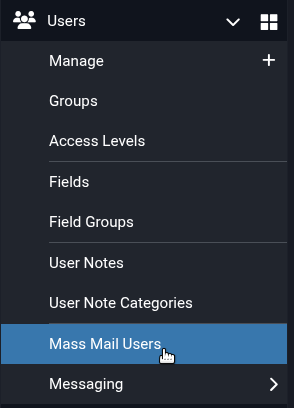
The Mass Mail editor is accessed from the main menu under Users. It is recommended that you set the Mail Template format in Global Options to HTML. Also, if you want to include your organization's logo, you can either set it in the Mail Templates Global Options or place it within the Template using the Template Editor. You can optionally put it into the actual message.
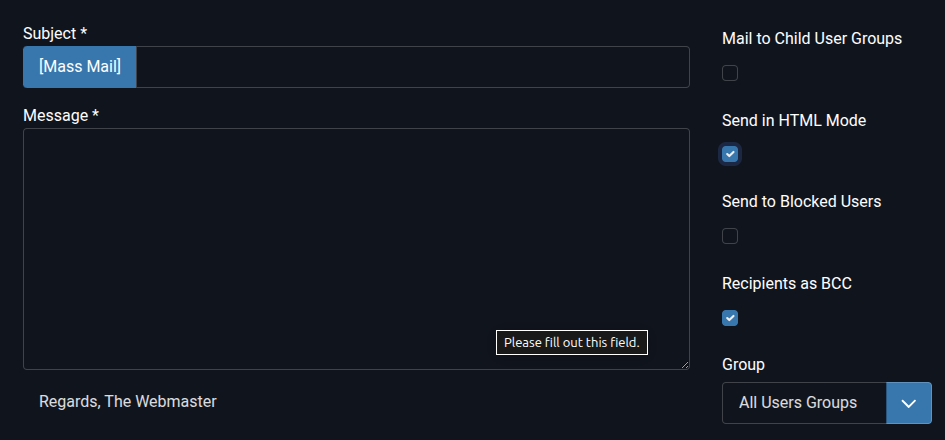
The Mass Mail Users editor is presented as shown on the right. As of Joomla! 5.3.2, the WYSIWYG editor is not available in this message editor. Note that if the Subject Prefix and/or Mainbody Suffix is set in Global Options, they will appear in this view whether or not the {SUBJECTPREFIX} and/or {BODYSUFFIX} tags, respectively, are included in the Mass Mail Users template. Here they are set to "[Mass Mail]" and "Regards, The Webmaster", respectively.
Mass Mails can only be sent to defined User Groups. Options available when editing a Mass Mail message are as follows:
|
Mail to Child User Groups |
Also send the message to children of the selected Group. |
|
Send in HTML Mode |
Send the message in HTML mode. |
|
Send to Blocked Users |
Send to all users in the Group whether blocked or not. |
|
Recipients as BCC |
Use BCC to send to all recipients. Note, this is frowned upon by some email services. |
|
Group |
Select the User Group to which you want to send the message. It will be sent to all users in this group unless some are blocked and "Send to Blocked Users" is not selected. |
Note: As of Joomla! 5.3.2, the Mass Mail Users messages are appended with a copyright footer regardless of any option settings.
Mail Templates Options
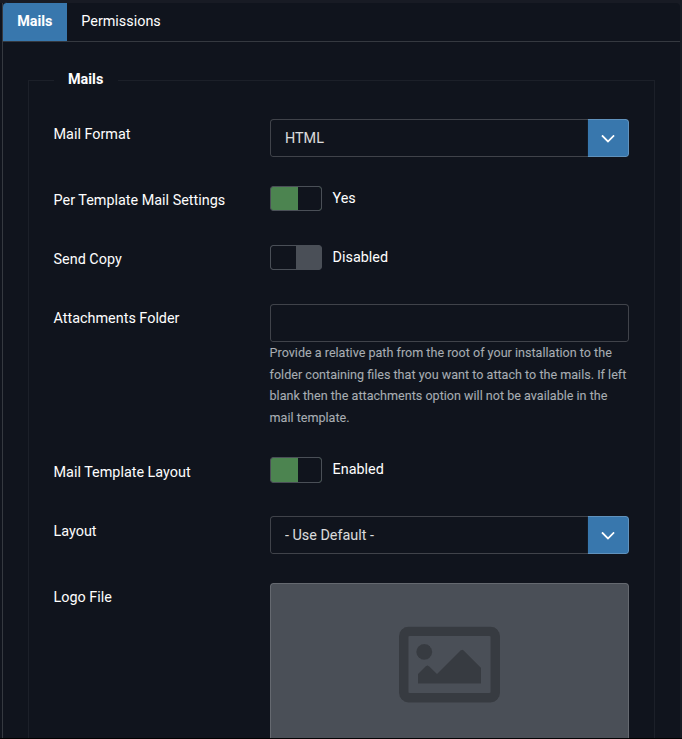 Global Options
To access Global Mail Template Options, you can either click on the Options button in the upper right when the Mail Templates list is open or go to Global Configuration and click on Mail Templates.
Here you set the default options for all Mail Templates.
- Mail Format: HTML, Plaintext, or Both. Note that when Both is selected, the Plaintext Mail Template Editor is presented.
- Per Template Mail Settings: If set to Yes, defers to using template specific Mail options.
- Send Copy: If Enabled, sends (CC) a copy of the message to the the site's default email address unless Per Template Mail Settings is set to Yes and the template-specific options are defined.
- Attachments Folder: Relative path from the site root to the folder containing files to be attached to the message (if the template supports attachments).
- Mail Template Layout: If Enabled, causes the Layout selected below to be used.
- Layout: Select the layout to be used. Typically, just Use Default.
- Logo File: A logo (image) file to be used in the mail message. Can be selectively omitted from individual Mail Templates but not from individual messages. Template-specific logos cannot be selected. If enabled, the logo will appear at the head of the message, centered, followed by a horizontal line.
Other Options
Some Mail Template options depend on settings located elsewhere in various configuration settings. Each subsection below focuses on settings located in the section-specific area of Global Configuration.
Users
Mass Mail Users tab: Allows texts for a subject prefix ({SUBJECTPREFIX} template tag) and a body suffix ({BODYSUFFIX} template tag) to be specified. These tags are only used in the "Users: Mass Mail Users" Mail Template. The content configured here is inserted when these tags are included in the Mass Mail Users template. If these tags are not included in the template, then the configured texts will not be included in messages sent via this feature even though while editing the message (see Editing) these texts will appear left of the Subject field and after the Body field. Don't be fooled!
User Actions Log
Options tab: "Events To Log" determines what actions ({MESSAGE} template tag) end up in the message. This information is only used by the "User Actions Log: Notification Mail" template.
Mail Templates Tags Cross-Reference
The following table shows in which Extensions each Mail Template keyword is used. Note that its purpose may be different for different Extensions.
| Tag Text | Extension | |||||||||
|---|---|---|---|---|---|---|---|---|---|---|
| User Action Logs | Contacts | Configuration | Messaging | Privacy | Users | Multi-factor Authentication | Task - Privacy Consents | Task - Joomla! Update Notification | User - Joomla! | |
| ACTIVATE | X | |||||||||
| BODY | X | X | ||||||||
| BODYSUFFIX | X | |||||||||
| CODE | X | |||||||||
| CONTACTNAME | X | |||||||||
| CURVERSION | X | |||||||||
| CUSTOMFIELDS | X | |||||||||
| DATE | X | |||||||||
| X | X | X | X | |||||||
| EXTENSION | X | |||||||||
| FORMURL | X | |||||||||
| FROMNAME | X | |||||||||
| FULLNAME | X | |||||||||
| LINK | X | |||||||||
| LINK_TEXT | X | |||||||||
| LINK_HTML | X | |||||||||
| MESSAGE | X | X | ||||||||
| MESSAGES | X | X | ||||||||
| METHOD | X | |||||||||
| NAME | X | X | X | |||||||
| NEWVERSION | X | |||||||||
| PASSWORD | X | |||||||||
| PASSWORDCLEAR | X | |||||||||
| RELEASENEWS | X | |||||||||
| SITENAME | X | X | X | X | X | X | X | X | X | |
| SITEURL | X | X | X | |||||||
| SUBJECT | X | X | X | |||||||
| SUBJECTPREFIX | X | |||||||||
| TOEMAIL | X | |||||||||
| TOKEN | X | X | X | |||||||
| TOKENURL | X | X | ||||||||
| TONAME | X | X | ||||||||
| URL | X | X | X | X | X | |||||
| USERNAME | X | X | X | X | ||||||